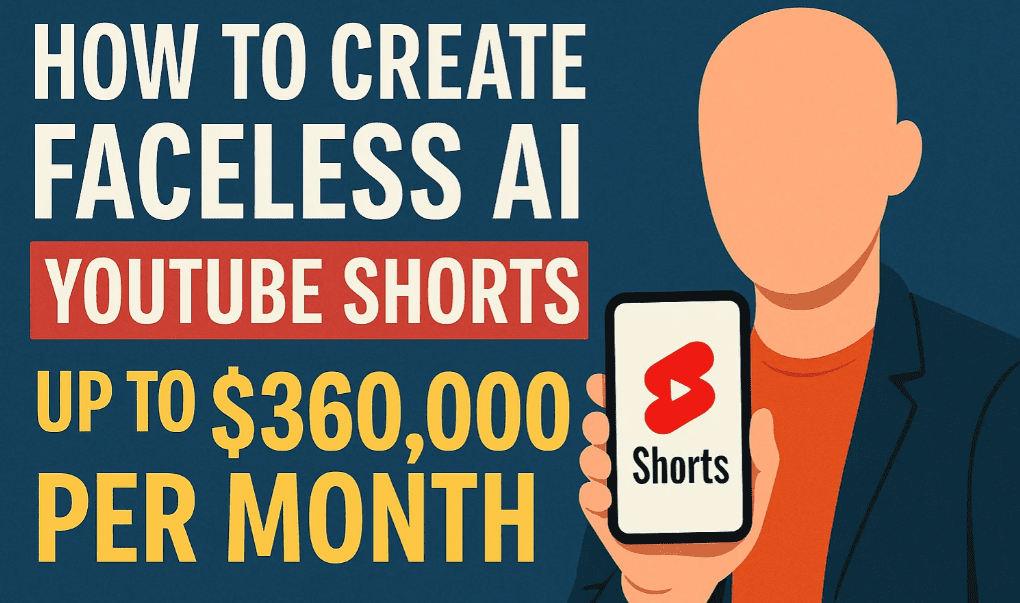
Imagine building a YouTube channel without ever showing your face, recording your voice, or even using a camera — and still generating millions of views and thousands of dollars in passive income every single month. Sounds unbelievable? With the power of AI tools available today, it’s not only possible — people are already doing it.
In this detailed guide, we’ll walk you through the exact step-by-step process to create faceless YouTube Shorts using AI, for free or with minimal investment. Whether you’re a beginner or looking to scale an existing channel, this article shows you how to generate viral content quickly and efficiently.
🧩 Step 1: Pick the Right Niche
Choosing the right niche is crucial to building a successful Shorts channel. Here are a few AI-friendly, faceless niches that are currently performing extremely well:
- 🌍 Travel & Geography (e.g., “Top 5 Most Beautiful Places on Earth”)
- 💪 Motivational Quotes & Speeches
- 📖 Educational Facts & Fun History
- 🧠 Psychology & Self-Improvement
- 💸 Finance & Business Tips
Example: The channel Our Awesome World has published just over 140 Shorts and consistently receives millions of views, focusing on beautiful destinations.
💡 Bonus: Visit viralchecklist.com for a full list of high-performing Shorts niches.
✍️ Step 2: Generate a Script Using ChatGPT
To create your short-form video, start by writing a compelling script.
Tool Used: ChatGPT
Free to use and extremely versatile.
Prompt Example:
“Write a YouTube Shorts script about the 5 most beautiful places on Earth.”
Once ChatGPT generates your script:
- Customize it by requesting specific changes.
Example: “Make point #5 about the Arashiyama Bamboo Grove in Japan.”
Now you’ve got a polished script ready for voiceover!






🔊 Step 3: Create a Voiceover Using ElevenLabs
ElevenLabs offers ultra-realistic AI voices that can narrate your script with emotional depth and clarity.
Steps:
- Sign up for a free plan at elevenlabs.io.
- Paste your script into the editor.
- Choose a voice (e.g., “Daniel” – great for documentary-style content).
- Generate and preview the voiceover.
- Download the audio file.
💡 Keep your script short and snappy to maintain engagement.
🎨 Step 4: Create the Video with Canva Pro
While you can technically use Canva’s free plan, we recommend starting with the Canva Pro 30-day free trial to unlock premium stock videos and audio.
Tool: Canva Pro
Steps:
- Create a New Design → Choose YouTube Shorts (9:16)
- Upload your AI voiceover
- Search for stock footage based on your script (e.g., “Grand Canyon”)
- Trim each clip to match your voiceover timing
- Add Text Captions:
- Use bold fonts (e.g., “Balloon Extra Bold”)
- Add white text with black outlines for better readability
- Duplicate scenes and update text (e.g., “1. Grand Canyon”)
- Add Background Music from Canva’s audio library
Canva Pro allows drag-and-drop editing, making this process incredibly beginner-friendly.
📌 You Might Be Interested in These Articles Too:
- Create Stunning AI-Powered Videos Without Lag: Best CapCut Alternative for PC Editing
- How to Use Canva Video Editor: A Complete Beginner’s Guide to Creating Stunning Videos for Free
- Beginner’s Guide to VSDC Free Video Editor: Step-by-Step Video Editing Tutorial for 2025
- How to Convert Text into Video with AI in Just 1 Minute Using InVideo AI (Mobile Guide)
- How to Find Viral YouTube Keywords Using SEMrush (And Rank Long-Term)
🤖 Alternate Method: Fully Automated with InVideo AI
If you want to skip all manual editing, you can use InVideo AI — an AI tool that turns a prompt into a full video, including voiceover, captions, music, and visuals — in 1 minute or less.
How to Use InVideo AI:
- Log in to InVideo AI
- Choose workflow: YouTube Shorts
- Enter your prompt (same as before)
- Customize:
- Voice: e.g., “Old Husky British Male”
- Subtitles: Choose word-by-word animated captions
- Click Generate Video
You’ll receive a fully edited video with voiceover, subtitles, music, and dynamic visuals — all ready to post.
Bonus: Edit After Generation
- Script Editing: Update text in the script window
- Visual Replacements: Search stock clips and replace them with a click
- Voice Regeneration: Edits apply to voiceover too
⚠️ Free users will see watermarks. Upgrade to InVideo Plus to remove them.
💡 Summary: Free vs. Paid Workflow
| Feature | Free Method (ChatGPT + ElevenLabs + Canva Free) | Paid/Pro Method (InVideo AI + Canva Pro) |
|---|---|---|
| Cost | $0 (with trial) | From ~$15/month each |
| Time Required | Moderate | Very Fast |
| Voiceover | Manual via ElevenLabs | Auto-generated |
| Captions | Manual | AI-generated with animations |
| Media Assets | Limited (Free Canva) | Access to Premium Stock |
| Editing Flexibility | Full control | Auto-generated + editable |
| Best For | Beginners on a budget | Scale-focused creators |
💰 How Much Can You Earn with Faceless Shorts?
Faceless YouTube Shorts creators can make anywhere from a few dollars to tens of thousands per month, depending on:
- Views and engagement
- Niche monetization potential
- Brand deals and affiliate marketing
- YouTube Partner Program Shorts Fund
Example: Some AI-based faceless Shorts channels report earnings of $300,000+ per month using only AI-generated videos.
❓ Frequently Asked Questions
Q: Do I need to show my face or record my voice?
Nope! Everything — script, voice, video, and editing — can be done with AI.
Q: Can I monetize these videos?
Yes, through YouTube Partner Program (after eligibility), brand partnerships, affiliate links, and digital product sales.
Q: Will viewers know it’s AI?
Not unless you tell them. The quality of AI voiceovers and video footage is highly realistic.
Q: What’s the best video length for YouTube Shorts?
Anywhere from 15 to 60 seconds works best. Keep it engaging and punchy.
🔗 Tools & Resources
- 🧠 ChatGPT: https://chat.openai.com
- 🗣️ ElevenLabs Voice Generator: https://elevenlabs.io
- 🎥 Canva Pro (30-day trial): https://www.canva.com
- 🤖 InVideo AI: https://invideo.io/ai
- 📚 Free Niche List: https://viralchecklist.com
- 🎓 Full YouTube Course: https://contendoo.com
🛒 Recommended Tool
🎮 Want a mobile gaming controller for the best experience?
[Insert Your Affiliate Link Here]
🏷️ Tags
faceless ai channel, youtube shorts ai, text to video, canva video creation, elevenlabs voiceover, invideo ai tutorial, shorts monetization, ai youtube automation, travel shorts, motivational shorts
📢 Hashtags
#FacelessYouTube #AIVideoCreation #YouTubeShorts #InVideoAI #ChatGPT #ElevenLabs #CanvaPro #YouTubeAutomation #ContentCreation #TextToVideo
Disclaimer: This article contains references to AI tools and platforms based on their publicly available features as of 2025. Pricing, export limits, and feature availability may vary over time. Always verify licensing for media and ensure you comply with YouTube’s monetization guidelines.








