Introduction
Adobe InDesign is a versatile tool for designing text-based layouts. While creating bold text is a common task, understanding the steps to apply it correctly ensures your designs are polished and professional. This guide provides a detailed explanation of how to create bold text in Adobe InDesign, covering both the standard method and a quick shortcut.
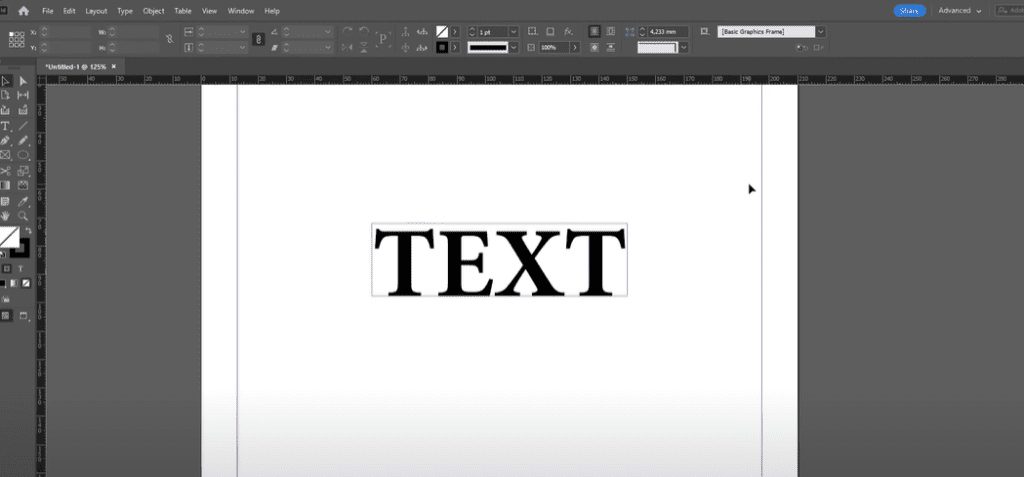
Step 1: Insert Text
- Activate the Type Tool:
- Go to the Toolbar on the left side of the screen.
- Select the Type Tool by clicking on it or use the keyboard shortcut T.
- Create a Text Box:
- On your document, click and drag to create a text box.
- Add Text:
- Type the desired text into the text box.
- To make your text more visible, adjust the font size by scaling it up.
Step 2: Select the Text
- Highlight the Text:
- Use the Type Tool again to select the portion of the text you want to make bold.
- For example, if you only want the word “bold” to appear bold, highlight just that word.
Step 3: Apply Bold Formatting
- Use the Control Bar:
- At the top of the screen, locate the Control Bar.
- Check the current font and font style. For instance, your text might be using “Minion Pro” in the “Regular” style by default.
- Change Font Style to Bold:
- Click the dropdown arrow next to the font style in the Control Bar.
- Choose the Bold style from the list.
Step 4: Use the Keyboard Shortcut (Optional)
- Select the Text:
- Highlight the text you want to make bold.
- Apply Bold Formatting:
- Hold down Ctrl + Shift and press B on Windows (Cmd + Shift + B on Mac).
- If the font includes a bold style, this shortcut will apply it instantly.
Troubleshooting
- If your selected font doesn’t support bold text, you can try the following:
- Choose Another Font: Replace your current font with one that includes a bold style.
- Use Stroke or Effects: As a workaround, you can simulate bold text by adding a stroke or increasing text weight using effects, though this is less precise.
Conclusion
Creating bold text in Adobe InDesign is straightforward, whether you’re using the control bar or a handy keyboard shortcut. By following these steps, you can enhance your text for impactful designs while maintaining precision and professionalism.
Hashtags: #AdobeInDesign #Typography #InDesignTips #GraphicDesign #TextFormatting
Visited 62 times, 1 visit(s) today