If you’re an IT professional, a tech enthusiast, or someone who frequently troubleshoots computers, Medicat USB is an essential tool to have in your toolkit. This powerful, bootable USB drive comes loaded with utilities that can help diagnose, repair, and recover systems from a wide range of issues. From removing malware and repairing boot loaders to recovering lost data and resetting passwords—Medicat USB does it all.
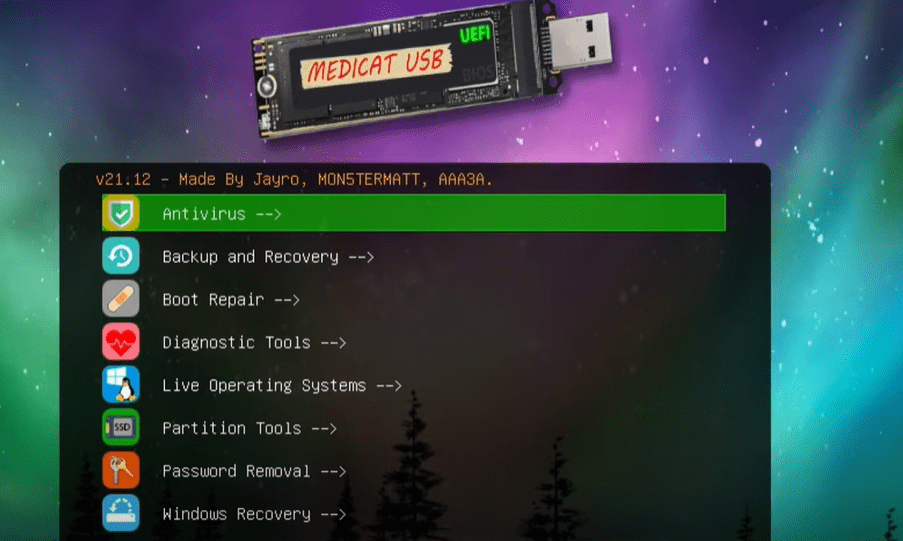
In this article, we’ll walk you through how to create a Medicat USB step-by-step, and explore some of its most powerful features.
💡 Disclaimer: Medicat USB is a free, community-driven project. If anyone is trying to sell it to you, it’s likely a scam. Always download it from the official website: https://medicatusb.com
🔧 What is Medicat USB?
Medicat USB is a multifunctional, bootable toolkit that provides a wide range of utilities for diagnosing and repairing computers. It includes tools for:
- Virus and malware removal
- Data recovery
- Boot repair
- Disk partitioning and formatting
- Password reset
- Live Windows environment
- Backup and cloning solutions
This USB toolkit is ideal for situations where a PC won’t boot, is infected with malware, or requires a system restore.
🛠️ How to Create Medicat USB (Step-by-Step)
Before starting, ensure you have:
- A USB drive with at least 30 GB of storage
- Windows Defender and any antivirus software disabled temporarily (to avoid false positives)
- A reliable internet connection (the download size is about 21 GB)
Step 1: Visit the Official Website
Go to the official Medicat USB website:
👉 https://medicatusb.com
Click on Download and choose the Windows Installer version (you can also use Linux if preferred).
Step 2: Prepare Your System
- Connect a USB flash drive with 30 GB or more of free space.
- Temporarily disable Windows Defender or any third-party antivirus software to prevent it from blocking installation files.
Step 3: Run the Installer
- Open the downloaded
.batinstaller file. - Right-click and choose Run as Administrator.
- Grant permissions if prompted and follow the on-screen instructions.
⚠️ Note: The installer may show a warning that some tools might be flagged by antivirus software. This is expected due to how certain system tools operate.
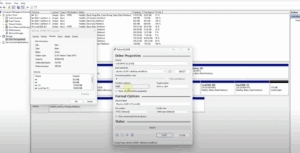
Step 4: Install Medicat USB with Ventoy
The Medicat USB uses Ventoy to boot various tools from the USB.
- Select your USB drive.
- Choose GPT (recommended for most PCs).
- Enable Secure Boot if your system supports it.
- Let Ventoy format the USB and install its bootloader.
Once complete, your USB will be ready for tool installation.




Step 5: Download Medicat Files
When prompted, choose to download the full Medicat package. You can use:
- Torrent (faster)
- CDN (direct download)
Once the ~21 GB download completes, it will automatically be configured onto your USB.
💡 How to Use Medicat USB
Once created, plug the USB into the target computer, restart it, and boot from the USB (usually by pressing F12, Esc, or Del during startup).
You’ll see a menu with all available tools. Below are some key highlights:
1. 🦠 Antivirus Tools
Medicat includes Malwarebytes Bootable to scan and clean infected systems.
- Select Malwarebytes Bootable
- Start a full scan
- Automatically detects and removes malware
2. 💾 Backup and Recovery Tools
Includes tools like:
- AOMEI Backupper
- EaseUS Data Recovery
- MiniTool Power Data Recovery
- Acronis Cyber Backup
Use these tools to back up or clone drives, recover deleted files, and more.
3. 🛠️ Boot Repair Tools
If your Windows system fails to boot properly, use:
- Boot Repair Disk
- Easy UEFI
- Super GRUB2 Disk
These tools scan and fix boot issues, restore bootloaders, and rebuild MBR/GPT structures.
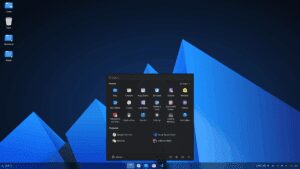
4. 🪟 Live Operating System (Mini Windows 10)
Medicat features Mini Windows 10, a lightweight live OS environment.
- Boot into a full desktop
- Recover files
- Manage user accounts
- Access and back up partitions even if Windows won’t start
Perfect for rescuing files from a non-booting system.
5. 📂 Partition Management
Includes tools to:
- Resize or shrink volumes
- Convert MBR to GPT (or vice versa)
- Rebuild partitions
- Format drives securely
6. 🔐 Password Removal & User Management
If you forget your Windows login password:
- Use the Windows Login Unlocker
- View all user accounts
- Select the account
- Reset or remove the password
Login without hassle after a restart!
✅ Why You Should Use Medicat USB
- Entirely free (beware of paid versions or scams)
- Comprehensive toolset for almost all PC issues
- Easy to create and use
- Saves time, money, and potentially important data
Whether you’re fixing a friend’s PC, rescuing files, or managing partitions—Medicat USB is your Swiss Army Knife.
🏁 Final Thoughts
Medicat USB is one of the most powerful all-in-one system recovery tools available today. If you regularly deal with unbootable PCs, data recovery, or password issues, creating a Medicat USB will give you peace of mind and a reliable way to fix almost any problem.
👉 Download it today from the official site: https://medicatusb.com
🏷️ Tags:
Medicat USB, system recovery, boot repair, virus removal, password reset, data recovery tools, Windows troubleshooting, Ventoy, live USB, IT toolkit, create Medicat USB
📢 Hashtags:
#MedicatUSB #SystemRecovery #DataRecovery #BootRepair #Ventoy #LiveUSB #PasswordReset #WindowsTools #ITToolkit #MalwareRemoval








