Artificial Intelligence (AI) has revolutionized video creation, allowing anyone to generate professional-looking videos with just a few clicks. However, many AI video tools limit users with restricted credits or no free trials. In this guide, we’ll explore how to create AI-powered videos using custom prompts—plus a clever trick to keep generating free credits using temporary emails.

Step 1: Setting Up Your Account (With Unlimited Credits Hack)
Most AI video platforms offer limited free credits. Here’s how to bypass that:
Method 1: Using a Temporary Email
- Visit Temp-Mail – This generates a disposable email.
- Copy the temporary email and sign up on your preferred AI video tool (e.g., Runway ML, Pika Labs).
- Verify the account using the code sent to the temp email.
- Repeat the process when credits run out by generating a new temp email.
Method 2: Signing In Normally
- Use your Google account or personal email if you don’t need extra credits.
⚠️ Disclaimer: Some platforms may block temporary emails. Use this method ethically and avoid violating terms of service.
Step 2: Generating AI Images for Your Video
Before creating a video, you’ll need AI-generated images. Here’s how:
- Enter a Prompt (Example: “A cute kitten wearing sunglasses dancing”)
- Select an AI Model (e.g., Stable Diffusion, DALL·E, MidJourney)
- Generate & Download the image.
Pro Tip: Use ChatGPT to refine prompts for better results.
Step 3: Turning Images into AI Videos
Now, let’s animate the images:
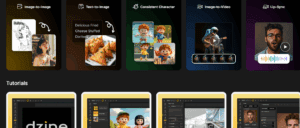
1. Upload Your Image
- Drag and drop your AI-generated image into the video tool.
2. Adjust Video Settings
- Model Selection: Choose between Real Motion 2.0 (for realism) or Cartoon Animator (for stylized videos).
- Video Length: 5-10 seconds per clip.
- Music & Audio:
- Use built-in AI music.
- Upload custom audio for lip-sync (if needed).
- Lip-Sync Options:
- Works for humans & animals (unique feature!).
- Record or upload voiceovers.
3. Enter a Video Prompt
Example: “Four women in red bikinis playing volleyball at the beach, smiling at the camera.”
4. Generate & Refine
- Click “Generate Video” (costs ~30 credits).
- If the result isn’t perfect, regenerate or tweak the prompt.
Step 4: Editing & Combining Clips
To create a full video:
- Generate multiple short clips (5-10 sec each).
- Download each clip.
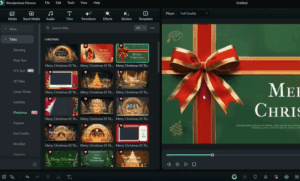
- Use a video editor (CapCut, Adobe Premiere) to:
- Trim unwanted parts.
- Add transitions.
- Sync background music.
Example Workflow:
- Clip 1: Women posing on the beach.
- Clip 2: Smashing a volleyball.
- Clip 3: Celebrating a point.
Step 5: Exporting & Sharing Your AI Video
Once edited:
- Export in 1080p or 4K.
- Remove watermarks (upgrade if needed).
- Share on social media (TikTok, Instagram Reels, YouTube Shorts).
Final Thoughts & Best Practices
✅ Use high-quality prompts for better AI results.
✅ Experiment with different models (Realistic vs. Cartoon).
✅ Leverage stock footage to enhance AI clips.
✅ Avoid overusing temp emails (some platforms may ban them).





Tags:
AI Video Generation, AI Tools, Video Editing, AI Prompts, Digital Content Creation
Hashtags:
#AIVideo #ContentCreation #DigitalMarketing #AIEditing #VideoMarketing #TechHacks
Need an AI video tool? Try:
Disclaimer: Always check platform policies before using temporary emails. This guide is for educational purposes only.
Ready to create stunning AI videos? Follow these steps and unleash your creativity without credit limits! 🚀