Sometimes, things can go wrong on your PC—a software update might crash your system, or you might get the dreaded Blue Screen of Death (BSOD). In such situations, a System Restore Point acts like a safety net that helps you roll back your Windows to a previous stable state without losing personal files.
Whether you’re on Windows 10, Windows 11, or even older versions like 7 or 8, setting up a System Restore Point is an essential preventive step. Let’s learn how to create one manually.
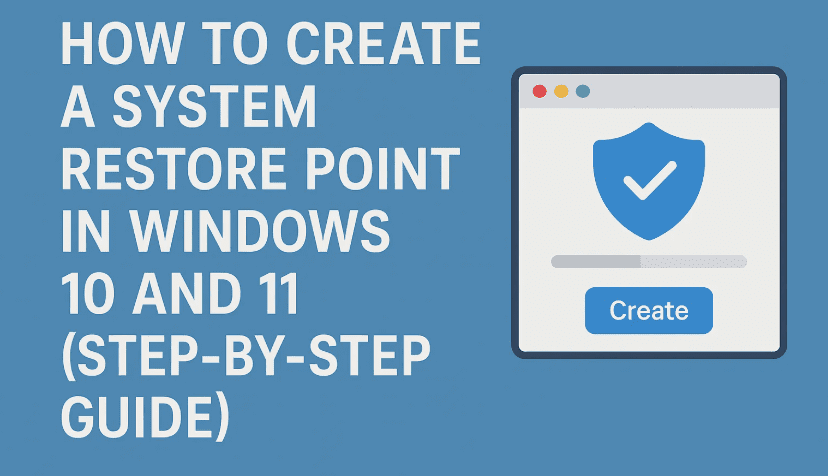
🚨 Why Create a System Restore Point?
Before we dive into the steps, let’s take a moment to understand the real-life importance of this feature:
- Restores system settings without affecting your personal files.
- Useful when facing BSOD errors, failed driver installations, or booting issues.
- Saves you time and avoids the need to reset or reinstall Windows.
If you’ve never created a restore point manually or want to ensure it’s turned on, follow the guide below carefully.
🛠️ Step-by-Step: How to Create a System Restore Point in Windows
So far, so good. Let’s move on to the practical part and get started with the process!
Step 1: Open the Restore Settings Panel
You can do this quickly using Windows Search.
- Press
Windows + Sor click the search bar. - Type: Create a restore point
- Click on the result with the same name (you’ll be taken to the System Properties dialog with the “System Protection” tab selected).
Alternatively, you can:
- Open the Control Panel
- Search for Recovery
- Click on Configure System Restore
Step 2: Enable Protection for Your System Drive (Usually C:)
By default, System Protection might be turned off, especially on fresh installs.
- In the “System Protection” tab, select your C: drive (or the drive where Windows is installed).
- Click on Configure.
- Choose Turn on system protection.
- You can allocate disk space for restore points (we recommend at least 5–10%).
- Click Apply, then OK.
💡 If you want to enable protection on other drives, repeat this step for those as well.
Step 3: Create a Restore Point Manually
Now that protection is turned on, let’s manually create a restore point:
- In the System Protection tab, click Create.
- Enter a name for your restore point. A good practice is to use the current date (e.g., “Before installing XYZ – 20 July 2025”).
- Click Create again.
- Wait a few seconds while Windows creates the restore point.
- You’ll get a message: The restore point was created successfully.
That’s it—your restore point is ready!









🔄 How to Use a Restore Point Later (When Things Go Wrong)
Let’s say you installed a driver that made your system unstable or caused BSOD. Here’s how you can revert to your restore point:
- Go to Create a restore point again via search.
- Click on System Restore.
- Select the restore point you created earlier.
- Click Next, then Finish, and confirm with Yes.
- Your system will restart and restore itself to that earlier state.
✅ All system settings, drivers, and registry files will be restored—but your personal files like documents, photos, and downloads will remain untouched.
❓ FAQ: System Restore Point
Q1. Does it delete my personal files?
A: No. System Restore only affects system settings, installed applications, drivers, and registry configurations.
Q2. How often should I create a restore point?
A: Manually before installing new drivers, Windows updates, or risky third-party software. Windows also creates automatic restore points during major updates.
Q3. What’s the difference between System Restore and Reset this PC?
A: Reset reinstalls Windows (with or without deleting personal data), while Restore rolls back to a previous working state without affecting your files.
Q4. How much space does a restore point take?
A: It depends on the disk usage setting. Typically, around 1–3GB per point. Older restore points are deleted automatically when the allocated space is full.
🎯 Final Thoughts
Setting up system restore points is like creating save points in a video game—you hope you never need them, but when things go wrong, they can be a lifesaver. Whether you’re a beginner or a power user, it’s one of the simplest yet most powerful tools in Windows.
So, if you haven’t already, take 5 minutes and set one up today!
🔗 Useful Links
🏷️ Tags:
Windows tips, system restore, backup and recovery, Windows 10, Windows 11, troubleshooting
📢 Hashtags:
#WindowsTips #SystemRestore #BlueScreenFix #Windows11 #Troubleshooting #RestorePoint #PCMaintenance
💡Pro Tip: Before installing any major update or trying new software, just create a restore point. It only takes a minute and can save you hours of frustration later.
If you found this article helpful, feel free to share it with others who might need this lifesaving tip!







