Setting up a new computer often comes with the push to sign in using a Microsoft account. But what if you want to keep things simple and create a local account instead? Whether it’s for privacy, simplicity, or offline usage, creating a local user account on Windows 11 is easier than you might think.

In this article, we’ll guide you step-by-step on how to set up Windows 11 without using a Microsoft account, using a built-in option during the setup process. No command-line hacks or workarounds required—just a straightforward, official method.
✅ Why Use a Local Account?
A local account:
- Doesn’t require an internet connection to log in.
- Doesn’t sync your data with Microsoft’s servers.
- Gives you more control over privacy.
- Is perfect for offline systems, test machines, or simple personal use.
🛠️ Steps to Create a Local Account During Windows 11 Setup
1. Start Setting Up Your New Computer
When you first turn on your new PC, the setup process begins. Follow the initial prompts:
- Choose your language and region.
- Click Next on the welcome screens.
You can connect to the internet during setup, but keep in mind this may prompt the system to download BIOS or system updates (especially on brand-new laptops like Dell).
⚠️ Important: If your computer begins updating the BIOS during setup, do not turn it off. Interrupting this process can damage your system and require professional repair.
2. Device Naming and Restart
Once connected to the internet:
- You’ll be prompted to name your device.
- Give your PC a name (e.g.,
TipsToFix-PC). - After that, the computer may restart and apply some updates.
3. Choosing Account Type
After the restart, you’ll see a screen asking if the device is for:
- Personal Use
- Work or School
Choose Work or School, and then click Next.
4. Select a Sign-in Option
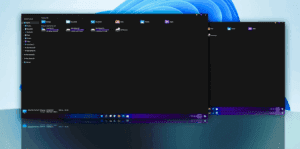
Now you’ll be presented with Sign-in options.
- Click Sign-in Options
- Choose Domain Join Instead
This is Microsoft’s way of letting you create an offline or local account.





5. Create Your Local User
You’ll now be asked to:
- Enter a username for your account.
- You may skip setting a password if you prefer, or set one now.
Click Next, and your local account will be created.
No need for Microsoft login credentials, PINs, or security keys.
6. Skip Unnecessary Prompts
After account creation:
- Decline features like online backup, advertising, and personalized ads.
- Choose “No” or “Decline” where appropriate.
This step keeps your local account free from unwanted extras.
🖥️ That’s It! You’re In.
You’ve now successfully set up your Windows 11 computer using a local account only, without signing in or creating a Microsoft account. This method is 100% official and doesn’t require any advanced tricks or commands.
🧠 Bonus Tip
Already set up Windows 11 with a Microsoft account but want to switch to a local one? There are methods to remove the Microsoft account and convert it to local—check out our other articles for detailed guides on how to do that.
If you run into any issues or have questions about this process, feel free to leave a comment below. We’re here to help make your Windows experience easier and more secure.
Tags: Windows 11 setup, local account, Microsoft account, offline account, Windows login, Windows privacy, Dell setup, BIOS update, tech help, computer setup
Hashtags:
#Windows11 #LocalAccount #TechTips #NoMicrosoftAccount #WindowsSetup #OfflineAccount #TipsToFix #PCSetup #WindowsPrivacy #WindowsHelp








