Creating a Google Play Store account is essential if you want to access apps, games, movies, and other digital content on your Android device. Whether you’re setting up a new phone or want to add another account, this guide will walk you through the entire process directly on your mobile device.
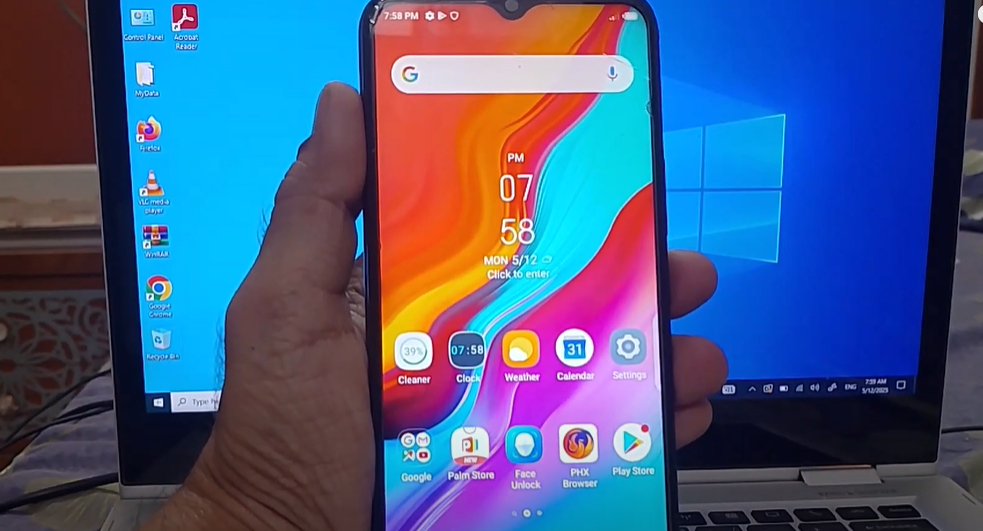
📱 Prerequisites Before You Start
Before you create a Google Play Store account, ensure that:
- Your phone is connected to the internet via Wi-Fi or mobile data.
- You have the Google Play Store app pre-installed (it’s available by default on most Android phones).
🛠 Step-by-Step Process to Create a Google Play Store Account
Follow these instructions to create a brand-new Google Play Store (Google) account:
Step 1: Connect to the Internet
Make sure your phone is connected to a stable internet connection, either through Wi-Fi or mobile data. This is crucial for syncing with Google services.
Step 2: Open the Google Play Store App
- Locate the Google Play Store icon on your phone and tap to open it.
- Once opened, you’ll be prompted to sign in if no account is already set up.
Step 3: Tap on “Create Account”
- On the sign-in screen, tap the option that says “Create account.”
- Then choose “For personal use” to create a standard user account.
Step 4: Enter Your Name
- Enter your first name.
- The last name is optional, but recommended for account clarity.
- Tap on “Next.”
Step 5: Enter Date of Birth and Gender
- Choose your date of birth using the dropdowns.
- Select your gender.
- Tap “Next” to continue.
Step 6: Choose a Unique Email Address
- Google will suggest available usernames or let you create your own.
- Enter a unique email address that hasn’t been used before.
- Tap on “Next.”
Step 7: Set a Password
- Choose a strong password with at least 8 characters, including letters and numbers.
- Confirm the password again to proceed.
- Tap “Next.”
Step 8: Confirm Options and Agree to Terms
- You may be prompted with the message “Yes, I’m in” – tap to confirm.
- Tap “Next.”
- Tap “I agree” to accept Google’s terms and privacy policies.
- Finally, tap “Accept.”
✅ Congratulations!
You’ve successfully created a Google Play Store account. You can now:
- Download apps and games
- Access Google services like Gmail, Google Drive, and YouTube
- Sync your account across devices
🔗 Useful Links
📌 Tags
Google Play Store account, create Google account, Android setup, Play Store login, mobile account setup, Google services, smartphone guide, new Android user
🏷 Hashtags
#GooglePlayStore #AndroidTips #CreateGoogleAccount #MobileSetup #PlayStoreGuide #AndroidUsers #TechGuide #SmartphoneTips
⚠️ Disclaimer
This article is intended for educational purposes only. Make sure to use accurate and personal information while creating a Google account. Do not share your password or recovery details with others to keep your account secure.