If you’ve ever wished Windows had fewer pre-installed apps, worked faster on low-end machines, or just felt more you, you’re not alone. In fact, there’s an entire ecosystem of tools and community-driven projects dedicated to helping you create your own custom Windows ISO.
This detailed guide breaks down the three key parts of custom Windows ISO creation:
- How customization works under the hood
- User-friendly tools that make it easier
- Community projects you can use right away
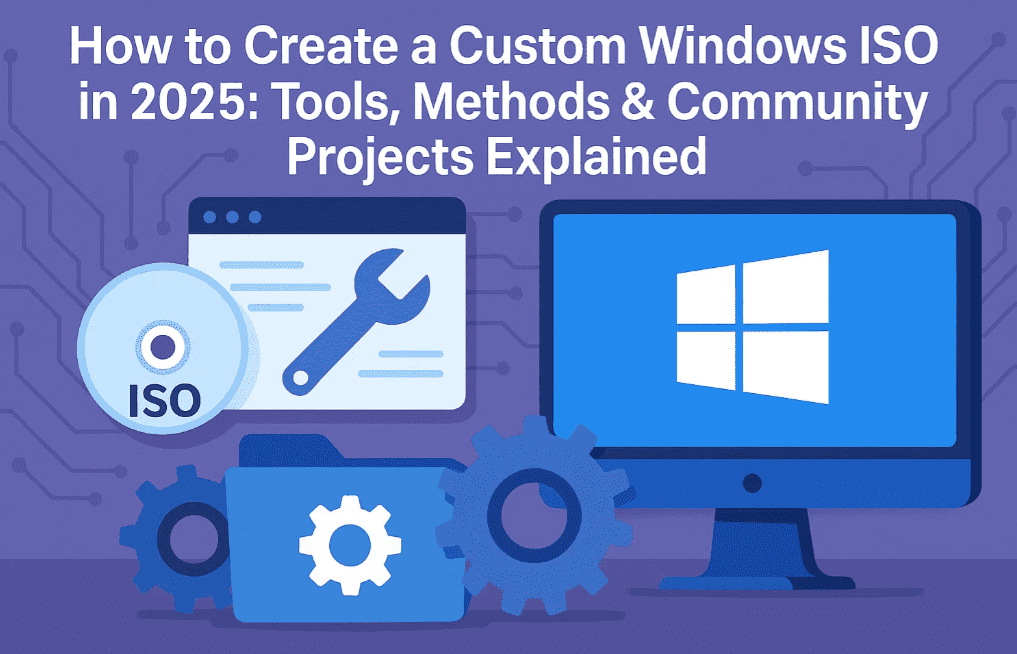
Let’s dive into how you can take full control of your Windows installation.
🧠 Part 1: How Windows ISO Customization Works
Before we jump into tools and downloads, it’s helpful to understand what’s actually going on behind the scenes.
📁 What’s Inside a Windows ISO?
Every Windows ISO includes a compressed image of Windows called:
install.wimorinstall.esd
These files live in the /sources/ folder of the ISO and contain everything needed to install Windows.
🛠️ Meet DISM: The Built-in Power Tool
Windows includes a command-line tool called DISM (Deployment Image Servicing and Management). This allows you to:
- Mount the Windows image like a folder
- Add or remove Windows features
- Inject drivers
- Update system files
- Remove bloatware or unused components
Once done, you can save your changes and repackage the ISO.
📌 This is exactly what every customization tool does behind the scenes — they just provide easier interfaces to do the same thing.
✍️ What Are Answer Files?
Another customization method is using an Answer File, which is an .xml file that tells Windows how to install and configure itself. This lets you:
- Skip the setup screens
- Pre-set privacy options
- Create local users instead of a Microsoft account
- Uninstall apps automatically
Answer files don’t modify the ISO itself — they guide Windows during installation.








🧰 Part 2: The Best Tools for Creating Custom Windows ISOs
Here are the most popular tools used by both beginners and pros:
1. NTLite
Pros:
- User-friendly graphical interface
- Load ISO and remove components, add drivers, updates, and settings
- Supports creating answer files
Cons:
- Free version is limited
- Paid version required for advanced features
Ideal for: Beginners who want full control with a clean UI
2. MSMG Toolkit
🔗 Visit MSMG Toolkit Forum Page
Pros:
- Completely free
- Removes components, integrates drivers/updates
- Add custom themes, cursors, tweaks
Cons:
- Command-line interface (menu-based)
- Requires more effort to learn
Ideal for: Advanced users comfortable with text-based menus
3. ET Optimizer
Pros:
- Free and powerful
- Known as an optimization tool but supports ISO creation
- Great for performance and privacy tweaks baked into install
Ideal for: Performance-focused users wanting a fast, lean install
4. Snegans Unattended Generator
Pros:
- Web-based UI
- Generates Answer File (XML)
- No ISO editing required
Cons:
- Doesn’t let you strip features or modify ISO directly
Ideal for: Creating unattended installations with user accounts, privacy, and setup preferences
🌐 Part 3: Ready-to-Use Community Custom Windows Projects
If you’d rather use a ready-made lightweight Windows, check out these trusted community projects. These are pre-configured for speed, privacy, and older hardware.
🧩 1. Tiny11
🔗 Official Tiny11 GitHub (search for Tiny11 Project)
- Based on Windows 11
- Stripped down to run on as little as 2GB RAM
- Debloated, fast, and minimalist
- Comes with PowerShell scripts to show what was removed
Perfect for: Older PCs and users who want a plug-and-play lightweight Windows
🔧 2. MicroWin by Chris Titus
- Not a prebuilt ISO, but an automation tool to deep-load Windows
- Injects drivers for hardware compatibility
- Includes script-based optimization
Perfect for: Creating your own optimized install with ease
⚙️ 3. Unattended Winstall
- Uses Answer Files to automate the setup process
- Skips Microsoft account login
- Creates local user, configures registry, removes bloatware
- Focuses on privacy and quick installs
Ideal for: Those who want a clean install experience without modifying the ISO
❓ Frequently Asked Questions
Q: Is it safe to use custom ISOs?
Custom ISOs can be safe if you trust the source or build them yourself. Always use a virtual machine or test PC to try them first.
Q: Can I upgrade my existing Windows with a custom ISO?
No. These tools are best for clean installations, not upgrades.
Q: What’s better: modifying ISO or using answer files?
Both have their pros:
- ISO mods give you full control (but risk breaking things).
- Answer Files are safer and easier (but limited in power).
🧪 Final Tips
- Always test your ISO in a virtual machine before installing it on real hardware.
- Don’t delete random components unless you know what they do — some may break Windows updates or apps.
- Stay updated — tools like NTLite and MSMG are regularly updated for compatibility with new Windows builds.
🏁 Conclusion
Whether you’re a hobbyist, a system admin, or just someone tired of reinstalling bloat every time you install Windows, creating a custom Windows ISO gives you control, speed, and simplicity.
So, which approach should you choose?
- Want full control with a user-friendly UI? 👉 Use NTLite
- Prefer free, powerful command-line tools? 👉 Go for MSMG Toolkit or ET Optimizer
- Want to automate setup? 👉 Use Snegans Unattended Generator
- Don’t want to build anything yourself? 👉 Try Tiny11, MicroWin, or Unattended Winstall
🏷️ Tags:
windows customization, custom windows iso, windows iso tools, ntlite, msmg toolkit, et optimizer, answer file, windows answer file generator, tiny11, microwin, windows debloat, windows optimization, iso builder
📢 Hashtags:
#WindowsISO #CustomWindows #Tiny11 #NTLite #MSMGToolkit #WindowsOptimization #MicroWin #DebloatWindows #AnswerFile #WindowsTools
If you’re planning to experiment with a custom ISO, remember: test first, learn carefully, and enjoy the satisfaction of a clean, customized Windows experience!








