Installing Ubuntu on your system is easier than ever with a bootable USB drive. Whether you’re switching from Windows, trying Linux for the first time, or installing it on a separate partition — this guide will walk you through every step to create a bootable USB for Ubuntu using the Rufus tool on a Windows PC.
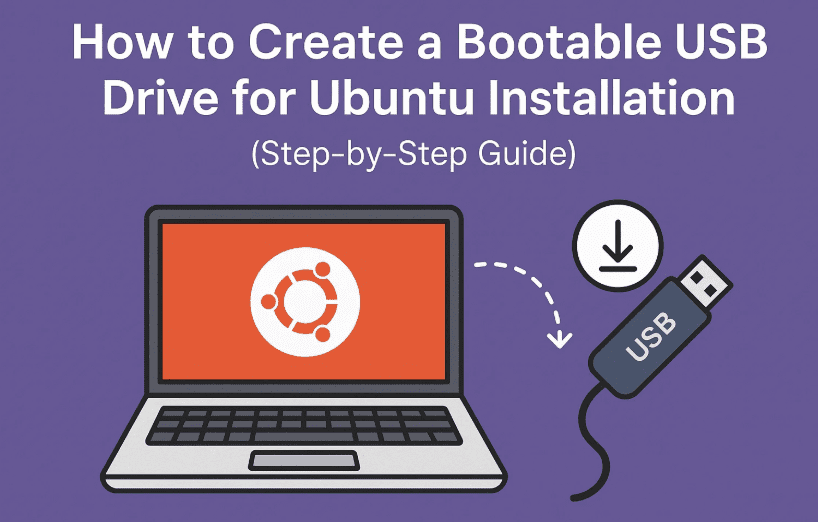
Let’s dive in and get your system Ubuntu-ready!
🧰 What You’ll Need Before We Begin
Before we start, make sure you’ve got the following ready:
- ✅ A USB flash drive (minimum 8GB, recommended 16GB for better performance)
- ✅ The Ubuntu ISO file (from the official Ubuntu website)
- ✅ Rufus tool to create the bootable USB (for Windows users)
Let’s move to the first step — downloading the Ubuntu ISO.
🧾 Step 1: Download Ubuntu ISO File from the Official Website
First things first — we need the official Ubuntu image.
- Open your web browser.
- In the search bar, type:
Ubuntu ISO download - Click on the official site: https://ubuntu.com/download
- From the menu at the top, choose “Ubuntu Desktop”.
There are other options available:
- Ubuntu Server – for servers and VMs
- Ubuntu for IoT – for smart devices
- Ubuntu WSL (Windows Subsystem for Linux) – for Windows integration
- VM files for macOS
But for this guide, we’re using Ubuntu Desktop 24.04.2 LTS, the latest Long-Term Support version (~5.9 GB).
- Click the green Download button to begin.
- Depending on your connection, this might take a few minutes.
🔧 Step 2: Download and Install Rufus Bootable USB Tool
Now that we have Ubuntu’s ISO, let’s get the tool we’ll use to make the USB bootable.
- Open your browser and search:
Download Rufus - Go to the official site: https://rufus.ie/en/
- Scroll to the Downloads section and click on the latest version — for example, Rufus 4.6.
Rufus is a lightweight and powerful tool for creating bootable USBs for Windows, Linux, and even DOS systems.
Once downloaded, let’s set up the USB!
💽 Step 3: Create the Ubuntu Bootable USB Drive
Now let’s launch Rufus and burn the ISO onto the USB.






Step-by-step:
- Insert your USB flash drive into your computer.
- Open Rufus (no installation required, just run the
.exefile). - Rufus will auto-detect your USB drive. Make sure the correct device is selected.
- Under Boot selection, make sure it’s set to:
👉 Disk or ISO image - Click Select and browse to the Ubuntu
.isofile you downloaded. - Leave Partition scheme as MBR (unless your system uses GPT).
- Target system should be BIOS or UEFI (Rufus will auto-select).
- You can change the Volume label (USB name) if desired, or leave it default.
- Click Start.
A prompt will appear:
- Choose ISO image mode (recommended) → Click OK
- ⚠️ WARNING: All data on the USB will be erased. Make sure to back it up first!
- Rufus will now format the USB and transfer the Ubuntu setup files. It usually takes 3–5 minutes.
Once the green bar reaches the end and you see the message “Ready”, your bootable USB is complete!
🚀 Step 4: Boot from the Ubuntu USB and Begin Installation
With your bootable USB ready, you’re just a few clicks away from installing Ubuntu.
Here’s how to boot from the USB:
- Restart your PC
- During startup, press the boot key (usually F12, F2, Esc, or Del) to enter the Boot Menu.
- Select your USB drive from the list of bootable devices.
- Ubuntu will now load directly from the USB.
On a physical PC, the boot menu interface may differ, but the logic remains the same.
You’re now in the Ubuntu setup environment where you can try Ubuntu or proceed with installing it permanently.
🙋 FAQs – Ubuntu Bootable USB Drive
Q: Can I use a 4GB USB drive for Ubuntu?
A: No. The Ubuntu ISO is over 5GB. Use at least an 8GB or ideally 16GB USB.
Q: Is Rufus available for macOS?
A: Rufus is for Windows only. For macOS, use tools like balenaEtcher or UNetbootin.
Q: Can I use this method for Ubuntu Server or Raspberry Pi?
A: Yes! Just download the respective ISO image and follow the same process.
Q: Will this erase my existing USB data?
A: Yes. All files on the USB will be deleted, so back up important data first.
⚠ Disclaimer:
This tutorial is provided for educational purposes only. Always download ISO files and utilities like Rufus from official websites to avoid malware and data loss.
🏷️ Tags:
ubuntu, ubuntu bootable usb, rufus tutorial, ubuntu installation usb, create ubuntu bootable drive, install ubuntu, linux usb, boot menu ubuntu
📢 Hashtags:
#Ubuntu #Linux #BootableUSB #Rufus #UbuntuTutorial #InstallUbuntu #TechTips #OpenSource
With this, you’re now ready to install Ubuntu on any system with confidence. Whether you’re testing it out, dual-booting, or switching fully to Linux, this method is fast, reliable, and beginner-friendly.
If you found this guide useful, don’t forget to share it with others who might benefit from it. Happy computing! 🐧💻








