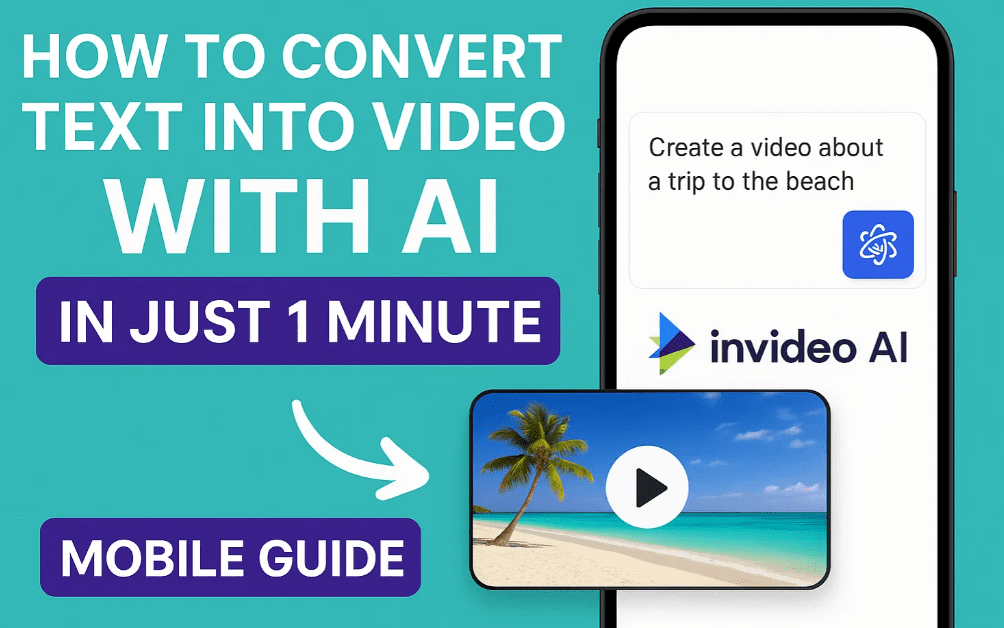
Creating videos used to be time-consuming, especially if you lacked editing skills, software, or a computer. But thanks to AI-powered video creation tools like InVideo AI, all you need now is your mobile phone and a short prompt — and in just one minute, you can generate a fully edited video complete with captions, realistic voiceovers, and cinematic visuals.
In this guide, you’ll learn exactly how to use InVideo AI’s mobile app to turn text into a complete, professional-quality video. No desktop required!
📲 What is InVideo AI?
InVideo AI is a powerful AI video creation platform that lets you generate entire videos using simple text prompts. It combines stock footage, animated captions, AI voiceovers, background music, and scriptwriting — all in one place.
✅ Highlights:
- AI-generated script, visuals, and voiceover
- Mobile app + browser access
- Easy-to-edit scenes
- Natural-sounding voices
- Stunning cinematic results
🚀 Step-by-Step: Create a Video from Text on Mobile
Step 1: Download & Log in
- Download InVideo AI from your app store or visit the website.
- Sign in or create a free account.
- You’ll land on the Home Screen.
Step 2: Start a New AI Video
- Tap “Create AI Video”
- You’ll see a prompt box
💡 Tip: The more detailed your prompt, the better the output.
Example Prompt:
“Create a 5-minute YouTube video about the top 10 cities in the world for cyclists. Make it documentary-style, use inspiring background music, and add a voiceover similar to David Attenborough.”
Step 3: Customize the Style
InVideo will ask you a few simple questions to personalize the video:
- Audience: Choose from options like cycling enthusiasts, travelers, or documentary lovers.
- Look & Feel: Options like inspiring, clean, or professional.
- Platform: Choose the intended platform (YouTube, Facebook, LinkedIn, etc.)
Once selected, tap Continue.
⏱️ Within 1 minute, your video will be ready.
🎬 Features of the AI-Generated Video
When your video is done, here’s what you get:








- Professional footage from a stock library
- Script-based narration
- Realistic AI voiceovers (choose styles like David Attenborough)
- Matching background music
- Animated captions (customizable)
- No manual editing needed
🎨 Editing Your AI Video (Optional)
InVideo AI allows further fine-tuning:
🖍️ 1. Add or Customize Captions
- Tap “Give Command” → Type: “Add captions with current word highlighted in yellow.”
- Press Enter. It auto-generates highlighted captions.
🖼️ 2. Replace Footage
- Tap Edit → Edit Media
- Locate the scene you want to change
- Search for stock clips (e.g., “woman cycling”)
- Tap Replace to update that scene
📝 3. Edit the Script
- Tap Edit → Edit Script
- Manually tweak narration text
- Paste in scripts from tools like ChatGPT
- Once edited, the video will regenerate
🔁 Want a New Version? Click Regenerate!
Not happy with the first draft? Just tap Regenerate and InVideo will produce a fresh version with different visuals and audio while keeping your original prompt intact.
📦 Subscription Plans & Free Version Explained
✅ Free Plan Includes:
- 10 minutes/week of AI generation
- 4 video exports per week
- 10 GB cloud storage
- Access to 2.5M stock media assets
Perfect for casual creators and first-time users.
🔓 Upgrade Options (Plus & Max)
| Plan | AI Minutes | Stock Footage | Storage | Exports |
|---|---|---|---|---|
| Plus | 50 mins/month | 80 premium iStock assets | 100 GB | Unlimited |
| Max | 200+ mins/month | More assets | 200 GB+ | Unlimited |
💰 Tip: Opt for yearly billing to save ~20%.
📌 You Might Be Interested in These Articles Too:
- Create Stunning AI-Powered Videos Without Lag: Best CapCut Alternative for PC Editing
- How to Use Canva Video Editor: A Complete Beginner’s Guide to Creating Stunning Videos for Free
- Beginner’s Guide to VSDC Free Video Editor: Step-by-Step Video Editing Tutorial for 2025
- How to Create Faceless AI YouTube Shorts That Can Earn Up to $360,000 Per Month
- How to Find Viral YouTube Keywords Using SEMrush (And Rank Long-Term)
✅ Exporting Your Video
Once you’re happy with the final edit:
- Tap Export
- Choose your resolution and format
- Tap Export at the bottom
- Your video is ready to download or share
❓ Frequently Asked Questions
Q: Can I use InVideo AI on desktop too?
Yes, it works seamlessly on both mobile and desktop browsers.
Q: Can I upload my own footage?
Yes. You can combine stock visuals with your own videos.
Q: Are the videos copyright-safe?
Yes. The stock media included is licensed for commercial use. Still, check terms when using external content.
Q: Does InVideo AI support vertical videos?
Yes, it can generate videos in 9:16 format for TikTok, Reels, and Shorts.
💡 Why Use InVideo AI?
Whether you’re a content creator, marketer, educator, or hobbyist, this tool saves hours of manual work. Just write what you want — and it’ll deliver a polished video.
It’s like ChatGPT + Adobe Premiere + Voiceover + Stock Footage — all in one mobile app!
🧠 Final Thoughts
With InVideo AI, you no longer need editing skills, a PC, or expensive software to create compelling videos. Just type a prompt, and let the AI handle the rest — visuals, voice, music, captions — everything.
Perfect for YouTubers, bloggers, Instagram influencers, business coaches, and social media managers!
🔗 Try It Now
🏷️ Tags
text to video ai, invideo ai tutorial, how to use invideo, ai video creator, documentary video generator, ai captions, realistic ai voiceover, text to video mobile app, generate video from prompt, ai youtube video maker
📢 Hashtags
#InVideoAI #TextToVideo #AIVideoCreation #ContentAutomation #AIVoiceover #VideoEditingApp #YouTubeCreator #InVideoMobile #PromptToVideo #DocumentaryStyleVideos
Disclaimer: This guide is based on InVideo AI’s features as of 2025. Availability of voice styles, stock media, and export quality may change in future updates. Always verify usage rights for any third-party content used within generated videos.







