If you’re working with Asterisk or VICIdial and need to upload audio prompts, voicemail greetings, or IVR messages, you may encounter format compatibility issues. The good news is that you can easily convert your audio files—such as MP3s—into Asterisk-compatible WAV format using Audacity, a free and open-source audio editing tool.
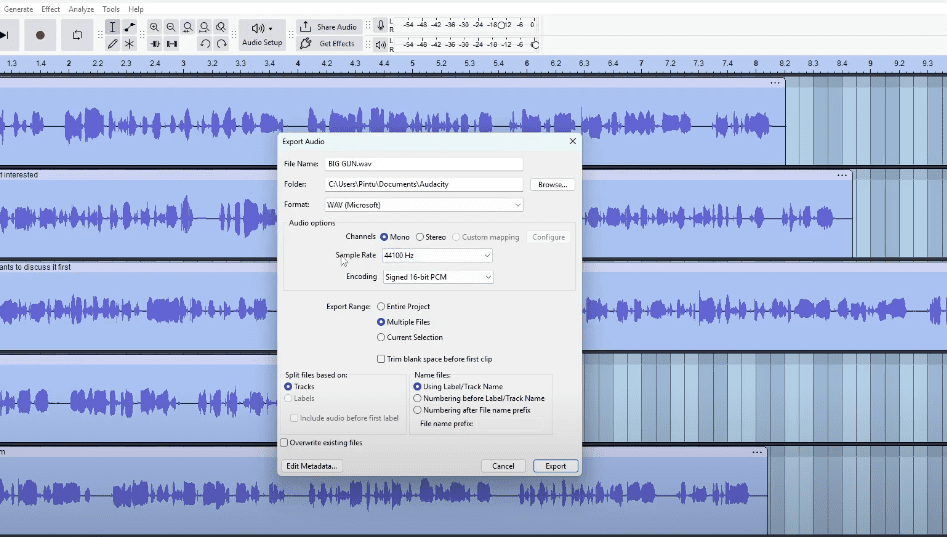
This guide will walk you through the step-by-step process of converting multiple audio files at once to the required WAV specifications.
🎧 What Is Audacity?
Audacity is a free digital audio editor available on Windows, macOS, and Linux. It supports a wide range of audio formats and is commonly used for editing, recording, and converting audio files.
📁 Supported Audio Format for Asterisk
Asterisk primarily supports:
- WAV files in PCM format
- Mono
- 8 kHz or 16 kHz sample rate
- 16-bit depth
Other formats like GSM are also supported, but WAV (PCM) is preferred for quality and compatibility.
🛠 Step-by-Step Guide to Convert Audio Using Audacity
✅ Step 1: Download and Install Audacity
If you haven’t installed Audacity yet, download it from the official website:
👉 https://www.audacityteam.org
Install it on your system and launch the application.
📥 Step 2: Import MP3 Files into Audacity
- Open Audacity.
- Click on File > Import > Audio.
- Navigate to the folder where your MP3 files are saved.
- Select all the files you want to convert and click Open.
The files will load into Audacity as individual tracks.
🔘 Step 3: Select All Audio Tracks
- Press Ctrl + A to select all loaded tracks simultaneously.
This step ensures that every track is processed in the export phase.
💾 Step 4: Export Audio to Asterisk-Compatible WAV
- Click on File > Export > Export Audio.
- Choose the destination folder where the converted files will be saved.
- Set the following options:
- Save as Type: WAV (Microsoft) signed 16-bit PCM
- Sample Rate: 8000 Hz or 16000 Hz (depending on your server’s requirements)
- Channel: Mono
- Rename the file appropriately or keep the original filename.
- Click Save, and if a metadata window appears, click OK.
Audacity will now convert and export the files in the correct format.
📂 Optional: Batch Export for Multiple Files
For bulk conversions:






- After importing all files, go to File > Export > Export Multiple.
- Choose format as WAV (Microsoft) signed 16-bit PCM.
- Choose Split files based on tracks.
- Set naming convention as desired.
- Click Export.
Audacity will process all tracks and export them individually with consistent formatting.
🚀 Step 5: Upload to Asterisk or VICIdial
Once your files are converted:
- Navigate to your Asterisk or VICIdial server.
- Upload the WAV files for use as:
- IVR prompts
- Voicemail greetings
- Call routing messages
- Pre-recorded call responses
They will now be compatible without requiring further conversion.
📝 Final Notes
- Always verify the format before uploading to your dialer system.
- You can also use tools like SoX (Sound eXchange) for command-line conversions, but Audacity offers a user-friendly interface for bulk and manual processing.
⚠️ Disclaimer
This tutorial is intended for educational and informational purposes only. Ensure that the audio files you process comply with your organization’s licensing, privacy, and data usage policies.
🔗 Useful Links
- Audacity Download Page: https://www.audacityteam.org/download
- VICIdial Official Site: http://www.vicidial.org/
🔖 Tags
audacity, convert mp3 to wav, asterisk audio format, vicidial, pcm 16bit mono, audio conversion, wav export, ivr voice prompts, call center setup, dialer compatibility
📢 Hashtags
#Audacity #Asterisk #VICIdial #AudioConversion #MP3toWAV #IVRPrompts #CallCenterTools #WAVFormat #PCMMono #OpenSourceAudio
With this simple Audacity workflow, you’re ready to convert and upload high-quality, Asterisk-compatible audio files with ease.








