If you’ve recently been watching YouTube and noticed a Hindi video suddenly playing in English—or an English video being dubbed into Hindi—it’s not your imagination. YouTube has quietly rolled out an auto-dubbing feature that automatically switches the video’s audio to your preferred language. While this might be helpful for some, many users and creators are finding it confusing or even frustrating.
In this detailed guide, let’s break down what this auto-dubbing feature is, how you can control it as a viewer, and how to disable it completely if you’re a YouTube content creator.
🎧 First, Let’s Talk From the Viewer’s Perspective
As a viewer, you now have the power to change the playback audio language on the fly. But it’s easy to miss the setting if you don’t know where to look.
So far, so good? Great—let’s dive into the step-by-step guide to change or disable auto-dubbing as a viewer.
📱 On Phone and PC – Steps Are Similar
Whether you’re watching on a mobile device or computer, here’s how to change the audio track:
Step-by-Step:
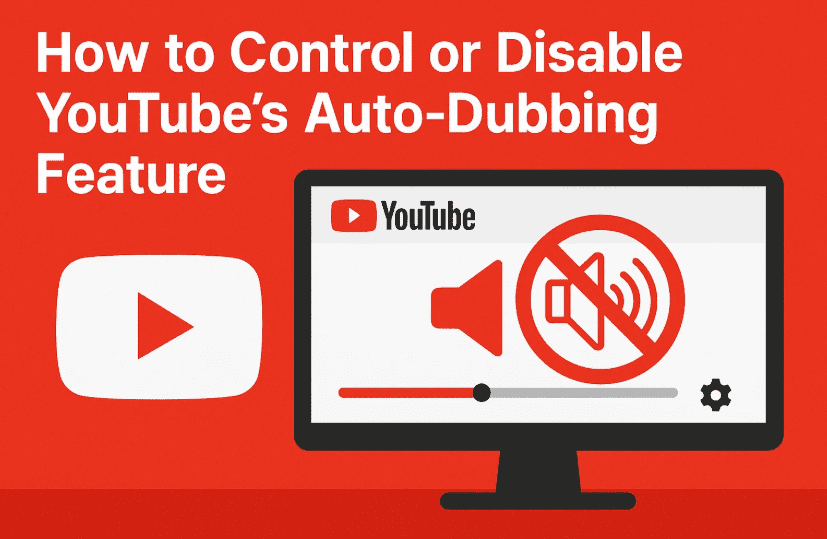
- While watching a YouTube video, tap or click the Settings (⚙️) icon in the player interface.
- In the settings menu, look for the option called “Audio Track.”
- Once you tap on it, you’ll see a list of available languages — for example, English, Hindi, and sometimes others.
- Choose your preferred language.
- If you want to hear the video in its original language, just select the one labeled “Original.”
- If the video is in English and you prefer Hindi, choose Hindi, and it will switch to the dubbed version automatically.
This gives you flexibility as a viewer, and for some, especially when watching foreign-language videos, it can be genuinely useful.
❓ Why Are People Complaining About It?
Not everyone is thrilled. Many users have voiced their concerns about:
- Robotic or emotionless voiceovers
- Sudden unexpected language switch
- Poor dubbing quality
- Disruption of original tone or message
So while the feature is helpful for accessibility or language barriers, it’s also causing discomfort, especially for those who prefer the creator’s original voice.
🎥 Now, Let’s Talk From the Creator’s Perspective
If you’re a YouTube content creator, you might be getting comments like:
“Why is your video suddenly in a robotic English voice?”
“I wanted to hear it in your original voice, not dubbed!”
If that’s the case, you might want to disable this auto-dubbing feature for your own channel.





Let’s walk through how to do that step-by-step.
⚙️ How to Disable Auto-Dubbing in YouTube Studio (PC/Mobile Browser)
Currently, YouTube doesn’t offer an in-app toggle on the YouTube mobile app, but you can still manage this from a browser, even on your phone.
Follow these steps:
- Go to YouTube Studio and log in with your creator account.
- In the top-right corner, click on your profile icon.
- Select YouTube Studio from the dropdown.
- In the left-hand sidebar, scroll down and click Settings.
- Inside the Settings window, click on Upload defaults.
- Now go to the Advanced Settings tab.
Scroll down until you see the section labeled Auto-Dubbing (or similar depending on the latest YouTube version).
You’ll find two options here:
🛠 Option 1: Uncheck Auto-Dubbing to Disable It Completely
- Simply uncheck the box to completely turn off auto-dubbing for all your future uploads.
- This means viewers will hear your video in the original language only.
This is the quickest and cleanest option if you don’t want YouTube to dub your voice at all.
🧪 Option 2: Enable “Manually Review Dubs Before Publishing”
- Keep auto-dubbing on, but choose to manually review all dubs before they go live.
- This gives you creative control to either accept or reject language versions based on quality.
🤔 Which Option Should You Choose?
If you’re getting negative feedback, it’s safer to disable it entirely.
But if you’re creating content that reaches a global audience, and the dubbing quality is acceptable, you might choose to manually review dubs to make sure they meet your standards.
As for me? I chose to disable it because I didn’t want my subscribers getting confused or frustrated. I’d rather let them hear my original voice than a robotic voiceover they didn’t expect.
🧠 FAQs – YouTube Auto-Dubbing
Q: Can I permanently turn off auto-dub for my personal YouTube account?
A: As a viewer, you’ll have to manually change the audio each time. There’s no global off switch (yet) for viewers.
Q: Does disabling auto-dub affect already published videos?
A: Yes, if you disable it from YouTube Studio, auto-dubbing will be turned off for both new and existing videos.
Q: Are dubbed languages created automatically or by humans?
A: YouTube uses AI to create dubbed audio using synthesized voices.
Q: Can I upload my own dubs instead?
A: Yes! YouTube lets creators add language tracks manually for full control.
🏁 Final Thoughts
So far, we’ve covered everything from a viewer’s control to a creator’s settings — and you now know how to manage or disable YouTube’s auto-dubbing feature effectively.
Whether you found it helpful or annoying, one thing is clear: it’s your content, your control. Take a few minutes to customize the experience so it aligns with what you and your audience want.
🔗 Useful Links
- How YouTube Studio May Be Killing Your Motivation – And How to Take Back Control as a New Creator
- 8 Game-Changing Habits That Helped Me Grow Multiple YouTube Channels
- How Often Should You Upload on YouTube? A Practical Guide for New Creators (2025 Edition)
⚠️ Disclaimer
This article is intended for educational and informational purposes only. The YouTube interface and settings may change over time, so always refer to the official YouTube Help Center for the latest instructions.
🏷️ Tags and Hashtags
Tags: YouTube auto dubbing, disable YouTube dubbing, YouTube audio settings, YouTube Studio tips, multilingual YouTube videos, how to fix YouTube dub, robotic voice YouTube, change language on YouTube
Hashtags:
#YouTubeTips #AutoDubbing #YouTubeStudio #YouTubeCreators #LanguageControl #YouTubeSettings #YouTubeIndia #YouTubeHelp #AudioTracks #YouTubeHack
💬 Found this article helpful? Let me know in the comments what you plan to do — Enable or Disable Auto-Dub? Also, feel free to share any questions related to YouTube features — I’d be glad to help!