When it comes to remote tech support, most people immediately think of tools like TeamViewer or AnyDesk. But what many don’t realize is that Google Chrome has its own completely free remote desktop tool — simple, secure, and fully integrated with your Google account.
In this article, we’ll walk through how to set up and use Google Chrome Remote Desktop, explaining both Remote Access (for connecting to your own computers) and Remote Support (for helping others remotely). Whether you’re an IT professional assisting clients or just someone helping friends and family troubleshoot problems, this guide will show you everything you need to know from start to finish.
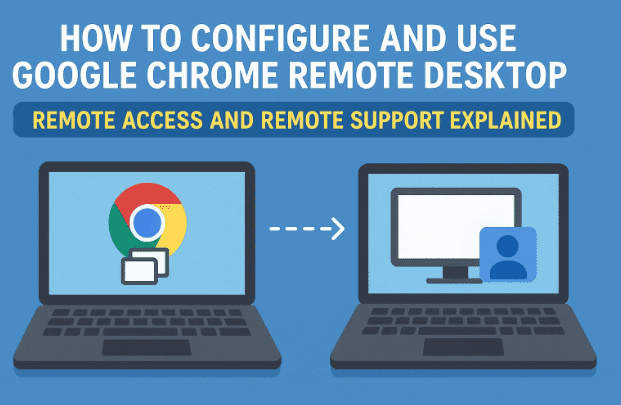
💡 1. What Is Google Chrome Remote Desktop?
Google Chrome Remote Desktop is a free remote-access service built directly into Chrome. It allows users to connect to another computer securely over the internet using only a browser and a Google account.
It’s ideal for:
- Accessing your home computer from work (Remote Access)
- Providing technical assistance to others (Remote Support)
- Managing multiple computers remotely without extra software
Unlike other paid remote tools, Chrome Remote Desktop requires no commercial license and runs smoothly inside the Chrome browser.
🔍 2. Difference Between Remote Access and Remote Support
Before jumping into setup, it’s crucial to understand that Chrome Remote Desktop offers two distinct modes — each designed for different use cases.
| Feature | Remote Access | Remote Support |
|---|---|---|
| Purpose | Access your own devices anytime | Help others temporarily |
| Duration | Long-term (always available) | One-time session |
| Authentication | 6-digit personal PIN | 12-digit temporary code |
| User Presence | No one required at remote end | Recipient must approve |
| Best For | Working on your home/office PC | Fixing issues for clients or family |
In short:
- Remote Access = unattended, permanent connection.
- Remote Support = temporary, real-time help session.
⚙️ 3. System Requirements and Preparation
Before you start, make sure both computers meet the following:
- Installed Google Chrome browser (latest version)
- A Google account (for both parties)
- Internet connection on both systems
- Basic permissions to install browser extensions
💡 Tip: You can use this on Windows, macOS, Linux, or even mobile devices with the Chrome Remote Desktop app.
🧑💻 4. Setting Up Remote Support (Helping Others)
Let’s begin with the more common use case — helping someone remotely.
You’ll act as the technician connecting to another person’s client computer.
Step 1: Open the Website
Both you and the person needing help should open:





https://remotedesktop.google.com
You’ll see two tabs:
- Remote Access
- Remote Support
Choose “Remote Support.”
Step 2: The Person Needing Help Clicks “Share This Screen”
Ask the person you’re helping to:
- Click “Share this screen.”
- The page will prompt them to install a Chrome extension.
Step 3: Install the Chrome Remote Desktop Extension
They should:
- Click Add to Chrome when the Chrome Web Store opens.
- Confirm by clicking Add Extension.
This installs the helper add-on needed for the connection.
Step 4: Generate a Support Code
Once installed, a 12-digit code will appear on their screen.
This code is valid for 5 minutes. It’s what you’ll use to connect.
🔗 5. Connecting to Someone’s Computer
Now it’s your turn as the helper.
- On your computer, go to the same website and choose “Give Support.”
- Enter the 12-digit code provided by the other person.
- Click Connect.
A pop-up will appear on their computer asking them to confirm:
“Do you want to share your screen with [Your Name]?”
Once they click Share, the session begins.
🖥️ 6. Controlling and Managing the Remote Session
After connection, you’ll see the other person’s desktop inside your Chrome window.
You’ll notice a sidebar menu — this is your control panel.
Here’s what you can do:
- 🔘 Disconnect: End the session instantly.
- 🖵 Full Screen Mode: View the remote desktop in full resolution.
- ⚙️ Scaling Options: Resize or scale the window to fit your screen.
- ⌨️ Send System Keys: Useful for sending Ctrl + Alt + Delete commands.
- 🖱️ Mouse Mode: Adjust mouse control for better compatibility with apps.
- 🧩 Multi-Display Support: Switch between monitors if the remote system has more than one.
- 📊 Stats for Nerds: Displays technical connection info like latency and bitrate.
💬 Note: Google has removed the file transfer option from Remote Support. To share files, use Drive or email instead.
🔒 7. Ending and Managing Remote Sessions Safely
Either person can end the session at any time.
- The client can click “Stop Sharing.”
- The technician can disconnect from the sidebar.
When the session ends, access is completely revoked.
For privacy, Chrome does not save your access credentials — each session requires a new code.
🧭 8. Setting Up Remote Access (Your Own Computer)
Now let’s move to the second feature — Remote Access.
This allows you to connect to your own computer anytime from anywhere.
Imagine being at work and accessing your home PC to fetch a file or use a specific program. That’s what Remote Access is designed for.
Step 1: Go to Remote Access Tab
Visit https://remotedesktop.google.com and click “Remote Access.”
You’ll see a list of devices that you’ve already connected or set up before.
Step 2: Download and Install the Host Package
If setting it up for the first time:
- Click the Download button.
- Save the Chrome Remote Desktop Host Installer.
- Run the installer and click Accept & Install.
- Allow any administrator permissions (UAC prompt on Windows).
Step 3: Assign a Name and PIN
Once installed, you’ll be asked to:
- Name the computer (e.g., OfficePC or HomeLaptop)
- Set a 6-digit PIN (used for future logins)
Uncheck “Send data to Google for analytics” if you prefer more privacy, then click Start.
🌍 9. Connecting to Your PC From Anywhere
Once setup is complete, your computer will appear online under “Remote Devices.”
To connect from another computer:
- Log in using the same Google account.
- Select your listed computer.
- Enter your 6-digit PIN.
You’ll now have full control of your desktop — just as if you were sitting in front of it.
You can copy text, browse files, and even install updates remotely.
📂 10. File Transfer and Clipboard Sharing
Earlier, we noted that Remote Support doesn’t allow file transfers. However, Remote Access does.
Here’s how to transfer files:
- Upload File: From the sidebar, click Upload File → choose the file → it appears on the remote computer’s desktop.
- Download File: Select Download File to copy files back to your current device.
Clipboard synchronization is also available — so you can copy and paste text or images seamlessly between both systems.
🧰 11. Checking Services and Troubleshooting
If you ever face connection problems:
- Press Windows + R, type
services.msc, and hit Enter. - Look for Chrome Remote Desktop Service.
- Ensure it’s running and set to Automatic.
If the service is stopped, start it manually — this often resolves connectivity issues even if Chrome isn’t open.
Other quick fixes:
- Update Chrome to the latest version.
- Reinstall the Remote Desktop Host.
- Check that you’re logged into the same Google account on both systems.
🔐 12. Security and Privacy Overview
Google Chrome Remote Desktop uses:
- End-to-end encrypted connections
- Two-factor authentication (2FA) via Google account
- Session-based authorization (new code every time for support)
For Remote Access, your computer stays protected by your PIN + Google login, and sessions can be ended anytime.
⚠️ Caution: Never share your access code or PIN publicly. Always confirm who you’re granting access to.
❓ 13. Frequently Asked Questions
Q1. Is Chrome Remote Desktop free for commercial use?
Yes, it’s completely free, but Google’s terms recommend it for personal or small-scale business use.
Q2. Can I use it on mobile?
Absolutely! Download the official Chrome Remote Desktop app for Android or iOS and connect using your Google account.
Q3. Can I transfer files between computers?
Yes — through Remote Access mode only. Remote Support no longer includes file transfer.
Q4. Does it work if Chrome is closed?
Yes. Once the Chrome Remote Desktop Service is installed, it runs in the background, allowing access even if Chrome isn’t open.
Q5. Can multiple people connect at the same time?
Only one active session is allowed per computer for now.
Q6. Is it safe to let someone control my PC?
Yes — as long as you trust the person. The session can be stopped at any time, and the code expires automatically.
🌟 14. Final Thoughts and Best Practices
So far, we’ve explored both sides of Google Chrome Remote Desktop — helping others and accessing your own devices.
What makes this tool stand out is its simplicity. You don’t need complicated network setups, VPNs, or paid licenses. Just sign in, generate a code or PIN, and connect.
However, always practice caution:
- Never allow access to unknown users.
- Always end sessions after finishing work.
- Avoid storing sensitive information on remote machines.
For everyday users, this tool is perfect for quick support or accessing your PC from afar — secure, fast, and completely free.
⚠️ Disclaimer
Google Chrome Remote Desktop is designed for personal and small-scale support tasks. Always verify the identity of the user before allowing access and never use it for sensitive or unauthorized systems.
Tags:
Google Chrome Remote Desktop, Remote Access, Remote Support, Tech Help, Screen Sharing, Remote Control, Google Tools, IT Support
Hashtags:
#GoogleChrome #RemoteDesktop #TechSupport #RemoteAccess #ScreenShare #GoogleTools #ITHelp






