If you’re someone who regularly installs and uninstalls software on your PC or laptop, you might think that removing a program from the “Apps & Features” section of your Windows settings is enough. But here’s the truth — simply uninstalling software doesn’t always remove everything. In fact, remnants often remain in your system drive (C:) and Windows registry, potentially cluttering your computer and affecting performance.
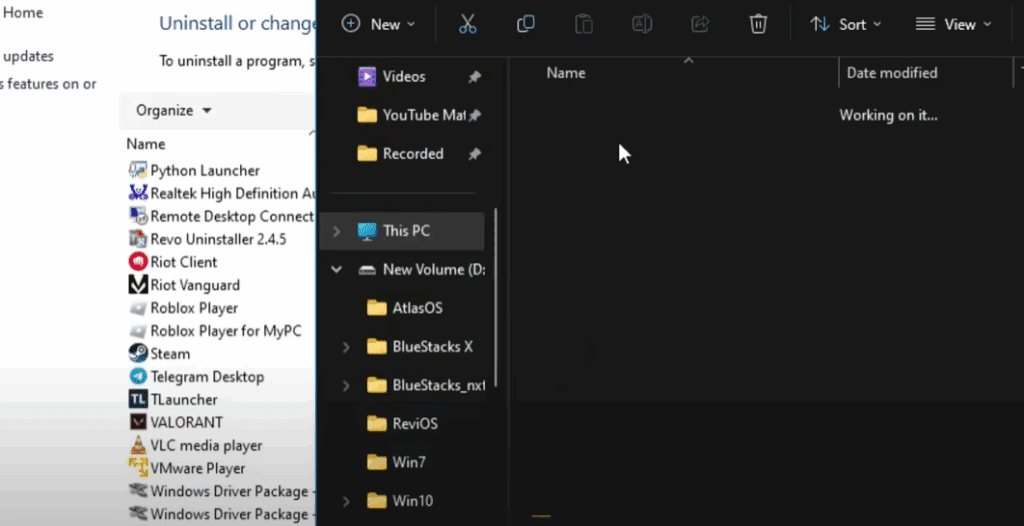
This article introduces two powerful free tools that help you completely uninstall any software from your system, including stubborn bloatware and registry leftovers. Whether you’re using Windows 7, 10, or 11, these tools are compatible across all versions and extremely easy to use.
Why You Need These Tools
Many users are unaware that uninstalled programs often leave behind data in the registry or other hidden folders. Take McAfee Antivirus, for example. Even after uninstalling it via settings, traces of it might still linger in your C: drive and registry. This not only consumes space but can also affect your system’s efficiency.
The tools discussed in this article allow you to:
- Completely uninstall applications
- Remove leftover files and registry entries
- Uninstall pre-installed bloatware that comes with Windows
- Manage installed Windows components and extensions
Step-by-Step: How to Use Revo Uninstaller and Wise Program Uninstaller
Let’s dive into how you can download, install, and use these two powerful uninstallers: Revo Uninstaller and Wise Program Uninstaller.
📌 Tool #1: Revo Uninstaller
Step 1: Download & Install
- Open your preferred web browser.
- Visit the official site for Revo Uninstaller.
- Click on Free Download.
- Once downloaded (it’s a small file, around 10MB), open the installer.
- Click Yes when prompted.
- Follow the install instructions and click Finish when done.
Step 2: Uninstall an Application
- Launch Revo Uninstaller.
- You will see a list of all installed applications.
- Double-click the program you want to uninstall (e.g., Xbox Game Bar).
- Choose to create a System Restore Point (optional but recommended).
- Click Continue to start the uninstallation process.
- Once complete, Revo will scan for leftover files and registry entries.
- Click Select All and then Delete to remove all remnants.
This ensures the application is fully removed from your system — both from the C: drive and registry.
Additional Features in Revo
- Uninstall Windows apps (like Feedback Hub, Maps, Calendar, etc.)
- Tools to manage startup programs, clean junk files, and more
📌 Tool #2: Wise Program Uninstaller
Step 1: Download & Install
- Visit the official WiseCleaner website.
- Click Free Download.
- After download, open the installer and follow the prompts.
- Click Finish once installation is complete.
Step 2: Uninstall Applications or Bloatware
- Launch Wise Program Uninstaller.
- The main screen shows Desktop Apps.
- Click Metro Apps to see built-in Windows bloatware.
- To uninstall any app (e.g., Movies & TV), double-click it.
- Choose Safe Uninstall.
- Once the program is removed, Wise will analyze the system for associated files and registry entries.
- Click Select All, then Remove to delete them completely.
More Useful Features
- View and manage system components
- Remove browser extensions
- Clean registry leftovers
- Uninstall system-level software like OneDrive
Final Thoughts
These tools — Revo Uninstaller and Wise Program Uninstaller — are essential for maintaining a clean, efficient, and clutter-free Windows system. Unlike the basic uninstall process provided by Windows, these tools go deeper to remove every trace of unwanted software, including registry entries and leftover folders.
Whether you’re trying to uninstall stubborn antivirus software or remove unnecessary bloatware from your new PC, using either of these tools will ensure a complete and clean uninstallation.
Try both and see which one works best for your needs. You may find that one suits your style more than the other — and both are entirely free!
Have you used these tools before? Share your experience in the comments section below!
Tags: uninstall software, completely remove programs, Revo Uninstaller, Wise Program Uninstaller, delete registry entries, remove bloatware, clean C drive, uninstall Windows apps, free PC tools







Hashtags: #uninstallsoftware #revouninstaller #wiseprogramuninstaller #windowscleanup #removebloatware #cleanyourpc #registrycleaner #freetools #windowsapps #pcmaintenance







