Upgrading your PC with a new SSD or replacing your old hard drive? One of the most efficient ways to transfer your Windows operating system, settings, and data from your old disk to a new one is by cloning or migrating the OS. This process ensures a smooth transition with no need to reinstall Windows or lose any personal files.
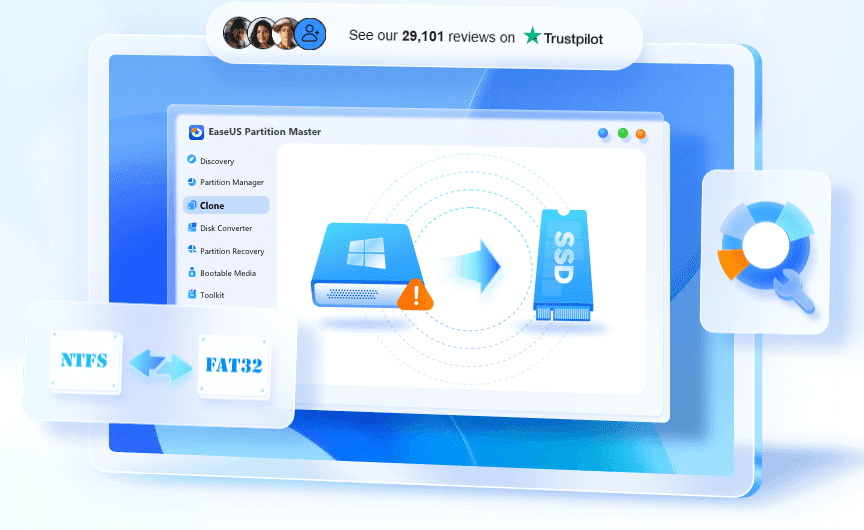
In this article, we’ll walk you through the easiest and safest method to clone or migrate Windows from one drive to another, using a free and powerful tool called EaseUS Disk Copy.
Why Clone or Migrate Windows?
- 💽 You’ve installed a new SSD and want to transfer Windows from your old HDD.
- 💾 You want to create a full backup of your current system for safety.
- 🔁 You’re replacing your old drive but don’t want to lose apps or settings.
- 🚀 You want to boost your PC performance by upgrading to a faster SSD.
What You’ll Need
- Your current PC with Windows installed
- A new SSD or HDD connected to your machine
- The free tool: EaseUS Disk Copy
👉 Download from Official Website
Step-by-Step Guide to Clone or Migrate Windows
✅ Step 1: Check Disk Availability
- Open File Explorer and verify that your new SSD is connected.
- If it doesn’t show up:
- Right-click the Start menu and select Disk Management.
- You might see a popup asking to initialize the disk.
- Choose GPT (GUID Partition Table) and click OK.
- Now right-click on the unallocated space, select New Simple Volume, and proceed with the setup to create the volume.
✅ Step 2: Download EaseUS Disk Copy
- Open your browser and go to:
👉 https://www.easeus.com/disk-copy/home-edition.html - Click Download Now and install the tool on your PC.
- Launch the software.
✅ Step 3: Start OS Migration Process
- As soon as the tool opens, it should detect the new drive and display a message like:
“A new SSD has been detected. Do you want to migrate OS to the new disk?” - Click Yes.
✅ Step 4: Select Source and Target Drives
- The tool will display two disks:
- Disk 0 (likely your current system disk)
- Disk 1 (your new SSD or target disk)
- Make sure to:
- Confirm your current OS drive by checking its size in File Explorer.
- Select the new disk as the Target Disk.
- Click Proceed to start the migration.
✅ Step 5: Complete the Cloning Process
- The software will begin cloning your current Windows OS to the new SSD.
- Once complete, click Finish.
✅ Step 6: Boot From the New Drive
After the cloning:
- Most systems will automatically boot from the new SSD.
- If it doesn’t:
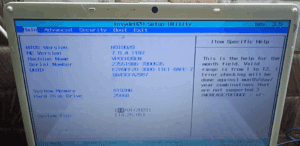
- Restart your PC and enter the BIOS/UEFI settings (usually by pressing F2, F10, Del, or Esc).
- Change the boot priority to select your new SSD.
Once done, your PC will boot into Windows from the new drive — and all your apps, settings, and files will be exactly as they were.
Final Thoughts
EaseUS Disk Copy makes disk cloning effortless, even for beginners. Whether you’re upgrading to a new SSD for performance or simply creating a backup, this tool ensures a safe and accurate OS migration. You don’t need advanced technical skills — just follow the simple steps, and you’re good to go.
Tags
Windows OS migration, clone Windows SSD, EaseUS Disk Copy, SSD cloning tool, migrate Windows 10, clone hard drive, Windows without reinstall, upgrade PC drive
Hashtags
#WindowsMigration #SSDUpgrade #EaseUS #CloneWindows #DiskCloning #PCUpgrade #WindowsTips #TechGuide #HDDtoSSD #EaseUSDiskCopy
Disclaimer
Disclaimer: While EaseUS Disk Copy is reliable and safe, disk cloning operations carry some risk. Please ensure that important data is backed up before proceeding. This guide is for informational purposes only. The author is not responsible for any data loss or system issues caused by improper use of third-party tools.