Is your Windows PC slowing down over time? One often-overlooked culprit is cached RAM memory, which can consume valuable system resources. In this guide, we’ll show you two effective methods to clear RAM cache—manually or automatically—to boost your PC’s speed and responsiveness.
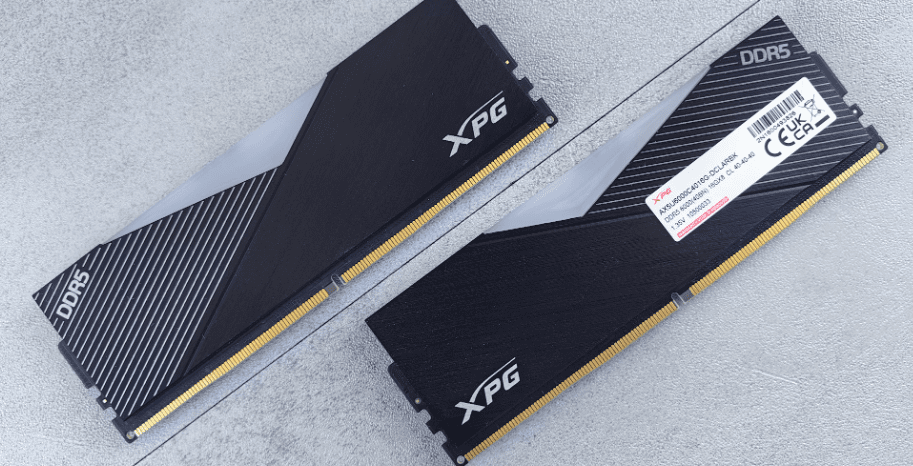
Why Clear RAM Cache?
RAM cache (or standby memory) stores frequently accessed data to speed up operations. However, over time:
✔ Cached memory builds up, reducing available RAM.
✔ System slowdowns occur when RAM is overloaded.
✔ Performance drops in multitasking and gaming.
By clearing RAM cache, you can free up memory and improve system efficiency.
Method 1: Clear RAM Cache Manually (Using RAMMap)
RAMMap is a free Microsoft tool that lets you manually clear cached memory.
Step 1: Download & Run RAMMap
- Download RAMMap from Microsoft’s website.
- Extract the ZIP file and run
RAMMap64.exeas Administrator.
Step 2: Clear Standby Memory
- Open Task Manager (
Ctrl+Shift+Esc) → Performance → Memory. - Note the “Cached” value (e.g., 3.9GB).
- In RAMMap, click “Empty” → “Empty Standby List”.
- Check Task Manager again—cached memory should drop significantly.
⚠ Note: This is a temporary fix—cache will refill over time.
Method 2: Automatically Clear RAM Cache (Using Task Scheduler)
For a hands-off approach, automate cache clearing with EmptyStandbyList.exe and Windows Task Scheduler.
Step 1: Download EmptyStandbyList
- Download EmptyStandbyList.exe.
Step 2: Create a Scheduled Task
- Open Task Scheduler (
Win + S→ Search “Task Scheduler”). - Click “Create Task”.
- Name it (e.g., “RAM Cache Cleaner”).
- Under “Security Options”:
- Click “Change User or Group” → “System”.
- Check “Run with highest privileges”.
- Under “Triggers” → “New”:
- Set to repeat every 15-30 minutes.
- Select “Indefinitely”.
- Under “Actions” → “Browse”:
- Select EmptyStandbyList.exe.
- Click OK to save.
✅ Done! Windows will now auto-clear RAM cache at your chosen interval.
Which Method Should You Use?
| Manual (RAMMap) | Automatic (Task Scheduler) |
|---|---|
| ✔ Instant cache clearing | ✔ Runs in the background |
| ❌ Temporary fix | ✔ Set-and-forget solution |
| Best for quick fixes | Best for long-term maintenance |
Final Thoughts
Clearing RAM cache can significantly improve Windows performance, especially on older or memory-constrained PCs. For best results:
✔ Use RAMMap for quick fixes.
✔ Set up Task Scheduler for automatic maintenance.
Tags:
Windows Optimization, Clear RAM Cache, Speed Up Windows, RAM Management, PC Performance
Hashtags:
#Windows11 #PCOptimization #TechTips #SpeedUpPC #RAMManagement