Managing Gmail effectively is essential, especially when your inbox starts filling up with countless promotional emails. This not only takes up your 15 GB Google storage space but also causes you to miss important emails. In this article, we will explore two powerful methods to declutter your Gmail account, unsubscribe from spammy senders, and organize your important emails more efficiently.
✅ Why Your Gmail Fills Up Quickly
Most people use Gmail for professional or personal purposes. However, over time, your inbox gets flooded with:
- Promotional emails
- Newsletters
- Subscribed content from different platforms
- Spam messages
Eventually, you receive a warning like:
“You’re running out of storage.”
And at that point, your Gmail becomes difficult to manage.
Let’s fix that.
🧹 Method 1: Manually Clean Up and Unsubscribe in Gmail
This method gives you full control and is privacy-safe as you won’t share access with any third-party tools.
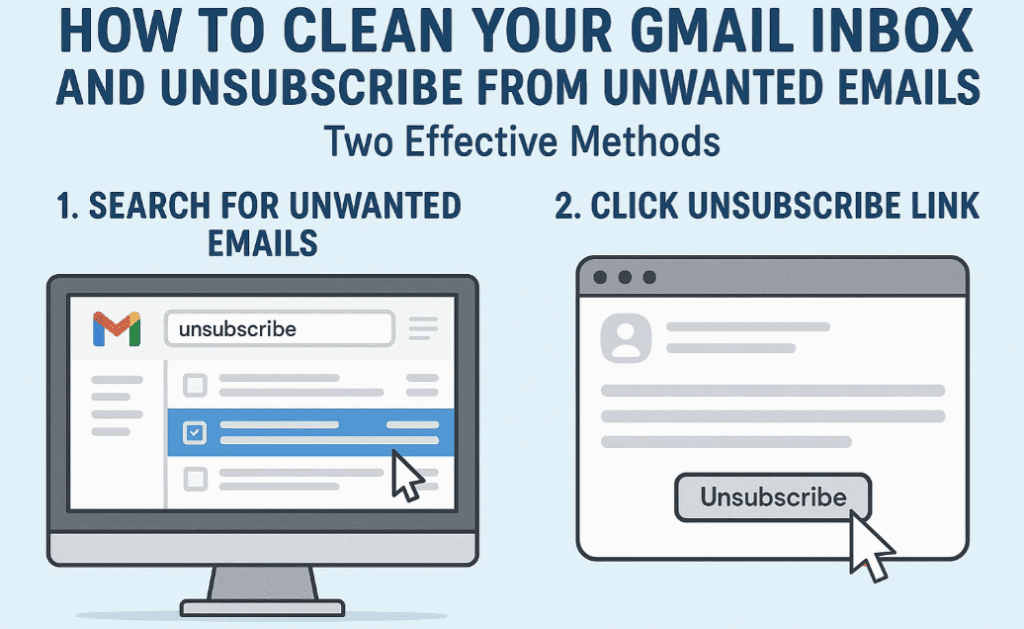
🔍 Step 1: Identify Unwanted Emails
Most promotional emails contain the keyword Unsubscribe. You can use Gmail’s search function to filter them:
- Open Gmail.
- In the search bar, click the drop-down arrow.
- In the field “Has the words”, type:
unsubscribe - Click Search.
You will now see all emails that contain the “Unsubscribe” link.
📤 Step 2: Unsubscribe from Senders One by One
- Open any unwanted email.
- Scroll down and look for the Unsubscribe link (usually at the bottom).
- Click on it and follow the confirmation steps.
Additionally, to clean your inbox:
- Click the three dots (menu) on that email.
- Choose Delete this message.
Repeat this process for other promotional emails.
🗂 Step 3: Create a Label for Promo Emails (Optional)
- From the search result (with “unsubscribe”), click Select all.
- Then click Create a label.
- Name it something like
Promotional EmailsorUnsubscribed. - All future emails containing “unsubscribe” will be labeled for easier management.
🗑 Step 4: Bulk Delete Unwanted Emails
If you’re sure that most “unsubscribe” emails are useless to you:
- Select the first 50 emails.
- Click “Select all conversations that match this search.”
- Click the Delete icon 🗑.
- Confirm.
Note: If there are important emails (like from Google), you can exclude them in the search.
Use this format:




unsubscribe -from:google.com
This will prevent deleting any security alerts or account notifications from Google.
🤖 Method 2: Automatically Unsubscribe Using Clean Email Tool
If you don’t want to manually manage your inbox, you can use a trusted tool like Clean Email or similar services. But keep in mind – this method requires access to your Gmail account.
🔐 Disclaimer:
You will be granting access to your Gmail inbox to a third-party application. Use this method only if you’re comfortable sharing access. Ensure the service is secure and has a privacy policy.
🧰 Step-by-Step Guide to Use Clean Email
- Go to Clean Email.
- Click on Try it for free.
- Sign in using your Gmail account and allow access.
- The tool will scan your inbox and categorize your emails.
You will see sections like:
- Unread emails
- Old emails
- Large emails
- Emails from top senders
- Automatic replies
📬 Unsubscribe from Senders
- Click on the Unsubscribe tab.
- It will display all email senders you are subscribed to.
- Click Unsubscribe next to each unwanted sender.
You’ll also have options like:
- Block Sender
- Mute Sender
- Send Future Emails to Trash Automatically
The free plan allows unsubscribing from up to 25 services.
🧼 Final Step: Remove Tool Access and Data (If Desired)
Once you’re done cleaning:
- Click your profile (top-right corner in Clean Email).
- Go to Preferences > Data Removal.
- Select Delete account and data to remove all associated data.
🔄 Comparison Between Manual and Tool-Based Method
| Feature | Manual Cleanup | Clean Email Tool |
|---|---|---|
| Privacy | ✅ Safe | ⚠️ Requires Gmail access |
| Effort | 🕒 Time-consuming | ⚡ Fast and automated |
| Cost | Free | Limited free tier |
| Control | Full | Tool-managed |
🧠 Frequently Asked Questions (FAQs)
Q. Can I trust third-party tools like Clean Email?
A. Use only verified services with clear privacy policies. Always remove access after use.
Q. Will deleting emails free up Gmail storage?
A. Yes, especially large attachments and promotional emails.
Q. Can I recover deleted emails?
A. Yes, from the Trash within 30 days.
📌 Conclusion
Cleaning your Gmail doesn’t have to be difficult. Use Method 1 for full control and privacy, or Method 2 for quick results using automation.
If you’re concerned about privacy, stick with manual methods. But if you have thousands of emails and little time, the Clean Email tool is worth trying.
📩 Contact for Help
If you have further questions or issues, feel free to reach out at:
📧 dtptips@gmail.com
🔖 Tags
Gmail cleanup, Gmail unsubscribe, email organization, Clean Email, Gmail storage full, Gmail space tips, bulk delete Gmail, manage Gmail, remove spam emails
📢 Hashtags
#GmailTips #EmailCleanup #GmailUnsubscribe #InboxZero #ProductivityTips #CleanEmail #DigitalDeclutter #EmailManagement
Let us know which method worked best for you and feel free to share this guide with others looking to clean up their Gmail!







