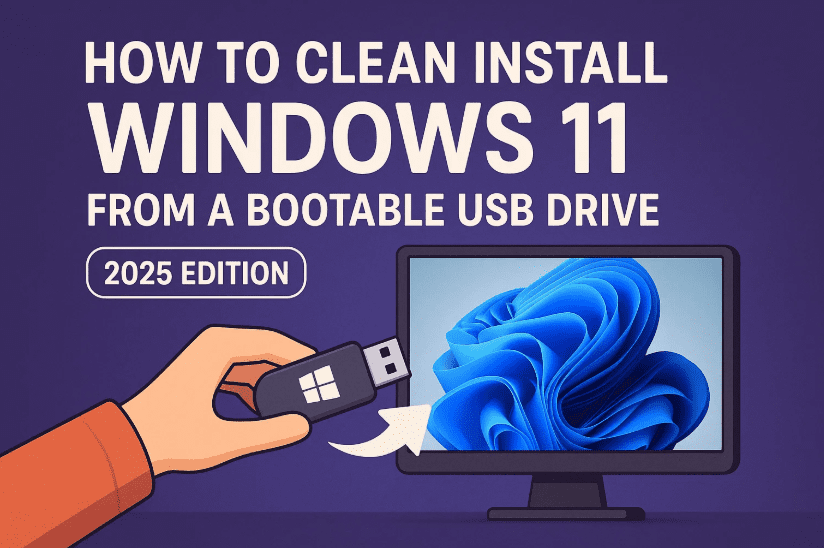
Performing a fresh installation of Windows 11 can fix a range of problems—from sluggish performance and malware to corrupted system files. It’s also essential if you’re setting up a new PC or upgrading from an older OS like Windows 10. If you’re ready for a clean start, this guide will walk you through every step to install Windows 11 using a bootable USB drive.
So far, we’ve done a good job understanding the basics—now let’s move on to the actual installation process. This article will include boot key tips, drive formatting instructions, and what to do when you’re asked for a Microsoft account.
🧰 What You’ll Need
Before starting the installation process, make sure you have:
- A bootable USB drive with the Windows 11 ISO installed
👉 Download from: https://www.microsoft.com/software-download/windows11 - A valid Windows 11 license or product key (you can enter it during or after installation)
- Backup of your files (clean installs erase all data from the drive)
🚀 Step 1: Boot from USB Drive
Let’s begin with booting into the Windows 11 setup from your USB drive.
🧾 Instructions:
- Plug in your bootable USB drive into your laptop or PC.
- Turn on your system and press the boot key:
- Dell: F12
- HP: ESC
- Lenovo: F10 / ESC / Delete
(You’ll usually see this option briefly on-screen.)
- In the Boot Menu, select the UEFI boot option for your USB drive (e.g., SanDisk UEFI), and press Enter.
🖥️ Step 2: Start Windows 11 Setup
Once booted, you’ll enter the Windows 11 installer screen.
🧾 Instructions:
- Click Next on the language/keyboard screen (leave as default or change if needed).
- Click Install Now.
🔑 Step 3: License & Edition
- Enter Product Key if available.
- If you don’t have one now, click “I don’t have a product key” to activate later.
- Choose your Windows 11 edition:
- Home, Pro, or Education (select based on your license or preference)
- Click Next and accept the license agreement.
💽 Step 4: Drive Partitioning (Clean Installation)
This part is crucial for a clean install.
🧾 Instructions:
- Select Custom: Install Windows only (advanced).
- You will now see your disk and its partitions:
- Delete all existing partitions one by one if you want a fresh start.
- Select the largest unallocated partition or primary drive and click Next.
⚠️ Warning: This step will erase all data on the selected drive. Backup important files beforehand!
🕐 Step 5: Let Windows Install
Now Windows will start copying files and setting up your system.
- Wait as it reaches 100%.
- Your PC will restart a couple of times during this stage.
- You can now safely remove your USB drive.
🌐 Step 6: Initial Setup After Reboot
After rebooting, Windows will ask for some regional and user information.
🧾 Instructions:
- Choose your country/region (e.g., India) → Click Yes.
- Choose your keyboard layout → Click Yes.
- You can skip adding a second keyboard layout.
- Connect to your Wi-Fi and click Next.
👤 Step 7: Create User Account
Windows now asks how you want to use the PC:
Option 1: Sign in with Microsoft Account
- Click Setup for personal use or work/school, and log in with your Microsoft account.
Option 2: Create Offline (Local) Account
- Click Sign-in options → Select Domain join instead
- Create a username (e.g., Dell)
- Set a password and confirm it.
- Set up three security questions (used for recovery if you forget your password)
Click Next to continue.


🔄 Step 8: Final Setup and Updates
Almost there! Now Windows will:
- Apply some updates
- Set up services
- Restart your system again
After a few minutes, you’ll reach your new Windows 11 desktop — clean, fresh, and ready to use.
❓ Frequently Asked Questions (FAQs)
Q1: Do I need a product key to install Windows 11?
No. You can skip the key during setup and activate Windows later.
Q2: Can I do a clean install over Windows 10?
Yes. Just follow the drive formatting step to wipe your old OS.
Q3: Is internet required for installation?
You can install without internet, but some features like updates and Microsoft login won’t be available until connected.
Q4: What happens if I forget to remove the USB drive?
Your PC may boot into setup again. Just remove the USB and restart.
🎯 Final Thoughts
So far, we’ve done a great job walking through each step of installing Windows 11 from a bootable USB. Whether you’re starting fresh or upgrading from an older version, this method ensures a clean, smooth setup.
To recap:
- Boot into USB
- Choose your edition
- Format your drive
- Complete the setup wizard
- Enjoy your new Windows 11 system!
If you’re looking for how to create the bootable USB drive, you can use tools like Rufus or the official Media Creation Tool from Microsoft.
🔖 Tags:
install windows 11, clean install windows 11, bootable usb windows 11, format windows 11, fresh install windows, windows setup, windows 11 installation guide, windows usb installer, dell boot key, hp boot key
📢 Hashtags:
#Windows11 #CleanInstall #BootableUSB #WindowsSetup #InstallWindows11 #TechGuide #PCSetup #FreshStart #MicrosoftWindows
Disclaimer: This article is for educational purposes. A clean install will delete all data on the target drive. Be sure to back up your important files before proceeding. Always download Windows ISO files from official sources.








