Have an old laptop that doesn’t meet Windows 11’s minimum requirements like TPM 2.0 or Secure Boot? Don’t worry—you can still experience the latest Windows 11 24H2 Preview build using a clean installation method. Even with outdated hardware, it’s possible to install and run the latest version of Windows with some clever workarounds.
In this article, we’ll walk you through how to clean install Windows 11 24H2 on unsupported PCs using tools like Rufus and a few tweaks during the setup.
🧰 What You’ll Need
Before getting started, make sure you have the following:
- An old laptop (even if it’s unsupported for Windows 11)
- A USB flash drive (8GB or more)
- A Windows Insider account
- Rufus software (free utility to create bootable USBs)
- Windows 11 24H2 Preview ISO file
📥 Step 1: Join the Windows Insider Program
- Visit the official Windows Insider Program website.
- Sign in with your Microsoft account.
- Navigate to the Windows Insider Preview Downloads page.
- Choose the desired build (Dev Channel, Canary Channel, etc.).
- Select Windows 11 24H2 ISO, pick your preferred language, and download the 64-bit version.
🛠 Step 2: Create a Bootable USB Using Rufus
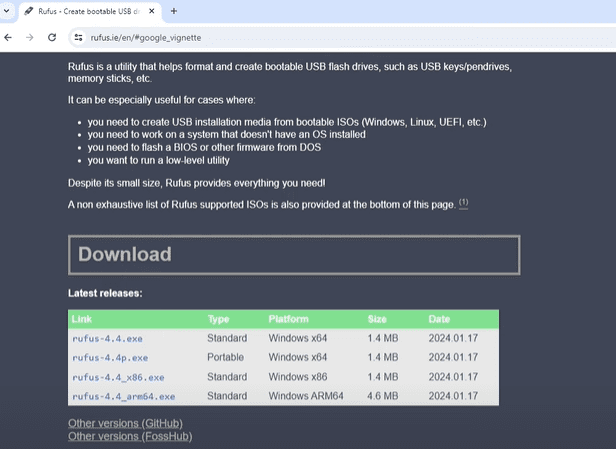
- Download the latest version of Rufus (e.g., version 4.4).
- Plug in your USB flash drive (8GB or larger).
- Open Rufus and select your downloaded Windows 11 24H2 ISO.
- Choose MBR partition scheme (if your old laptop does not support GPT).
- Under “Image Options,” remove requirements for:
- TPM 2.0
- Secure Boot
- 4GB RAM minimum
- Online Microsoft account
- Enable additional options such as:
- Create a local account (e.g., “Daniel”)
- Disable data collection
- Disable BitLocker
- Set regional options automatically
- Click Start to write the ISO onto your USB.
🔧 Step 3: Boot the Laptop and Begin Installation
- Insert the USB into your old laptop.
- Power it on and press the relevant boot key (commonly F12, F2, or Esc) to open the boot menu.
- Select your USB drive from the list to begin installation.
💡 Note: Since your laptop may not support GPT, use the MBR format for compatibility.
💻 Step 4: Install Windows 11 24H2 Preview
- Once the Windows setup begins, choose your language, keyboard layout, and click Install Now.
- Accept the license terms and continue.
- Choose Custom: Install Windows only.
- Delete all existing partitions on your drive (except your USB drive).
- Select the unallocated space (your laptop’s SSD or HDD) and click Next.
The installation process will now begin. Your PC may restart several times.
🚀 Step 5: Finish Setup and Connect to Internet
- After installation, you’ll be greeted by the Windows 11 OOBE (Out-Of-Box Experience).
- If you don’t have internet during setup, click “I don’t have internet” and proceed with offline installation.
- Once you’re on the desktop, connect to Wi-Fi or Ethernet.
- Go to Settings > System > About and confirm you’re running Windows 11 24H2 Preview.
- Run Windows Update to check for latest updates and drivers. Most essential drivers (like graphics and Wi-Fi) should install automatically.
✅ Final Thoughts
Installing Windows 11 24H2 on an unsupported laptop might sound tricky, but with the right tools and approach, it’s totally possible. Whether you’re testing the newest features or simply want to breathe new life into an old device, this method lets you explore the latest Windows experience without hardware restrictions.
Despite lacking TPM, Secure Boot, or a modern CPU, the system ran smoothly, received updates, and even installed all required drivers automatically in our test.
⚠️ Disclaimer: This setup is ideal for testing and educational purposes. Since it involves unsupported hardware, Microsoft may limit future updates or compatibility.
Tags: windows 11, windows 11 24h2, unsupported pc, windows clean install, rufus bootable usb, insider preview, windows iso install, windows 11 preview, laptop revive, tpm bypass
Hashtags:
#Windows11 #Windows11Install #UnsupportedPC #TechTips #OldLaptopUpgrade #WindowsInsider #Windows11Preview #CleanInstall #RufusTool #WindowsTips
Let me know if you’d like a follow-up guide on how to speed up your Windows 11 installation or tweak performance on older machines!