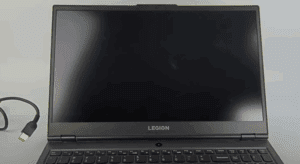
Tired of seeing the same old Windows logo every time you boot your PC? In this guide, we’ll show you how to customize your Windows 11 boot logo with your own image, animation, or branding—no coding required!

🚀 Perfect for:
✔ PC enthusiasts
✔ YouTubers & streamers
✔ Custom PC builders
✔ Anyone who wants a unique boot experience
⚠ Warning: Modifying system files carries risks. Always back up your BIOS and system before proceeding.
What You’ll Need
📌 Tools & Software
- UEFITool – For BIOS/UEFI editing (Download: GitHub)
- HxD Hex Editor – For manual hex editing (Download: Official Site)
- BIOS Backup Tool – To save a backup of your current BIOS
- BGRT Editor – For replacing the boot logo (Download: GitHub)
- A custom image (Recommended: BMP format, 1080p resolution)
✅ Compatible Brands
- Dell, HP, Lenovo, Acer, ASUS, MSI, Gigabyte (UEFI-based systems)
Step-by-Step Guide to Change Boot Logo
Step 1: Prepare Your Custom Logo
- Create/Edit Your Image
- Use Photoshop, GIMP, or Paint.NET to design your logo.
- Recommended dimensions: 1920×1080 (1080p) for best results.
- Save as BMP (Bitmap) format (required for boot logo).
- Convert to BGRT-Compatible Format
- Open UEFITool and import your image.
- Export as a BMP file (or use BGRT Editor for conversion).
Step 2: Replace the Default Boot Logo
- Download HackBGRT
- Get the latest release from GitHub.
- Extract the ZIP file.
- Replace the Default Splash Screen
- Locate
splash.bmpinside the HackBGRT folder. - Rename your custom image to
splash.bmpand replace the existing file.
- Run HackBGRT as Administrator
- Right-click
setup.exe→ Run as Admin. - Press
Ito install the new boot logo. - Restart your PC to see the changes.
Step 3: Verify & Troubleshoot
✅ If successful: Your custom logo should appear instead of the Windows logo at boot.
❌ If the logo doesn’t appear:
- Ensure Secure Boot is disabled in BIOS.
- Check if your BIOS supports BGRT modification (most UEFI systems do).
- Revert using BIOS backup if needed.
Bonus: Add a Windows 12-Style Boot Animation
Want a futuristic look? Try these tweaks:
- Use animated GIFs (requires advanced UEFI modding).
- Apply minimalist dark-mode logos for a sleek effect.
Final Thoughts
Customizing your Windows 11 boot logo is a great way to personalize your PC. While the process is safe if done correctly, always:
✔ Back up your BIOS
✔ Use trusted tools
✔ Follow steps carefully
Got questions? Drop a comment below!
📌 Tags
Windows 11 Boot Logo, Custom BIOS Logo, UEFI Modding, PC Customization, Change Boot Screen, Windows 12 Boot Animation
🔥 Hashtags
#Windows11 #BootLogo #PCCustomization #TechGuide #BIOSModding
⚠ Disclaimer: Modifying system files can void warranties or cause instability. Proceed at your own risk. Always back up critical data before making changes.