Sometimes, the default text size in Windows can feel too small — especially on high-resolution displays. Whether you’re facing eye strain or just want better visibility, Windows allows you to increase or decrease the system text size without using any third-party software.
In this guide, I’ll walk you through the exact steps to change the text size on your Windows 11 or Windows 10 device. It’s a quick process, and you can preview the size before applying the change. So far, we’ve done a good job navigating basic system settings, now let’s make your screen more comfortable to read.
🧠 Why Adjust Text Size?
Here are a few reasons you might want to tweak the text size:
- Better readability for small fonts
- Easier navigation for users with vision issues
- Reduce eye strain during long screen hours
- Improve display usability on high-DPI monitors
✅ Steps to Change Text Size in Windows 11/10
Let’s move to the next step now and see how to increase or decrease the text size across your system, including apps, settings, and dialog boxes.
🧾 Step-by-Step Instructions:
- Open Settings
- Press
Windows + Ion your keyboard - Or click on the Start Menu → Select Settings
- Press
- Go to Accessibility Settings
- In the left sidebar, click on Accessibility
- (On Windows 10, it may be under Ease of Access)
- Click on “Text Size”
- Under the Vision section in Accessibility, click on Text size
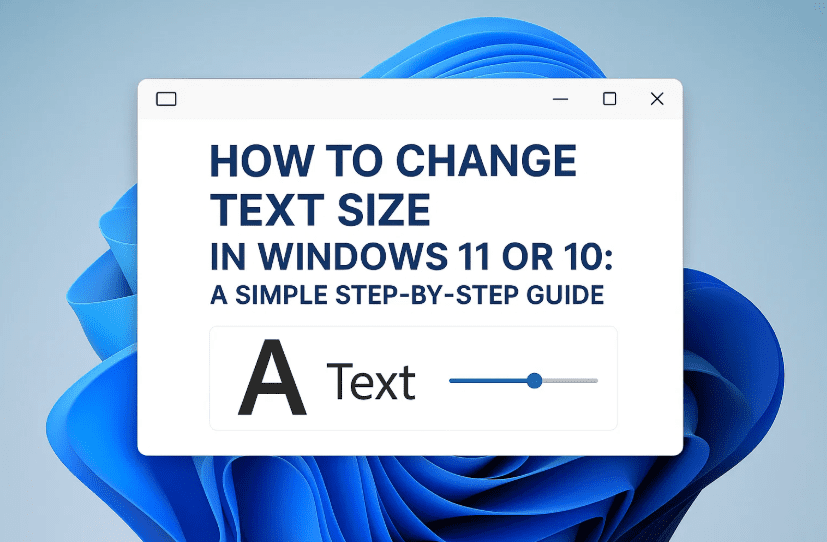
- Adjust the Text Size Slider
- You’ll see a preview area above the slider
- Drag the slider to the right to increase text size
- Drag to the left to reduce it
- Click on “Apply”
- Once you’re happy with the preview, click Apply
- Your screen will refresh briefly with the new settings
💡 Tip: The default text size is set to 100%. You can increase it up to 225% depending on your screen resolution and personal comfort.
🔄 How It Affects Your System
Once applied, the text size will change across:
- Start menu
- File Explorer
- System settings
- Windows notifications
- Most native apps
Some third-party software may not respond to this setting, but most modern apps adapt well.
🔁 Want to Reset Back to Default?
If things feel too large or awkward:
- Just follow the same steps again.
- Set the slider back to 100%
- Hit Apply, and your system will revert to default text size.
❓ Frequently Asked Questions (FAQs)
Q1: Will changing the text size affect icon or display scaling?
No. This only adjusts the font size. If you want to scale apps and icons too, go to Display settings → Scale & layout.
Q2: Is this available in Windows 10?
Yes. In Windows 10, it’s located under Settings → Ease of Access → Display → Make text bigger.
Q3: Does increasing text size slow down my system?
Not at all. It’s purely a visual setting and doesn’t impact performance.


🎯 Final Thoughts
So far, you’ve done a great job learning how to customize your Windows experience for better readability. Whether you’re dealing with vision issues, using a high-res screen, or just want a more comfortable viewing experience — adjusting the text size is a smart and easy fix.
Just remember:
- Use the Accessibility > Text Size slider
- Preview your changes before applying
- Revert any time by setting it back to default
And that’s it — your eyes will thank you!
🔖 Tags:
text size windows, increase font size windows, accessibility settings windows, adjust text size windows 11, ease of access settings, readability windows display, customize text windows, system font size
📢 Hashtags:
#Windows11Tips #Accessibility #TextSize #EaseOfAccess #FontAdjustment #WindowsCustomization #ProductivityTips #UserInterface
Disclaimer: This article is intended for educational purposes. Changing system settings like text size may slightly affect app UI in rare cases. If you’re using accessibility tools or third-party themes, ensure compatibility before making display-related changes.








