Introduction
Want to mirror your Android phone screen to your Windows PC or laptop without cables or third-party apps? With built-in Windows Wireless Display (Miracast) and Android’s screen mirroring feature, you can easily project your phone’s display onto a larger screen—perfect for presentations, gaming, or media sharing.
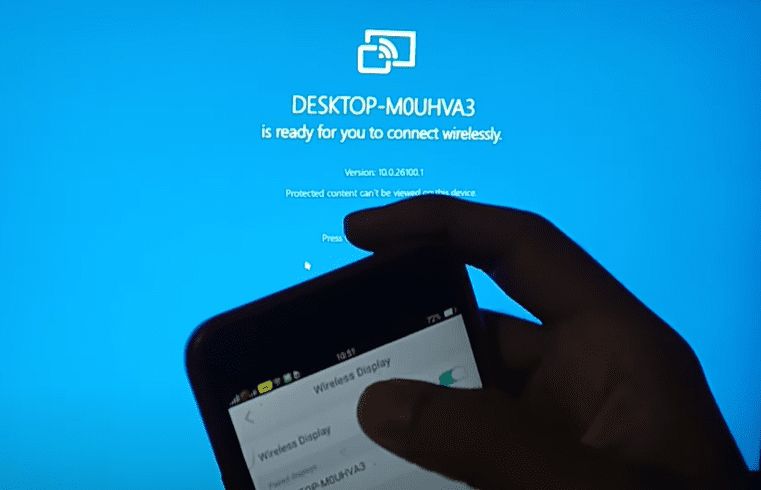
In this guide, we’ll walk you through the step-by-step process to cast your Android screen to a Windows PC without any extra software.
Prerequisites
✔ Windows 10/11 PC (with Wi-Fi support)
✔ Android phone (running Android 9 or later)
✔ Both devices must be on the same Wi-Fi network
Step-by-Step Guide: Cast Android to PC Wirelessly
Step 1: Enable Wireless Display on Windows
- Open Settings → Go to System → Projecting to this PC.
- Under “Optional Features”, search for “Wireless Display” and install it.
- Once installed, go back to Projecting to this PC and configure:
- “Available everywhere” (for easy connection).
- “First time only” (for security).
- Turn on “Require PIN for pairing” (optional).
Step 2: Enable Screen Mirroring on Android
- On your Android phone, go to Settings → Connected Devices → Connection Preferences.
- Tap “Cast” or “Screen Mirroring” (varies by device).
- Your PC name should appear—select it.
- Enter the PIN shown on your PC (if enabled).
Step 3: Start Mirroring
- Once connected, your phone screen will appear on your PC.
- To exit, simply turn off screen mirroring on your phone or disconnect from the Projecting to this PC menu.
Troubleshooting Tips
🔹 If your PC doesn’t appear on Android:
- Ensure both devices are on the same Wi-Fi.
- Restart your phone and PC.
- Update Windows and Android.
🔹 If the connection is laggy:
- Move closer to the Wi-Fi router.
- Close background apps on your phone.
Alternative Methods (If Wireless Fails)
- USB Tethering (For Wired Connection)
- Connect via USB cable → Enable USB debugging in Developer Options.
- Use scrcpy (free tool) for low-latency mirroring.
- Third-Party Apps (If Needed)
- ApowerMirror (Wireless & USB support).
- Vysor (Simple USB mirroring).
Conclusion
Casting your Android screen to a Windows PC is simple with built-in wireless display features. No cables, no extra apps—just seamless mirroring for work, gaming, or entertainment.
📌 Pro Tip: For gaming or videos, use 5GHz Wi-Fi for smoother performance.
Tags & Hashtags
Tags:
Android screen mirroring, cast phone to PC, wireless display, Miracast, screen sharing, Android to Windows, phone mirroring
Hashtags:
#AndroidToPC #ScreenMirroring #WirelessDisplay #Miracast #TechGuide #AndroidTips #Windows10 #Windows11 #PhoneMirroring