Microsoft has made it increasingly difficult to set up Windows 11 without signing into a Microsoft account. While this may be acceptable for some users, many prefer using a local account for reasons such as privacy, simplicity, or offline use.
If you’re looking to skip the forced Microsoft account sign-in during the Windows 11 setup process, there’s a quick and effective method that still works as of the latest builds. This article will guide you through the process step-by-step.
Why Microsoft Accounts Are Being Forced
Microsoft’s recent updates have removed common methods that users previously relied on to bypass the Microsoft account requirement, such as disconnecting from the internet or using command-line workarounds like OOBE\BYPASSNRO. The official reasoning is to enhance user experience and security, but many users feel that being forced to link their OS to a Microsoft account is invasive.
Steps to Skip Microsoft Account Sign-In in Windows 11
Follow these simple steps during the initial Windows 11 setup process to create a local account without being forced to sign in with a Microsoft account:
✅ Step-by-Step Instructions
- Start Windows 11 Setup:
- Boot from your Windows 11 installation media and begin the setup process.
- Reach the Microsoft Account Sign-In Screen:
- Proceed until you reach the screen prompting you to sign in with a Microsoft account.
- Open Command Prompt:
- Press Shift + F10 on your keyboard.
If you’re on a laptop where the F-keys have dual functionality, press Shift + Fn + F10.
- Press Shift + F10 on your keyboard.
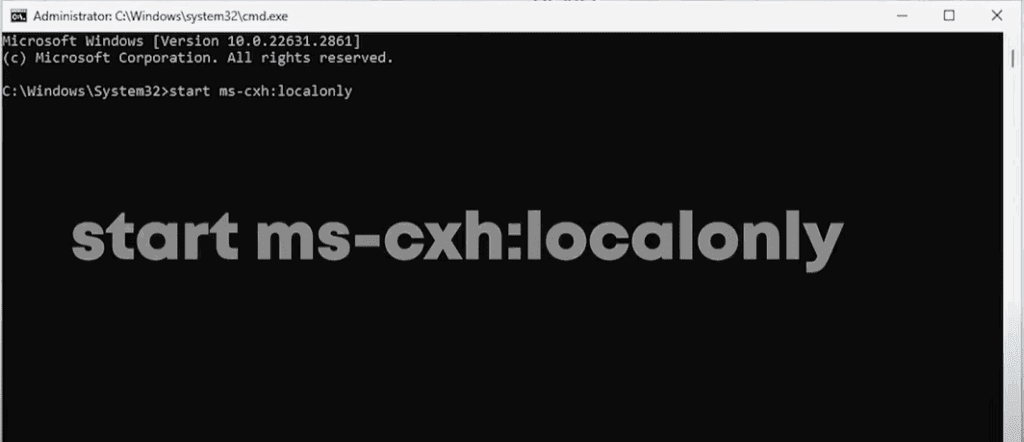
- Enter the Local Account Command:
- In the Command Prompt window that opens, type the following command and hit Enter:
start ms-cx:localonly
- In the Command Prompt window that opens, type the following command and hit Enter:
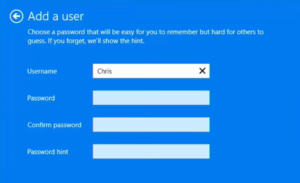
- Create Your Local Account:
- The screen will refresh and prompt you to create a local user account.
- Enter your desired username and optionally set a password.
- Continue With Setup:
- Complete the rest of the setup using the local account you’ve just created.
Result
You will now proceed with Windows 11 setup using a local account, without needing to connect to the internet or provide a Microsoft email address. This method provides a straightforward solution for users who value privacy and local control.
Important Notes
- This method currently works on many Windows 11 builds, but Microsoft may remove or patch it in future updates.
- Using a local account limits access to some cloud-based Microsoft services like OneDrive or syncing settings across devices—but for many users, this is a worthy trade-off for increased privacy.
Alternatives If This Method Stops Working
If Microsoft patches this method in future versions:
- You may need to rely on pre-configured installation images that include a local account setup.
- Consider using third-party Windows deployment tools that allow local account creation.
- Explore alternative operating systems if local control is a top priority.
Final Thoughts
The ability to choose between a local account and a Microsoft account should remain in the hands of the user. While Microsoft continues to push toward account-linked systems, methods like this one ensure that users who value privacy and control still have a path forward—at least for now.
Bookmark this article or save the command in case you need to reinstall Windows in the future.
Disclaimer
This article is intended for educational purposes only. The information provided reflects the state of Windows 11 at the time of writing and may change with future updates. Proceed with caution and at your own discretion.
Tags
windows 11, microsoft account, bypass microsoft login, local account setup, windows 11 installation, command prompt windows 11, skip microsoft sign in, windows 11 setup tips, offline windows installation
Hashtags
#Windows11 #LocalAccount #MicrosoftAccount #WindowsTips #Windows11Setup #TechHelp #PrivacyMatters