Are you tired of slow file copy and transfer speeds on your Windows PC or laptop? Struggling with sluggish cut, copy, or paste actions can be extremely frustrating, especially when handling large files. Good news — with a few smart tweaks and optimizations, you can significantly improve your file transfer speed. In this article, we’ll walk you through simple yet highly effective methods to speed up file copying on your system.
Step 1: Use Teracopy Software
The first and most straightforward method is using a dedicated file transfer software like Teracopy. It is designed to copy and move files at the maximum possible speed, providing faster performance than the default Windows file transfer tool.
- Open your web browser and search for Teracopy.
- Visit its official website and download the software.
- Install Teracopy on your computer by following the simple installation instructions.
- Once installed, when you copy files, you can select Teracopy instead of the default Windows Explorer.
- Teracopy reduces fluctuations in transfer speeds and often delivers a smoother and faster copying experience.
Step 2: Optimize Your Hard Drives
Another reason for slow file copying could be fragmented or unoptimized drives. Here’s how you can fix that:
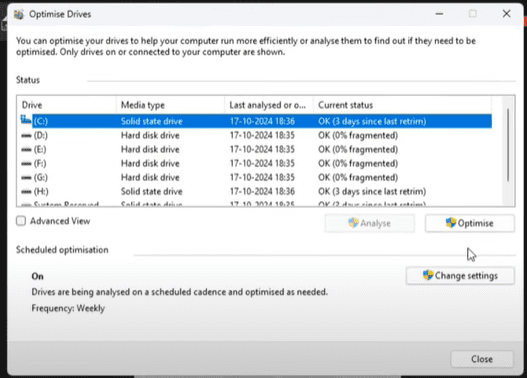
- Right-click on any drive (C:, D:, E:, etc.) and select Properties.
- Navigate to the Tools tab.
- Click on Check under “Error Checking” to scan your drive for errors.
- After scanning, click on Optimize to defragment and optimize your drive.
- Perform this for all available drives to ensure they are in their best condition.
This simple optimization improves overall system and file transfer speeds.
Step 3: Disable Unnecessary Startup Applications
Background apps can consume system resources, slowing down file transfer operations. Here’s how you can disable them:
- Right-click on the taskbar and open Task Manager.
- Go to the Startup tab.
- Identify unnecessary apps (excluding critical security software).
- Right-click and select Disable on these apps.
Disabling unnecessary background apps ensures your computer allocates more resources to file transfers, enhancing speed and efficiency.
Step 4: Modify Windows Features
Some Windows features that are not needed for most users can slow down the system:
- Open the Control Panel and set the view to Category.
- Go to Programs > Turn Windows features on or off.
- Scroll down and uncheck Remote Differential Compression API Support.
- Click OK to apply changes.
Turning off this feature can lead to noticeable improvements in file copying and overall system responsiveness.
Step 5: Optimize Windows Services
Another hidden tip to improve file transfer speeds involves Windows services:
- Open the Start menu and search for Services.
- Scroll down and find Optimize Drives.
- If it’s not running, start it.
- Change its startup type from Manual to Automatic and click Apply.
Having this service running in the background ensures that your drives remain optimized regularly.
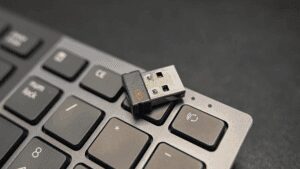
Step 6: Optimize External Storage Devices (Pen Drives, External HDDs)
If you often copy files to and from external devices, you can boost their performance too:









- Right-click on the connected device and select Properties.
- Go to the Hardware tab.
- Select your external device and click on Properties > Change Settings.
- Navigate to the Policies tab.
- Select Better Performance and click OK.
Important: Always use the Eject option before physically removing the device to avoid data corruption.
Step 7: Check Your Storage Type (HDD vs SSD)
Lastly, the type of storage device you have matters:
- Open Task Manager and go to the Performance tab.
- Check whether your storage is listed as HDD (Hard Disk Drive) or SSD (Solid State Drive).
If your PC only has an HDD, you might experience slower transfer speeds compared to SSDs. Upgrading to an SSD can dramatically improve not only your file copy speed but also your overall system performance.
Conclusion:
Following these simple yet powerful steps will significantly enhance your file copy, cut, and transfer speeds. Whether you’re copying large files or moving multiple folders, these tweaks ensure a faster, smoother experience. Try them today and feel the difference!
Tags: file-transfer-speed, boost-pc-speed, windows-optimization, laptop-speedup, ssd-upgrade, teracopy, improve-copy-speed, slow-pc-fix, windows-tips, optimize-windows
Hashtags: #FileTransferSpeed #BoostPCPerformance #WindowsTips #Teracopy #SSDupgrade #OptimizeWindows #FasterFileCopy #LaptopSpeedup #TechTips #SpeedUpPC








