Is your Wi-Fi not working? Is Bluetooth failing to turn on? Or are devices like printers and USB accessories not connecting properly to your computer? In many cases, these problems are caused by missing or outdated drivers. Fortunately, there’s an easy way to fix this.
In this article, we’ll walk you through two simple methods to install or update all necessary drivers for your Windows PC or laptop — no technical expertise needed.
✅ Method 1: Use Windows Update to Automatically Install Drivers
The first and most reliable method is to update your Windows system, which also installs most drivers automatically.
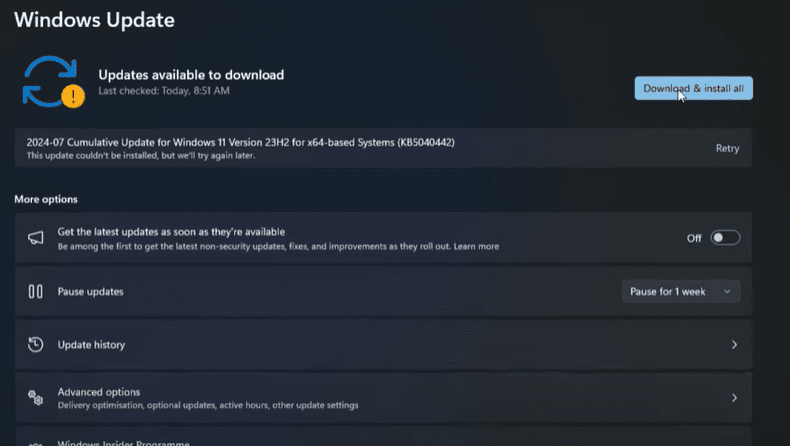
Steps:
- Open Settings
Click the Start Menu and go to Settings. - Navigate to Windows Update
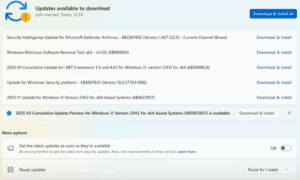
In the Settings menu, find and click on Windows Update. - Check for Updates
Click Check for updates. Windows will start searching for the latest system and driver updates. - Install and Restart
Install the updates found. After installation, restart your PC.
Once your system reboots, many missing drivers (including network, audio, graphics, etc.) will be automatically installed. This is the easiest and safest way to handle driver updates for most users.
✅ Method 2: Use AVG Driver Updater for Deeper Scanning
If some devices still aren’t working after updating Windows, you can try using a trusted third-party tool: AVG Driver Updater.
AVG, a well-known name in antivirus and system utilities, offers this handy tool to scan, detect, and install missing or outdated drivers on your PC.
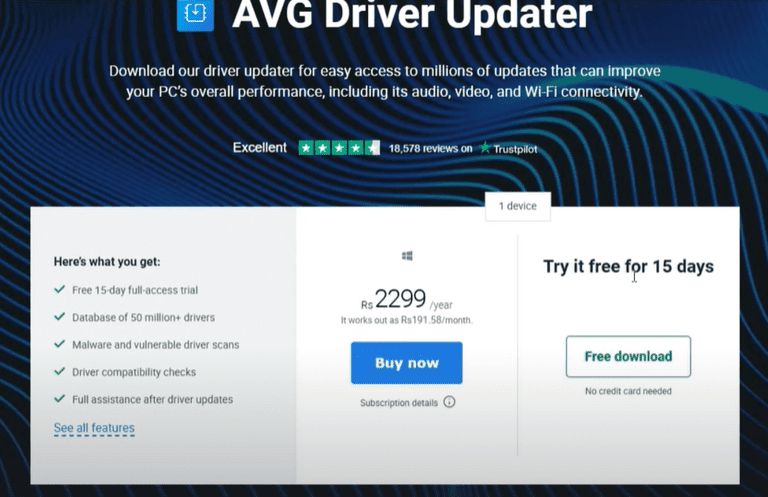
Steps:
- Download AVG Driver Updater
Visit the official website: https://www.avg.com/en-in/driver-updater
Click on Free Download to get the installer. - Install the Software
Run the downloaded setup file and follow the on-screen instructions. Click Install and let it complete. - Launch the Application
After installation, open AVG Driver Updater either from the Start Menu or desktop shortcut. - Scan for Missing or Outdated Drivers
Click on Scan Drivers. The software will analyze your system and list all drivers that are outdated, missing, or corrupted. - Update Drivers
Review the list. Select the drivers you want to update (preferably only the ones causing issues like Wi-Fi, Bluetooth, etc.).
Click Update Selected to begin the process. - Restart if Required
Some drivers may require a system restart. Go ahead and reboot your PC when prompted.
Pro Tip: Only update the drivers that are causing issues. For example, if your Wi-Fi isn’t working, update only the Wi-Fi driver instead of updating everything unnecessarily.
🛡 Why Use AVG Driver Updater?
- Trusted brand – Developed by AVG, a globally recognized software company.
- User-friendly interface – No technical knowledge required.
- Free trial available – Try the software for 15 days at no cost.
- Safe and Secure – Helps avoid downloading drivers from unsafe or unofficial sources.
Final Thoughts
Maintaining up-to-date drivers is essential for your PC’s smooth operation. While Windows Update covers most driver needs, AVG Driver Updater can fill in the gaps with deeper scanning and more precise updates.
If you’re facing hardware issues, start by updating Windows. If problems persist, give AVG Driver Updater a try — especially for tricky devices like PCI controllers, audio chipsets, or display drivers.
🏷 Tags:
windows drivers, driver updater, fix wifi, fix bluetooth, avg driver updater, windows 10, windows 11, laptop troubleshooting, automatic driver install, missing drivers, update drivers, device not working
🔖 Hashtags:
#WindowsTips #DriverFix #AVGDriverUpdater #FixPCIssues #UpdateDrivers #TechGuide #Windows11 #PCMaintenance