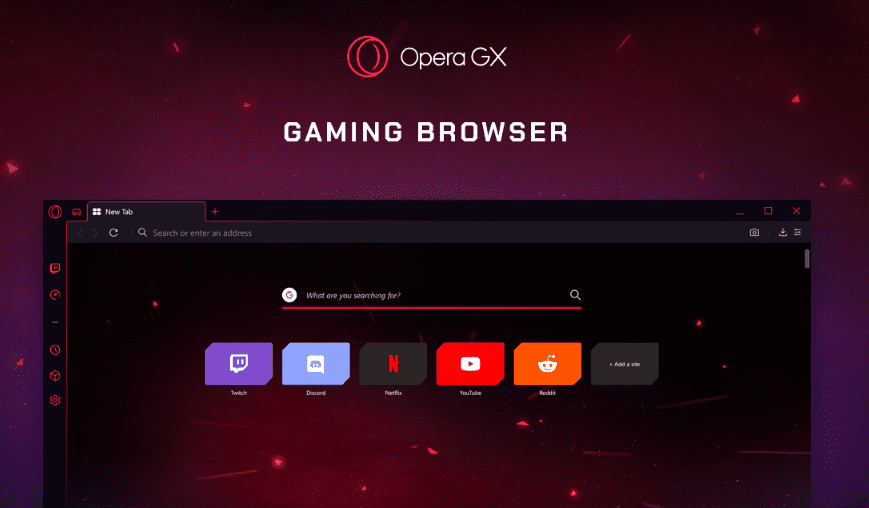
If you’re using the Opera GX browser and want your previously opened tabs to reappear every time you restart your browser, this guide is for you. Opera GX, a gamer-focused browser developed by Opera, offers many customizations, including the ability to retain your previous browsing session.
In this article, we’ll explain — step by step — how to enable the feature that ensures your tabs from the last session are automatically restored when you reopen the browser.
✅ Why Restore the Previous Session?
Keeping your last session helps when:
- You accidentally close the browser.
- You want to resume your workflow without manually reopening everything.
- You’re multitasking and need to pick up where you left off.
🖥️ Step-by-Step: Enable Previous Session Restore in Opera GX
Step 1: Launch Opera GX
Open the Opera GX browser on your Windows or macOS desktop.
Step 2: Access Browser Settings
- Move your mouse to the top-left corner of the browser window.
- Click the red “O” Opera logo.
- From the dropdown menu, click “Settings”.
- 💡 Shortcut Tip: Press
Alt + Pon your keyboard to open Settings directly.
- 💡 Shortcut Tip: Press
Step 3: Navigate to Startup Settings
- Inside the Settings window, ensure you’re on the “GX Basics” tab on the left sidebar.
- Scroll down in the main panel until you find the “On Startup” section.
Step 4: Choose the Right Startup Option
You’ll see three options:
- Begin fresh with start page
(This opens a new tab with no restored content.) - Retain tabs from previous session ✅
(This is what you need to enable.) - Open a specific page or set of pages
(Use this if you want to open fixed sites each time.)
👉 To restore the previous session, select the second option:
“Retain tabs from previous session”
Optional: If you also want the browser to show the start page along with the restored tabs, toggle the additional sub-option: “Display the start page first”.
⚠️ What If Tabs Aren’t Being Restored?
Even with the correct setting enabled, some users may find that their previous tabs are not coming back. This could be due to:
- Improper browser shutdown: If Opera GX crashes or is force-closed, it may fail to retain the session.
- Third-party extensions: Some browser add-ons can interfere with session memory.
- Malware or corrupted files: Harmful or faulty software might prevent proper saving of sessions.
🛠️ Suggested Fixes:
- Disable unnecessary extensions and restart the browser.
- Update Opera GX to the latest version.
- Run a malware scan.
- Reinstall Opera GX if the issue persists.
❓ Frequently Asked Questions (FAQs)
Q1: Does this feature restore incognito tabs?
No. Incognito (private browsing) tabs are not saved or restored, as they are designed for temporary, non-tracked sessions.
Q2: Will the session restore work after a crash?
It depends. If Opera GX didn’t shut down cleanly, it might fail to load the previous session unless recovery is triggered manually. Always close your browser properly.
Q3: Can I manually reopen closed tabs from a past session?
Yes! Right-click the tab bar and select “Reopen Closed Tab”, or use the shortcut Ctrl + Shift + T (Windows) / Cmd + Shift + T (Mac).










🎯 Conclusion
Opera GX’s session restore feature is a time-saving functionality for users who want to continue browsing exactly where they left off. By enabling just one setting in the GX Basics tab, you can ensure your tabs are always preserved across sessions — boosting your productivity and convenience.
🔗 Try Opera GX Now: https://www.opera.com/gx
🏷️ Tags:
Opera GX, browser settings, restore tabs, retain session, Opera browser tutorial, previous session recovery, desktop browser setup, web browser tips, startup settings
🔖 Hashtags:
#OperaGX #BrowserTips #WebBrowsing #SessionRestore #RetainTabs #StartupSettings #OperaBrowser #ProductivityTips
⚠️ Disclaimer:
This tutorial is for informational purposes only. The Opera GX browser is developed and maintained by Opera Software. We are not affiliated with Opera. Always ensure your browser is updated and scanned for malware if session restore issues persist.






