In 2021, I bought a sleek Dell XPS laptop—thin, premium, and expensive. Fast forward to a couple of months ago, it refused to boot. It would just get stuck on the logo screen and power off. I assumed it was a battery issue and tucked it away in a closet. But then something unexpected happened.
I decided to try something I had always been hesitant about: Linux.

I had already switched to a refurbished MacBook Air to escape the frustrating ads and clutter of Windows 11. But after tons of comments and suggestions from people online saying, “Just install Linux—it’s free and better,” I thought, why not? I pulled the dusty Dell out of the closet and gave it one more shot—with Linux Mint Cinnamon.
🌱 Why Linux Mint Cinnamon?
Everyone kept saying Linux was free, fast, private, and stable. But Linux isn’t just “Linux.” It’s a whole buffet of options—Ubuntu, Arch, Fedora, Mint… and I had no idea where to start.
After reading Reddit threads, forum posts, and AI summaries, I decided to go with Linux Mint, specifically the Cinnamon Edition, because:
- It looks and feels similar to Windows
- It’s beginner-friendly
- Everyone on the internet seems to love it
So, I went to https://linuxmint.com, picked Cinnamon, and downloaded the ISO file.
💾 Creating a Bootable USB with Balena Etcher
Once I had the ISO file, I used a tool called Balena Etcher to flash it onto an old USB drive. A few clicks later, my Linux installer was ready to go.
Was it smooth sailing from there? Of course not.
Getting the Dell XPS to boot from USB involved wrestling with the BIOS, hitting keys like Escape, Delete, and F12 repeatedly until finally—success. The Mint installer launched, and I was pleasantly surprised by how polished it looked.
🖥️ Installing Mint Cinnamon: Smooth and Ad-Free
The installation was quick and painless. No forced sign-ins. No bloatware. No ads.
There was even a friendly slideshow introducing useful software like Steam and Discord. It felt… calm. Not pushy. Not invasive.




After the installation and a reboot, my Dell XPS was alive again—running Linux Mint Cinnamon. It felt like giving an old dog a second life.
🔧 Setting Up Linux for Real Use
Now that it worked, it was time to make it mine.
✅ Step 1: Install OBS Studio
sudo apt install obs-studio
Just one line in the terminal, and boom—it was installed.
✅ Step 2: Night Light Mode
Like f.lux on Windows or Night Shift on Mac, Linux Mint has Night Light built-in. I enabled it, scheduled it, and it just worked.
✅ Step 3: Custom Shortcuts
I wanted my Linux laptop to behave like my Mac:
- Installed Ulauncher to mimic Spotlight
- Swapped Ctrl and Alt keys
- Moved the panel to the left side
And that was it—I had a Linux desktop that worked exactly the way I wanted.
🎮 Gaming on Linux: Can It Compete?
Linux gaming used to be a joke. But now, with Steam Play and Proton, things have changed.
I installed Steam, downloaded Cities: Skylines, and… it ran! Sure, not at ultra settings, but the game was playable. I also tried RuneScape—smooth as butter.
🛑 Note: Not all games work on Linux. Titles with anti-cheat systems like Valorant won’t launch, but many popular games run fine.
💡 Troubleshooting and Docking Woes
Everything was going great… until I tried to connect my dual-monitor setup and dock.
My Thunderbolt dock wasn’t recognized. Neither was my USB-to-HDMI adapter. Back to Googling I went, and thanks to a Reddit post from 2015, I found updated 2025 drivers that solved the issue.
It felt like hacking—digging through forums, entering terminal commands, and finally seeing success.
Now I have:
- Two working monitors
- Most accessories functioning
- Full control of my workspace again
⚙️ Performance and Battery Life
I didn’t expect Linux to feel this snappy. The Dell XPS boots faster than it did with Windows and even outlasts its battery performance compared to before.
Things I loved:
- Update Manager is simple and efficient
- Battery lasts longer
- System is fast, even on older hardware
- No forced reboots or ads
❓ FAQ: Common Questions About Linux Mint Cinnamon
Q: Is Linux hard for non-techies?
Not anymore. If you can Google your problems and follow steps, you’ll be fine.
Q: Can Linux really replace Windows or macOS?
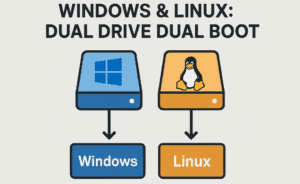
For many tasks—yes. But if you rely heavily on Adobe products or Apple-exclusive software, you’ll need to find alternatives or stick to dual-booting.
Q: Can Linux run on any laptop?
Mostly, yes. But check hardware compatibility—especially with Wi-Fi, touchpads, and display docks.
Q: Do I need to use the terminal?
Sometimes, but not as much as you’d think. Software centers and graphical tools do most of the job.
Q: Will I lose my files when installing Linux?
If you’re doing a fresh install, yes. Always back up your data first.
🧠 My Honest Take: Was Switching to Mac a Mistake?
Let’s be real—I paid hundreds for a used MacBook Air, and Linux gave me most of what I wanted for free. If I had tried Linux earlier, I might have saved a lot of money.
But here’s the catch:
Linux requires patience, curiosity, and a willingness to troubleshoot.
Mac gives you peace of mind. Linux gives you freedom.
And now, I’m using both:
- Mac stays at the office
- Linux Mint laptop is my go-to home machine
It’s the best of both worlds.
✨ Final Thoughts
Linux in 2025 isn’t just for hackers or developers. It’s for regular people who want a smooth, fast, ad-free experience on their computers.
And Linux Mint Cinnamon? It’s beautiful, customizable, and surprisingly powerful.
If you’re thinking of reviving an old laptop or just tired of Windows/Mac limitations, give Linux a try. You don’t have to switch cold turkey. Dual-boot. Experiment. Explore.
And who knows? You might fall in love with Linux—just like I did.
🔗 Useful Links
- 🌱 Linux Mint Cinnamon Download
- 💿 Balena Etcher – Create Bootable USB
- 🔧 ProtonDB – Check Game Compatibility
- 🧭 Ulauncher for Linux
🏷️ Tags
linux mint, linux cinnamon, linux vs mac, revive old laptop, linux for beginners, linux for gaming, open source desktop, dell xps linux, linux 2025 experience, linux switch review
📢 Hashtags
#LinuxMint #LinuxCinnamon #Linux2025 #OpenSource #LinuxForBeginners #LinuxVsMac #LinuxGaming #MintCinnamon #DellXPSLinux #TechJourney
Disclaimer: This post is based on personal experience with Linux Mint Cinnamon on a Dell XPS laptop. While Linux has improved massively, it may still require occasional troubleshooting. Always research compatibility before switching and back up your data.







