Hey there, So I’ve been doing this one small thing for the past couple of years, and honestly—it’s changed how I feel about online security. You know how we worry about our Gmail, Facebook, or other accounts getting hacked? Well, there’s this tiny device called a Security Key, and once you’ve set it up properly, no one—not even a tech genius—can log into your account without it.
If you’re like me and believe that digital safety should be as strong as your front door lock, then stick around. Let me walk you through exactly how I set this up, step-by-step, in a real human tone—because yes, this is me, not some bot 😄.
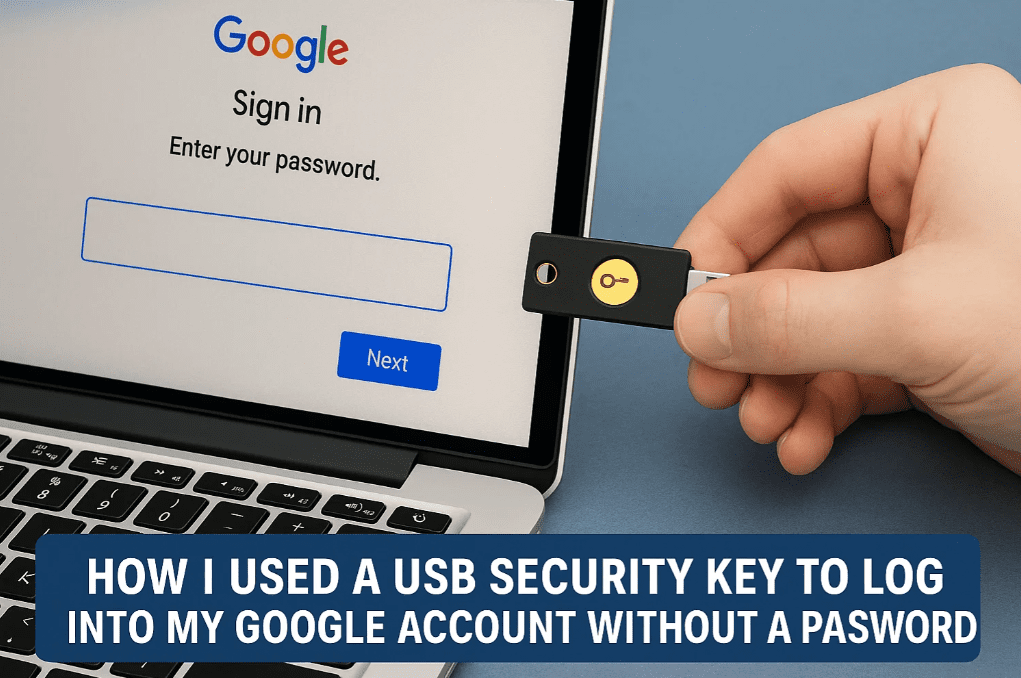
🔐 What is a Security Key?
It’s a small USB device you plug into your computer. It works like a super-strong gatekeeper—without this key, your account just won’t open.
Think of it as a modern-day lock and key system, but for your Gmail, Facebook, and even banking accounts.
🛠️ How I Set Up a Security Key with My Google Account
Step-by-step setup I followed:
- I opened Google Account Security Settings.
- Under “How you sign in to Google,” I clicked on “Passkeys and Security Keys.”
- Then, I clicked “Add Security Key.”
- It prompted me to insert the USB key into my computer. I plugged it in.
- A message appeared asking me to continue setup, so I did.
- Then, it asked me to create a PIN for the key. I set a secure PIN and clicked OK.
- Next, I was told to touch the Security Key—I tapped the button on the key, and boom, it was saved!
And just like that, my Google account got a major security upgrade.
🔐 How I Logged In Using the Key (No Password Needed!)
This was the fun part. I logged out of my Gmail account just to test it.
Here’s what happened:
- I clicked Sign in again.
- Instead of asking for a password, it showed:
👉 “Use your passkey to confirm it’s really you.” - I clicked Continue.
- It asked me to insert the Security Key, which I did.
- Then it asked for the PIN I had set earlier—I entered it.
- It asked me to touch the key again, and just like that, I was in.
No password needed. Not even a single character typed.
Just a tap, and I was inside my Gmail.
🗑️ How to Remove the Key if You Want To
Let’s say you want to remove this key in the future:
- Go to Security Settings on your Google account.
- Click on “Passkeys and Security Keys.”
- Find your listed key and click “Remove” or “Delete.”
Simple and clean.
💡 Bonus Tip: You Can Name Your Security Key
If you have more than one key, you can give each one a unique name. I named mine “Laptop Key” just so I don’t get confused later.




🔁 Forgot the PIN or Want to Change It?
You can reset or change your PIN easily:
- Go back to the key settings.
- Select “Change PIN.”
- Enter the old one, then set and confirm the new one.
It’s always better to rotate your security PIN once in a while.
🧠 Why I Recommend This to Everyone
If you’re serious about digital safety and want to:
- Stop worrying about password leaks
- Block phishing attacks completely
- Ensure no one can log into your account except you
Then investing in a USB Security Key is a no-brainer.
It’s one of those things that gives peace of mind, especially when your Gmail, Facebook, or banking accounts hold everything about your life.
📦 Want to Buy One?
The exact Security Key I use is available on Amazon:
👉 Buy USB Security Key on Amazon [Affiliate link]
(Affiliate disclosure: I may earn a small commission if you buy through this link, but I only recommend what I personally use and trust.)
❓Frequently Asked Questions
Q: Can someone hack my account if they have my password but not the key?
A: Nope! Without the USB key (and its PIN or fingerprint), they’re locked out.
Q: Can I use this on Facebook or other services too?
A: Yes! Facebook, GitHub, Dropbox, and more now support security keys.
Q: What if I lose the key?
A: No worries. Set up a second key or enable backup methods like Google Authenticator or backup codes.
🧩 Final Thoughts
If you’ve ever felt anxious about your account being hacked—or just want a simpler, more secure login experience—get a Security Key today. It’s easy to set up, fun to use, and gives you peace of mind you won’t get from passwords alone.
Trust me, once you experience logging in with just a tap, you’ll never want to type passwords again.
Tags:
usb security key google, login without password, how to use passkey gmail, gmail security upgrade, passwordless login google, set up security key, two factor authentication usb key, 2025 tech security tips
Hashtags:
#GoogleSecurity #SecurityKey #USBKeyLogin #PasskeyGoogle #2FA #TechTips #DigitalProtection #PasswordlessLogin #CyberSecurity #SecureGmail








