Managing a YouTube channel in 2025 isn’t easy — especially when you’re operating multiple faceless channels and suddenly one starts losing traction for no clear reason. It can feel frustrating, like shouting into the void. If you’ve ever suspected your channel might be shadowbanned or unfairly penalized by the algorithm, you’re not alone.
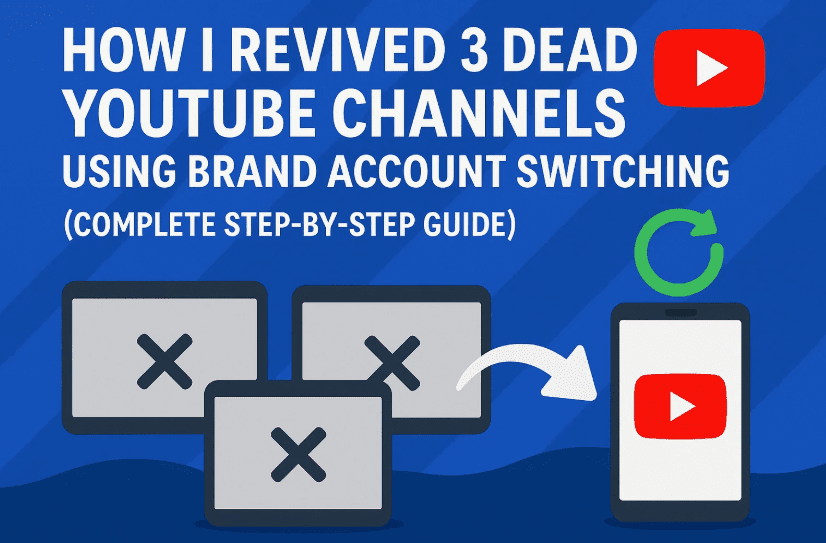
This blog post dives deep into a powerful method I’ve personally used to revive not one, but three dead YouTube channels in the past year. And no, this isn’t clickbait or some shady trick — it’s a legitimate reset technique based on brand account switching. But before we go into the how, let’s clarify whether you actually need to do this.
First — Are You Really Shadowbanned?
Let’s start with a very honest conversation. Many creators believe they’re shadowbanned simply because their views drop after initial growth. This isn’t always the case.
It’s natural for new channels to have a “honeymoon phase” where one or two videos perform well, leading to monetization or a small growth burst. But after that? YouTube recalibrates your channel’s reach to find your baseline audience.
Here’s what you should know:
- A drop in views after a few viral videos does not mean you’re shadowbanned.
- YouTube often reduces exposure temporarily as it learns your viewer base.
- A channel with 5-10 underperforming videos doesn’t automatically mean you’re penalized.
If your analytics graph looks like an abrupt cliff or your videos stop showing up in search altogether — and it’s persisted for weeks — then this guide is for you.
Let’s Talk About the Method: Brand Account Switching
Now, here comes the interesting part. This is a non-harmful workaround that resets the metadata connection between your YouTube channel and your Google account — without losing your content, subscribers, or monetization.
YouTube treats channels on brand accounts slightly differently than those on personal accounts. By migrating your channel to a new brand account (with some careful steps), YouTube can treat it as a fresh start while retaining all your content.
⚠️ DISCLAIMER:
This guide is meant for educational purposes only. Use it only if you’re confident your channel is truly shadowbanned. Misusing it on healthy channels could disrupt your performance temporarily.
Step 1: Prepare a Brand-New YouTube Channel
Let’s get things rolling. Start by logging into the Google account that owns the shadowbanned channel.
Here’s what you do:
- Visit YouTube and click your profile icon in the top-right corner.
- Select “Switch account” → “View all channels”.
- Click “Create a new channel”.
- In the new channel creation form, use the same name as your existing (shadowbanned) channel. The exact name is important for continuity. Username can be different — doesn’t matter.
- Hit Create and wait a few seconds. You now have a new brand account with the same name.
Don’t worry — you’re not going to use this new channel for content. It’s just a placeholder.





Step 2: Identify If You Are on a Brand Account or Personal Account
So far, so good. Now, let’s figure out whether your current shadowbanned channel is already a brand account or still a personal account.
Do this:
- Go to YouTube Studio → Settings → Permissions.
- If you see permission roles like “Manager,” “Editor,” etc., then you’re on a brand account.
- If there are no such roles listed, then you’re still on a personal YouTube account.
Depending on what you find, you’ll either:
- Move your personal channel to a new brand account, or
- Shift from one brand account to another brand account.
We’ll cover both next.
Step 3: Move Your Channel to the New Brand Account
This is the crucial part. The idea is to re-link your YouTube channel to a new identity (the placeholder brand account) so YouTube resets any internal penalties associated with the original account’s metadata.
Here’s how you do it:
For Personal Accounts (not yet a brand account):
- Go to YouTube’s account switch page.
- Click Advanced settings.
- Find the option “Move channel to a brand account” and click it.
- You’ll be prompted to log in again — do it.
- Select the newly created channel from earlier as the destination.
- Click “Replace”, accept all warnings, and hit “Move channel”.
For Existing Brand Accounts:
If your channel is already on a brand account:
- Just follow the same process above and migrate it to another brand account using the placeholder channel you created.
✅ Make sure you’re logged in to the right account during this whole process. It’s easy to mix up identities.
Step 4: Let the System Reset — Wait for 2 to 3 Days
Once your channel has been successfully moved to a new brand account, YouTube sees it as “newly configured”. But don’t rush to upload right away.
Let YouTube’s system recalibrate the channel. This is essential.
Here’s what to do:
- Wait at least 48 hours before uploading any new videos.
- You can monitor the channel’s analytics, but don’t make any edits or community posts.
- Let the system breathe. Think of it like restarting a computer after a major update.
Some creators wait 5–7 days, but in most cases, 2 days is enough to reset any hidden limitations.
Step 5: Verify the Switch Was Successful
When you log in next, head over to YouTube Studio for the channel you just moved. If everything went well, you’ll see a Welcome screen like it’s your first time opening Studio for this account.
This is a positive sign — it means YouTube has reinitialized the channel environment.
If you don’t see that screen, go back and double-check:
- Did you move the right channel?
- Did you use the same name when creating the placeholder?
- Did you choose “Replace” during the brand switch process?
If all steps were followed exactly, the channel should now be penalty-free.
Extra Tips for Best Results
You’ve done the hard part — but let’s make sure the channel doesn’t fall into trouble again. Here’s what I suggest moving forward:
✅ Don’t rush uploads
After the reset, avoid uploading 5 videos in 1 day. Post gradually, ideally 1 video every 1–2 days to rebuild authority.
✅ Watch your CTR and AVD
Focus on improving Click-Through Rate (CTR) and Average View Duration (AVD). That’s what will get you into browse and suggested again.
✅ Avoid sudden shifts in content
Keep your niche consistent for the next 10–15 uploads. Don’t confuse the algorithm with a new topic genre.
Frequently Asked Questions (FAQs)
❓ Will I lose my subscribers or monetization after switching brand accounts?
No, you’ll retain your subscribers, watch hours, and monetization status as long as you follow the “replace” brand account steps correctly.
❓ Can I do this more than once?
Technically yes, but it’s not recommended. Use this method only when necessary, and only on channels that are genuinely suppressed.
❓ Will this fix a copyright or strike-related shadowban?
No. This method is not a workaround for community guideline strikes or copyright issues. Those require appeal through YouTube’s policy system.
❓ Why is the same channel name required when creating the placeholder?
Because when replacing with a new brand account, keeping the name the same makes the transition seamless. The goal is to retain all visual and user-facing consistency.
Final Thoughts
YouTube is a complex platform, and sometimes, your channel’s decline has nothing to do with the content itself. The shadowban-like symptoms many creators face can often be linked to how YouTube connects channels to metadata, permissions, and account history.
By leveraging this brand account switching method, you give your channel a second chance — without sacrificing your existing videos or audience.
Remember: this is a surgical technique. Only use it when you’re confident your channel is being unfairly held back. But if done correctly, it can be the lifeline your content desperately needs.
Tags & Hashtags
Tags: YouTube channel growth, shadowban fix, brand account switch, faceless YouTube channel, YouTube algorithm reset, revive dead channel, YouTube SEO, YouTube studio settings, metadata reset, channel troubleshooting
Hashtags:
#YouTubeTips #ShadowbanFix #YouTubeGrowth #ContentCreator #BrandAccount #FacelessChannel #YouTubeStudio #ChannelRevival #YouTubeSEO #CreatorSupport