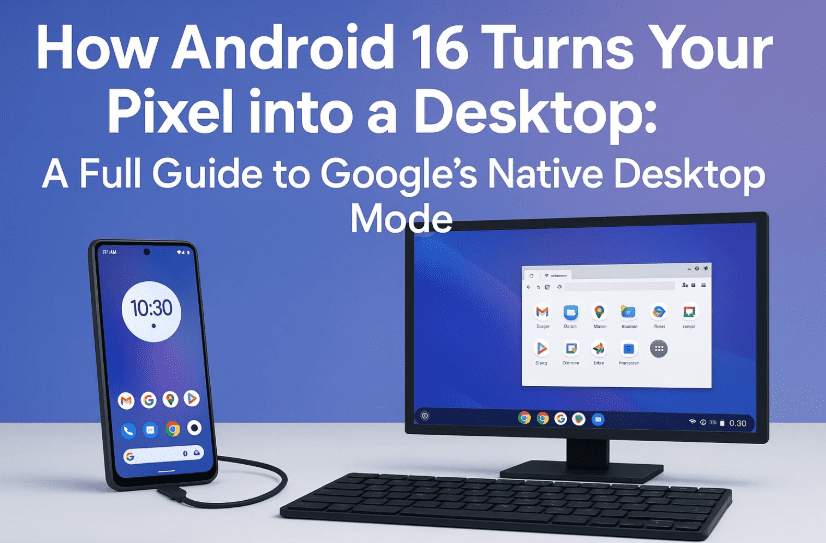
The day has finally come—Google’s Android 16 introduces a surprisingly polished and usable desktop mode for Pixel smartphones, giving users a glimpse into a post-PC world where your phone powers your workspace. Whether you’ve been following Motorola’s Ready For or Samsung’s DeX modes, or you just want to know what your Pixel 8 or 9 can do with a monitor, this blog is your complete guide to getting started with Android 16’s desktop experience.
🧠 A Quick Introduction: Why This Matters
We’ve long heard rumors about a native desktop mode baked into Android. Previous versions offered hidden or undercooked developer features, but nothing that truly matched what Samsung or Motorola offered.
With Android 16 QPR1 Beta 2, that changes—especially if you’re using a Pixel 8, 8a, 8 Pro, or the upcoming Pixel 9 series. The future where your smartphone becomes your computer is more real than ever, and this time, it’s not a hack—it’s an actual Google feature.
So let’s break it down: what you need, how to activate it, what it looks like, and where it still needs improvement.
🔌 Step 1: Setting Up Your Pixel for Desktop Mode
Before we even get to the desktop interface, let’s walk through what you need and how to connect it all.
🧰 Required Hardware:
You don’t need fancy gadgets. Here’s the basic setup:
- Pixel 8, 8a, 8 Pro or newer (Pixel 9 series)
- USB-C to HDMI Adapter (any basic one will work)
- Bluetooth Keyboard and Mouse
- Monitor, TV, or Portable Display
Pixel phones starting from the 8 series support video output over USB-C, which is key to enabling this feature.
Once you have the setup, here’s what to do:
- Plug your USB-C to HDMI adapter into your Pixel.
- Connect the other end to a monitor or display.
- Pair a Bluetooth keyboard and mouse for a full desktop feel.
At this point, Android will likely prompt you to either cast or mirror your display. Initially, choose mirror display.
⚙️ Step 2: Enable Desktop Mode in Developer Options
Now comes the fun part—unlocking the hidden desktop mode.
Let’s move to the next important step where the magic starts happening.

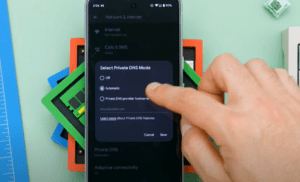
🧑💻 Steps to Enable Developer Mode & Activate Desktop Mode:
- Enable Developer Options:
- Go to
Settings > About phone > Build number. - Tap “Build number” 7 times to unlock Developer Options.
- Go to
- Go to Developer Options:
- Settings > System > Developer options
- Enable the following:
- ✅ Force activities to be resizable
- ✅ Enable non-resizable in multi-window
- ✅ Enable desktop mode
- Optional but recommended:
- Use the “Simulate secondary displays” option to preview or test layout sizes before plugging in.
- Reboot your device.
- Unplug it from HDMI.
- Restart the phone to apply changes.
🖥️ Step 3: Launching Desktop Mode
Once rebooted, plug your phone into the monitor again. This time, if all goes well, Android 16 will skip the cast prompt and launch directly into a full desktop experience.
You’ll see a proper desktop interface with:
- A bottom dock (taskbar-style)
- Minimize, maximize, and resize controls on windows
- Smooth animations
- Multi-window functionality
✅ First Impressions:
Let’s pause for a second—because what you get here is impressive.
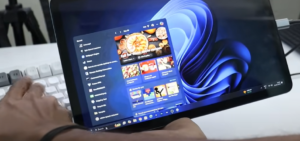
- The UI resembles Windows 10/11 with drag-to-edge snapping
- Desktop Chrome opens in actual desktop layout
- Multitasking is genuinely fluid
- App icons and layouts persist between sessions (even after reboot)
This is not a mere screen mirror—it’s a real windowed environment.
🖱️ Desktop Experience: A Closer Look
Now that we’re up and running, let’s test the usability.
🔍 Multitasking Like a PC
You can:
- Drag windows to the sides to snap them (like Windows)
- Resize them freely with smooth transitions
- Keep a Word document open on one side and Chrome on the other
- Use alternate “desktops” for different workspaces
💼 Real-World Use Case: Office & Chrome
For instance:
- Open Chrome in one window → it’s already in desktop site mode
- Open Microsoft Office online → Word, Excel work fairly smoothly
- Copy-paste between apps, scroll long documents, and edit with a keyboard
You can’t open multiple Word docs at once, but Word + Excel together works fine.
🎬 Media & Creative Work
Even heavier tasks like video editing using apps like LumaFusion work decently.
- You can preview and edit timeline projects
- Drag-and-drop isn’t supported yet, but playback and rendering are smooth
- There’s minor lag during transitions, but nothing deal-breaking
This makes it viable for quick edits or mobile-based content creation.
📂 What’s Missing: Limitations of Android 16 Desktop Mode
We’ve come a long way, but it’s not perfect. So far we’ve done a good job exploring what works. Now let’s discuss what still needs improvement.
🔴 Key Limitations:
- No right-click/context menus
- Phone screen must stay on – If you lock it, the external screen goes black
- Dragging files from file explorer doesn’t work
- No dedicated desktop mode settings – You still manage it through Developer Options
- Lack of pass-through charging support – Could cause battery drain or overheating
🧠 Q&A Section
Q: Can I use Android desktop mode without Developer Options?
Not yet. Currently, it’s a developer-facing feature, so you need to activate it manually.
Q: Can I charge my phone while using this mode?
Yes, with a multi-port USB-C hub. However, Android 16 still lacks optimized power management for desktop mode.
Q: Can I use this for school or work?
Absolutely. With a cheap display and keyboard, even a Pixel 8a becomes a mini workstation. Great for kids, students, or basic office tasks.
Q: Is this like Samsung DeX?
It’s a more stripped-down version for now. But visually and functionally, it’s getting closer—especially with multi-window control and taskbar features.
🔮 The Bigger Picture: Why This Matters
This isn’t just a feature—it’s a statement from Google.
For years, Samsung, Huawei, and Motorola carried the torch of mobile productivity. Now, with Chromebooks adopting Android as a base and Google under legal pressure to divest parts of Chrome, we could be witnessing a shift.
Android isn’t just for phones anymore—it might be Google’s Plan B for the post-Chrome future.
🧩 Ideal Future Improvements
Here’s what users want next:
- Ability to turn off phone display while still using external monitor
- Richer file explorer with drag-and-drop
- Real context menus and file management
- Pass-through charging optimization
- Better power management and GPU support for rendering-intensive tasks
🧠 Final Thoughts: A Game Changer for Pixel Users
Even if this feels like a beta or prototype, it’s a functional one. You can write articles, browse the web, edit video, work on school projects, and do real multitasking.
A budget phone like the Pixel 8a suddenly becomes not just a phone, but a viable replacement for cheap laptops.
If you’re a parent buying a school device, a remote worker looking for a minimal setup, or just a geek like me who enjoys exploring what our phones can do—this is the future we’ve been waiting for.
And best of all, you don’t need a Samsung flagship or third-party dock. Just a USB-C cable, a keyboard, and a monitor.
✅ Summary: What You Can Do with Android 16 Desktop Mode
Let’s recap the major things you can accomplish with this new desktop feature:
- ✅ Connect your Pixel 8/9 to a monitor via USB-C
- ✅ Use full desktop Chrome browser
- ✅ Open and work on Microsoft Office web apps
- ✅ Multitask with side-by-side apps
- ✅ Edit videos in mobile editing suites
- ✅ Maintain persistent desktop layout between reboots
- ✅ Use multiple virtual desktops
It’s not perfect, but it’s a huge leap for mobile computing.
Official Website:
Tags:
Android 16 desktop mode, Pixel 8 Pro USB-C display, Android window manager, enable Android desktop mode, Pixel 8a desktop feature, Android 16 QPR1 beta guide, Samsung DeX vs Android desktop mode, Pixel desktop setup, mobile productivity, Android multitasking
Hashtags:
#Android16 #PixelDesktopMode #Pixel8Pro #AndroidDesktop #GooglePixel #AndroidFeatures #USBCHDMI #MobileProductivity #SamsungDeX #DesktopMode #TechGuide #AndroidQPR1
Disclaimer:
This article is based on a real-time experience using Android 16 QPR1 Beta 2. Features discussed may vary or change in future builds. Desktop Mode is still in development, and not all functionality may be stable or final. Always back up your data before enabling developer options.







