Every now and then, Windows hides powerful features behind simple commands—small shortcuts that most people overlook, but professionals use every day. The Run dialog is one of those quiet tools. It’s been part of Windows for decades, and yet, many users barely tap into its potential.
In this guide, we’ll walk through the most useful Run commands you can use to manage your PC faster and more efficiently. But instead of bombarding you with a cold list, we’ll take a slow, friendly tour of what each command does, why it exists, and when you might need it. Consider this your personal cheat-sheet to navigating Windows with confidence.
💠 1. Getting Started with the Run Dialog
Before diving into commands, it helps to understand the tool we’re using.
Intro
The Run box is like a secret hallway in your home. Most rooms can be accessed through the main doorways, but this hallway takes you directly to important locations without walking through the whole house.
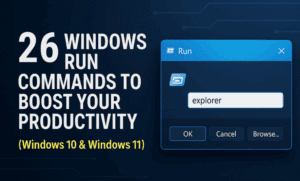
Open it anytime by:
Right-clicking the Start button → Run
or simply pressing Windows + R.
Let’s explore what this little input box can do.
🛡️ 2. Checking System Health and Malware
Many people don’t know that Windows includes built-in tools to detect malware and check your system performance. You don’t need third-party software for basic checks—these commands take you directly to what you need.
MRT — Malicious Software Removal Tool
Type mrt into Run, and Windows opens its malware removal utility.
It can perform quick or full scans to find harmful software.
PERFMON — Performance Monitor
Type perfmon.msc to open Performance Monitor.
It’s a detailed dashboard that shows system load, CPU activity, RAM usage, and long-term performance trends.
🧹 3. Cleaning Junk, Managing Space, and System Information
Here we move into tools that help keep your PC tidy and informative without installing anything extra.
Intro
Windows often stores temporary files, caches, and old logs. Over time, these build up. Thankfully, a few quick commands help you clean and inspect your system.




CLEANMGR — Disk Cleanup
Type cleanmgr to open Disk Cleanup.
It removes temporary files and unnecessary leftovers.
MSINFO32 — System Information
Type msinfo32 to open a complete hardware and software summary.
Useful for diagnosing issues or checking specs.
🖥️ 4. Accessing Control Panel Tools Quickly
Not everything in Windows has moved to Settings. Several powerful tools still live inside the traditional Control Panel.
Intro
Control Panel remains a treasure chest of configuration options. Using Run commands, you can jump directly into the exact tool you need.
Essential Control Panel Commands
- control — opens the main Control Panel
- control admintools — opens Administrative Tools
- powercfg.cpl — opens power settings and plans
- intl.cpl — opens regional settings
- ncpa.cpl — network adapters and properties
- control mouse — mouse configuration
- inetcpl.cpl — internet properties
- control folders — folder options
Each of these saves you multiple clicks and menus.
👥 5. Managing Users, Groups, and Policies
This section is more advanced, but incredibly useful if you manage a shared PC or want to adjust deeper system controls.
Intro
Windows hides powerful administrative tools behind simple commands. Even if you don’t use them daily, knowing where they are can be helpful.
Commands
- lusrmgr.msc — Local Users and Groups (Pro editions only)
- rsop.msc — Resultant Set of Policies (view group policy effects)
- gpedit.msc — Group Policy Editor
- secpol.msc — Local Security Policy
These tools let you view and adjust Windows behavior at a deeper level.
🎮 6. Troubleshooting Hardware, Drivers, and Game Issues
Windows includes several diagnostic tools for graphics, sound, disks, and devices.
Intro
When something goes wrong—drivers fail, sound disappears, games crash—these commands help you troubleshoot quickly without searching through menus.
Helpful Commands
- dxdiag — DirectX Diagnostic Tool
- devmgmt.msc — Device Manager
- diskmgmt.msc — Disk Management
- mmsys.cpl — Sound settings
- dfrgui.exe — Defrag/Optimize Drives
These are essential for gamers, IT professionals, or anyone who builds PCs.
🔐 7. Security, Certificates, and Firewall Access
Windows offers dedicated tools for system protection that are rarely accessed through normal menus.
Intro
Security isn’t only about antivirus. Windows maintains certificates, firewalls, and protection settings that you can access with these commands.
Useful Commands
- firewall.cpl — Windows Firewall
- certmgr.msc — Certificate Manager
- wscui.cpl — Security Center
Even beginners can benefit from knowing where these exist.
📝 8. Editing the Registry, Managing Startup, and Deep System Tools
Some tools here should be used carefully—but they’re powerful when needed.
Intro
Think of this section as the advanced workbench. These tools can change how your PC behaves, but must be handled thoughtfully.
Commands
- regedit — Registry Editor
- msconfig — System Configuration
- services.msc — Windows Services
- utilman — Utility Manager
Use these only when following trusted guides or when you understand the purpose of each setting.
📅 9. Useful Everyday Tools Most People Forget
Some commands aren’t technical—they’re simply useful shortcuts for everyday tasks.
Intro
These little tools save time and help you reach hidden locations instantly.
Handy Commands
- osk — On-Screen Keyboard
- control schedtasks — Task Scheduler
- %temp% — Temporary files
- %appdata% — AppData\Roaming folder
These are great for quick cleanup, troubleshooting, or accessing stored configurations.
🔚 Final Thoughts
Windows Run commands have been around long before modern Settings menus existed, and they continue to be one of the fastest ways to access powerful tools. Once you start using them regularly, you’ll find yourself navigating your PC with a sense of ease and confidence that beginners rarely experience.
The goal isn’t to memorize every command—it’s to know that these entrances exist, and to use them when they make your work smoother or your troubleshooting faster.
If you’d like, I can also create a printable Run Commands Cheat Sheet or convert this into a PDF version for dtptips readers.
🛡️ Disclaimer
Some commands provide access to advanced configuration areas. Modify settings only if you understand their purpose. Incorrect changes in Registry Editor, Group Policy, or Services can cause system issues.
#WindowsTips #RunCommands #TechGuide #SystemTools #ProductivityHacks