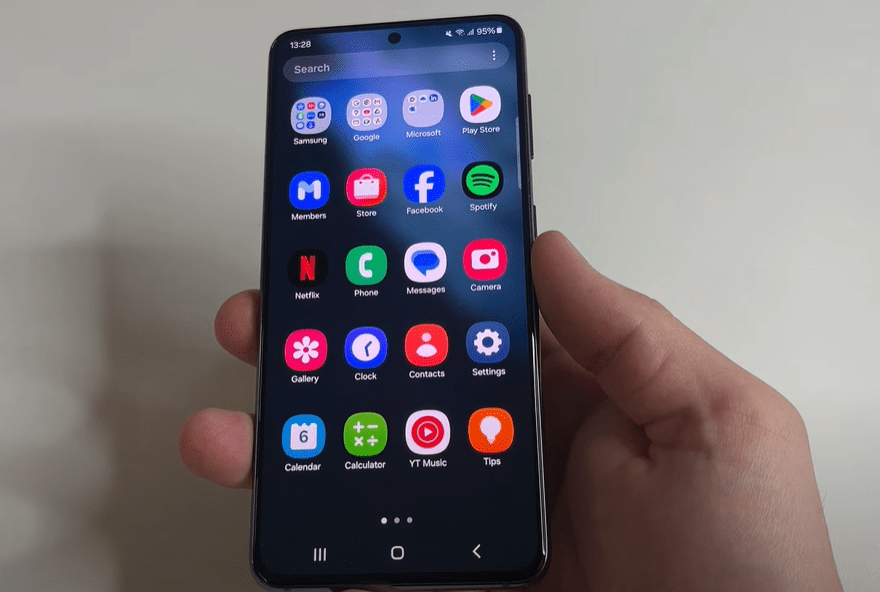
Did you know that Google may have secretly installed certain applications on your Android phone—without your permission or visible icons? These hidden apps aren’t listed in your standard app drawer, making them easy to overlook. Understandably, this has raised concerns among users regarding privacy and data security.
In this article, we’ll walk you through what these apps do, why they might have been installed, and how to remove them if you choose to. Let’s dive in.
Why Are These Apps Hidden?
Two applications in particular—Android System Key Verifier and Android System Safety Core—have sparked interest and suspicion. Many users first discovered them through their phone settings or the Play Store, not through traditional app listings.
Here’s what each app does and how to manage or uninstall them.
1. Android System Key Verifier: Ensuring Message Security
This application is used to verify encryption keys when you send RCS (Rich Communication Services) messages with end-to-end encryption. RCS is a modern messaging protocol that allows features similar to WhatsApp or iMessage—such as typing indicators, read receipts, and encrypted messaging.
How to Find and Inspect This App:
- Open the Play Store on your Android phone.
- Tap your profile icon in the top-right corner.
- Scroll down and tap Help & Feedback.
- In the search bar, type “delete” and choose “Delete apps on your Android device.”
- Tap on the link that says “Tap to go to Application Settings.”
- Use the search bar and type “Android”.
- Locate and tap Android System Key Verifier.
View Its Permissions:
- Tap on Permissions.
- In the top-right corner, tap the three dots and select All permissions.
You’ll notice this app can query all installed packages—used to verify if encryption keys were tampered with during secure communication. While this may sound invasive, it serves a vital role in protecting your private messages.
✅ Conclusion: This app is considered safe and serves a specific security purpose. However, you can still uninstall it if you prefer.
How to Uninstall:
- Tap the back button to return to the app info screen.
- Tap the Uninstall icon and confirm.
2. Android System Safety Core: Monitoring Sensitive Content
The second app is even more intriguing. Called Android System Safety Core, it also installs itself silently and works by scanning sent and received photos—primarily through messaging apps—to detect erotic or pornographic content.
If such content is detected, the image is blurred automatically, and you are prompted to confirm whether you want to view it.
Google, the app’s developer, claims that all scanning occurs locally on your device—no images are uploaded to servers or stored externally. The feature is designed to protect users, particularly minors, from exposure to inappropriate content.
How to Find and Inspect This App:
- Follow the same steps used for the first app.
- After typing “Android” in the search bar, look for Android System Safety Core and tap on it.
How to Uninstall:
- From the app info page, tap Uninstall and confirm.
⚠️ Note: While this app adds a layer of protection, especially for families, privacy-conscious users may choose to remove it.











Final Thoughts
Both these hidden apps are part of Google’s initiative to improve security and user safety. However, the fact that they are installed without user knowledge—and do not show up like typical apps—has raised valid concerns.
Now that you know what these apps do and how to manage or uninstall them, you’re empowered to make informed choices about your device’s privacy and security settings.
Related Resources:
Tags:
android, google apps, hidden apps, android privacy, rcs messages, encryption, phone security, app permissions, uninstall android apps, photo scanning
Hashtags:
#Android #Privacy #GoogleApps #RCSEncryption #PhoneSecurity #HiddenApps #DataPrivacy #SmartphoneTips








