Google Chrome has recently received a major performance upgrade, and it’s one every user should know about. This update introduces a powerful Memory Saver feature designed to make Chrome significantly faster and more efficient—especially for users who keep multiple tabs open at once.
In this article, we’ll walk you through:
- What the Memory Saver feature is
- How to enable it
- How it compares with other browsers
- Why this is a game-changer for lower-memory computers
- How to customize performance settings for your needs
🚀 What Is the Chrome Memory Saver Feature?
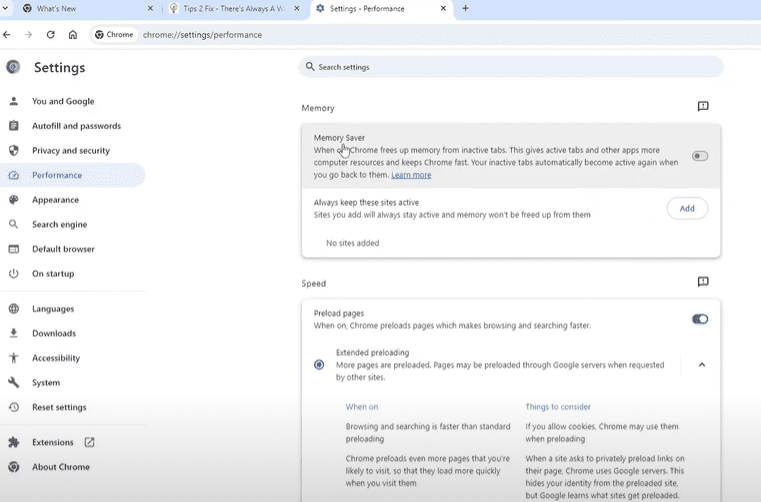
The Memory Saver is a new performance-enhancing tool that intelligently freezes inactive tabs, allowing your device to free up memory (RAM). This means your active tabs and other apps will have more resources, leading to faster browsing speeds and improved system performance.
Here’s how it works:
- Chrome detects when a tab is inactive.
- It automatically suspends that tab to save memory.
- When you return to the tab, it reloads instantly.
This feature is particularly useful for those who keep 10, 20, or even 100 tabs open during work or research.
🔧 How to Update Chrome and Enable Memory Saver
To benefit from this feature, you need to update to the latest version of Google Chrome. Follow these steps:
- Open Google Chrome
- Click the three-dot menu in the top-right corner
- Go to Help > About Google Chrome
- Chrome will automatically check for updates and install the latest version
- Relaunch the browser after the update completes
📂 Activating the Memory Saver Option
Once Chrome is updated:
- Click the three-dot menu again
- Go to More Tools > Performance
- In the Performance section, turn Memory Saver ON
Now Chrome will optimize memory usage across your open tabs.
💻 Real Performance Comparison With Other Browsers
After enabling the Memory Saver feature, users have reported noticeable speed boosts when loading websites—even in Incognito mode. When compared side-by-side with other browsers like Mozilla Firefox, Opera, and Microsoft Edge, Google Chrome was visibly faster in several tests.
This speed boost isn’t just about page loading—it’s also about how Chrome manages system resources, making it especially helpful for older or less powerful machines.
🧠 Why Memory Saver Matters (Even With High RAM PCs)
Even if your computer has plenty of memory, this feature still helps:
![How to Enable and Sync Data on Microsoft Edge Browser [Tutorial – 2025]](https://dtptips.com/wp-content/uploads/2025/06/image-526-300x175.png)










- Reduces system strain
- Speeds up multitasking
- Optimizes power usage for laptops
And if your system has limited RAM, this feature is a game-changer. Instead of crashing or slowing down with multiple tabs open, Chrome will now smartly manage which tabs remain active in memory.
🎯 Customize Which Tabs Stay Active
You can also customize which websites remain active, even when you’re not using them.
Here’s how:
- In the Performance settings, under “Always Keep These Sites Active”, add websites you use constantly (e.g., YouTube, Gmail)
- Chrome will always keep these tabs loaded, preventing delays when switching back
To remove a site from this list, simply click the remove button next to the site name.
🌐 Boost Loading Speed With Preload Settings
In addition to Memory Saver, Chrome has introduced preload settings to improve how fast pages load:
- Standard Preload: Chrome preloads commonly visited pages in the background
- Extended Preload: Chrome preloads more content for faster load times
Choose the one that fits your needs and browsing habits for maximum performance.
✅ Final Thoughts: Should You Enable It?
Absolutely. Whether you’re a casual user or a power user, enabling Chrome’s new Memory Saver feature will:
- Speed up your web browsing
- Reduce RAM usage
- Improve overall device performance
Take a moment today to update your Chrome browser and enable this setting—it’s one of the best performance upgrades Chrome has released in a long time.
Tags and Hashtags
Tags: Google Chrome update, memory saver Chrome, speed up browser, Chrome performance tips, RAM optimization, Chrome tab freezing, browser comparison, faster browsing, Chrome tricks, Chrome preload settings
Hashtags:
#GoogleChrome #ChromeUpdate #MemorySaver #BrowserSpeed #ChromeTips #SpeedUpChrome #RAMSaver #BrowserHack #TechTips #ChromePerformance





