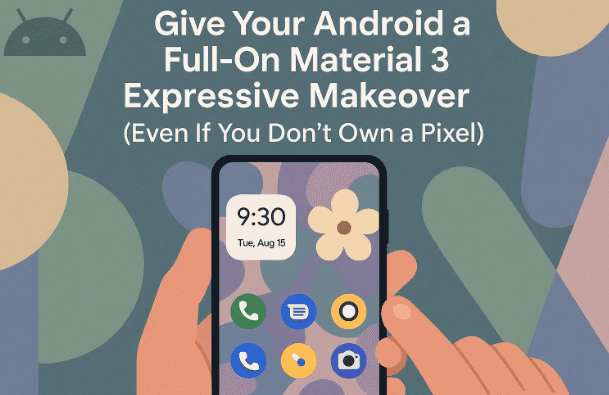
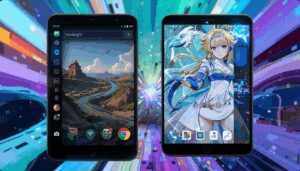
Android’s newest design language—Material 3 Expressive (M3E)—turns the dial from calm and minimalist to bold, lively, and delightfully animated. Think larger tap targets, playful shapes, juicy motion, and color that truly breathes with your wallpaper. While Google is rolling this look out gradually—first to Pixels and then to select apps—you don’t have to wait for your OEM or carrier. With the right apps and a few careful tweaks, you can bring a cohesive Material 3 Expressive vibe to almost every corner of your phone today.
This article walks you through a complete, no-shortcuts makeover. We’ll cover the home screen, icons, widgets, wallpapers, volume panel, core apps, file manager, and even the package installer—with context, cautions, and official links wherever possible. If something in the original script was unclear or risky, I call it out and offer a safer alternative. By the end, your device will look and feel like it just graduated from the Android 16 design school—without crossing any sketchy lines.
Quick primer: If you want to understand what “Expressive” adds to Material Design, Google’s own write-up is a great starting point. It highlights shape language, motion, and color systems that go beyond classic Material You. (Material Design)
What We’ll Do (At a Glance)
Before we dive into the details, here’s the game plan. We’re going to:
Pick apps that already embrace Material 3/Expressive.
Nudge system UI elements (like the volume panel and Chrome tabs) to look the part.
Use a Pixel-like launcher and expressive icon pack.
Add widget sets that match the new design language.
Bring the vibe to wallpapers (AI and Emoji styles where supported).
Replace a few default tools (like the file manager and package installer) with options that feel right at home in M3E.
Alright—so far so good. Let’s roll up our sleeves and start with the fun stuff: music and media, because it’s often where we tap, swipe, and stare the most.
1) Expressive Essentials: Music, Volume, and Everyday Touchpoints
A makeover shines when the things you touch daily feel consistent. That means the music player and the volume panel should match your overall look.
A. A Local Music Player That Looks Like Google Made It
If you miss a beautifully simple offline player—without streaming baggage—try PixelPlay. It’s free, open source, and built with Jetpack Compose, so it fits Material 3 perfectly. It auto-indexes your local audio, lets you choose folders, and feels delightfully expressive with lively motion and thoughtful layouts.
Get PixelPlay (GitHub) → it’s actively developed and open source.
Why it works: The UI is composed with modern Android tooling, so animations, shapes, and color harmonize with your system theme (Monet/M3). If your phone’s OEM player looks dated, this instantly levels you up.
Note: There’s a similarly named “Pixel Music Player” on Play Store. It’s not the same app. For PixelPlay specifically, use the GitHub link above.
Google’s newer volume panel is bigger, clearer, and frankly more fun—but not everyone gets it immediately. Precise Volume 2.0 can override the stock panel with a style that mirrors newer Android builds and Pixels. It also adds deep control over volume steps, presets, and a robust equalizer.
Background: Android Authority documented the “Android 15-style” panel option rolling into the app. (Android Authority)
Heads-up: The override feature is paywalled. If you’re after the modern panel—plus the best volume control you’ll find on Android—it’s worth the few bucks.
You know that moment when your wallpaper and widgets feel fresh but your icons still shout “2019”? Let’s fix that.
A. Use an Expressive Icon Pack That Follows Your Theme
Pix Material Expressive Icons adds vivid, adaptive shapes and colors that sync with your wallpaper’s palette. It’s built for Material You and enhanced for the expressive style.
Pro tip: If your launcher supports icon widgets (from the pack) you can create oversized, uniquely shaped “icons” that behave like shortcuts—great for spotlighting your most-used apps on the home screen grid.
Let’s be honest: the Pixel Launcher feels fantastic on Android 15/16—but you may not have it. The best alternative that’s both familiar and customizable is Lawnchair 15.
Why I recommend it now: it brings over tons of Pixel niceties while letting you tweak grid size, dock options, gestures, and icon behavior. If you’re coming from Nova and want something current and Pixel-like, Lawnchair is an easy win.
Small reality check: It’s in active development. A few beta quirks can appear. But the feature velocity is high, and the team documents changes well.
4) Chrome: Make Tab Groups Look Like They Belong
Chrome for Android has been quietly improving tab groups—including color-coding groups and (on some builds) letting you save them. If you don’t see the options yet, you can experiment with flags (advanced settings that Google toggles during rollouts).
Color-coded tab groups are rolling out; guides show how to enable or use them if they’re present.
If you’re hunting for the precise flag names, the Chromium source references android-tab-groups-color-update-gm3 among others.
Caution: Flags move around. If a flag disappears, Google either rolled the feature into stable or pulled it. After flipping flags, force-stop Chrome and relaunch. If something misbehaves, reset your flags to defaults.
5) A File Manager That Feels M3E (and Does Real Work)
Stock file managers handle the basics—but Solid Explorer gives you dual-pane views, encryption, robust cloud/NAS support, and theming that meshes nicely with Material 3.
FAQ and help resources are solid if you’re new to it.
Why dual-pane matters: moving files between two folders is dramatically quicker when you can see both sides at once (especially when reorganizing downloads, photos, or backups). Guides even walk through SMB shares if you’re connecting to a NAS at home.
6) Pixel-Exclusive Apps: What You Can (and Can’t) Bring Over
This is where many tutorials over-promise. Some Pixel apps—Weather, Screenshots, Recorder—are truly Pixel-exclusive or regionally constrained. Sideloading old APKs might work on some phones, but it’s fragile and potentially risky. Here’s the sensible path:
A. Weather (Pixel’s Standalone App)
Google’s Weather app is listed on Play Store but generally restricted to Pixel hardware. If your device supports it, you’ll see Install; if not, it won’t install.
If you can install it, great—its design matches M3E and even includes AI summaries on supported devices. (Google’s own podcast/store material also references this feature set.)
If not, stick to your OEM weather app or tried-and-true third-party options. Avoid random “Pixel Weather clones” that aren’t from Google.
B. Pixel Screenshots (AI-Powered Organizer) — Realistic Alternatives
Pixel Screenshots is Pixel-only and uses on-device Gemini Nano to organize and make screenshots searchable.
A credible alternative:Shots Studio (open source) brings AI-assisted organization to any Android phone, with Material You styling and F-Droid availability.
It isn’t identical to Pixel Screenshots, but it’s private, actively maintained, and fits the look remarkably well.
C. Recorder
Older Recorder APKs sometimes run on non-Pixels, but:
They’re unsupported and may break with OS updates.
They typically don’t sync to your Google account and won’t match current M3E visual polish.
If reliable voice notes and cloud sync matter, consider your OEM’s recorder or reputable third-party recorders from the Play Store. I’m intentionally not linking to archived Google APKs—they aren’t official downloads and can change without notice.
7) Wallpapers, Emoji, and AI: Matching the Vibe
Material 3 Expressive feels flat if your wallpaper is off. Let’s get that part right.
A. Google Wallpapers (the baseline)
Install Google Wallpapers. It’s the standard palette source for a lot of dynamic theming and is safe to recommend broadly.
B. Emoji Workshop (Where Supported)
Emoji Workshop is a fun, interactive wallpaper generator Google ships on Pixels. Availability varies (and it’s not always visible on non-Pixels). If you go searching, you’ll find references and archived builds—just remember: only install Google apps from Play Store when officially available.
Safer path: If Emoji Workshop doesn’t show up in your Wallpapers picker, skip sideloading. You can get a similar playful vibe from expressive static sets or third-party packs on Play Store.
8) Widgets That Actually Match M3E (No KWGT Required)
Google’s widget refresh is… uneven. If you want an immediate, cohesive set that already embraces Expressive color and shapes, there are dedicated packs that do not require KWGT.
Example: Material You Widgets on Play Store (300+ widgets, designed to work without KWGT; many categories).
Recent roundups and guides highlight packs like this specifically for Material 3 Expressive looks on non-Pixels.
Why “no-KWGT” matters: KWGT is powerful, but it’s another dependency to learn/configure. If you just want beautiful, adaptive widgets now, these packs are a faster path. If you love tinkering, KWGT remains the gold standard.
Set-up tips before you start placing widgets:
Choose your wallpaper first so the color system (Monet) stabilizes.
Place a few expressive icons and your search bar to anchor your layout.
Add one clock, one weather, and one calendar widget—then evaluate spacing. Don’t fill everything at once; leave room for breathing space.
9) Bonus: An Installer That Looks Modern and Gives You Real Control
Android’s default package installer hasn’t seen much love visually. If you routinely install apps from outside Play Store (e.g., F-Droid, your own builds), InstallerX Revived is a powerful, modern alternative. With Shizuku or root, it can streamline permissions and handle splits/APKS more gracefully than stock installers.
InstallerX Revived (GitHub) → feature list and active development notes.
(Community chatter also tracks capabilities if you’re curious.)
Shizuku (official site & Play Store) → required for advanced installer features without root.
Security reminder: Only install apps from sources you trust. Replacing the system installer gives you more power—use it responsibly.
10) Step-By-Step: From Stock to Expressive (A Cohesive Plan)
We’ve explored the pieces; now let’s put them together. Take a deep breath—so far, we’ve done a great job gathering the ingredients. Let’s move to the next step and assemble your new look.
Wallpaper first.
Install Google Wallpapers and pick a bold, textured image that’s not too busy. This is what your color system (Monet) will sample.
Launcher + Icons.
Install Lawnchair 15 and set it as default.
Apply Pix Material Expressive Icons in Lawnchair’s icon settings.
Tweak grid (e.g., 5×6 or 6×7), enable icon labels only if you prefer clarity.
Widgets (no KWGT route).
Install Material You Widgets.
Place one clock, weather, calendar, and search widget.
Resize carefully; Expressive shapes look best with clean padding.
Music + Volume.
Install PixelPlay for offline music with expressive UI.
Install Precise Volume 2.0; enable the volume button override and pick the Android 15/Pixel-style panel. Set a few EQ presets.
File manager.
Install Solid Explorer; enable dual-pane mode; sign into your cloud/NAS if needed.
Chrome polish.
Create a tab group and try color-coding it. If you don’t see the option, check if your Chrome build has the feature; some guides show enabling it (or using flags during rollouts). After toggling, force-stop Chrome and reopen.
Optional power-user step: modern installer + Shizuku.
Install Shizuku (from Google Play or the project site).
Install InstallerX Revived and follow its setup guide for Shizuku/non-root mode. Use it only for trusted APKs (F-Droid, your own apps, developer betas).
Pixel-exclusive apps (be realistic).
If Pixel Weather installs on your device, great—use it. If not, don’t force it with random mirrors.
For Pixel Screenshots, use Shots Studio instead; it’s excellent and open source.
Take a lap around your phone. Open Recents, swipe through home screens, expand the volume panel, pop open Chrome tab groups, and scroll through Solid Explorer. You should notice consistent spacing, friendlier shapes, and motion that feels cohesive.
Frequently Asked Questions (and Honest Answers)
Q: Do I need to root my phone for any of this? A: No. Everything in this guide works on unrooted phones. Shizuku is optional; it provides elevated permissions via ADB-style grants, not root.
Q: Is there a way to get 100% of the Pixel look? A: Not entirely. Some features and UX touches remain Pixel-exclusive (by design). But Lawnchair 15 + Expressive icons + Material 3 widgets gets you surprisingly close.
Q: Are Chrome flags safe? A: They’re experimental. If you flip them, you accept the risk of bugs. If things go sideways, reset flags to default and force-stop Chrome. Guides show which flags have helped people enable color-coding during staged rollouts.
Q: Why not link APK mirrors for Pixel apps? A: Because they’re not official distribution channels. They can be safe, but they can also break unexpectedly, and there’s a non-zero risk of tampering. If an official Play Store listing is device-restricted, it’s typically for good reasons (APIs, licensing, or hardware dependencies). Sticking to official sources prevents headaches.
Q: Shots Studio vs Pixel Screenshots—what am I giving up? A: Pixel Screenshots uses on-device Gemini Nano with tight OS integration on newer Pixels; it’s smoother and more private by default on those devices. Shots Studio is cross-device, open source, and rapidly improving—an excellent stand-in if you don’t own a Pixel.
Q: My volume panel override isn’t showing. What did I miss? A: Ensure Precise Volume’s Volume Button Override is enabled and you’ve granted any required permissions or accessibility services. The modern popup style lives behind in-app settings and may require the paid tier. The developer’s release notes and docs are helpful if you get stuck.
Final Touches: Cohesion Beats Clutter
Let’s pause for a moment—so far, we’ve done a good job laying the foundation. The biggest mistake people make at this step is doing everything, everywhere, all at once. Expressive design sings when it has room. A few pointers:
Leave whitespace. Big shapes and bold color need breathing room.
Pick a color family (warm oranges/reds, cool blues/purples, muted greens) and stick with it across wallpaper, icons, and widgets.
Keep widgets purposeful. One glanceable widget per category (time, weather, calendar) tends to beat five tiny ones.
Audit motion. If a particular app animates in a way that clashes, look for an alternative that better respects Material motion.
APK sideloading: Only install APKs from sources you trust. If a Google app is Pixel-only on Play Store, it’s best not to chase it via mirrors.
Permissions: Volume panel overrides, advanced installers, and powerful file managers may request additional privileges. Read prompts carefully.
Shizuku: It’s a well-documented project widely used in the Android community, but it grants elevated capabilities. Install from official sources and follow the guides.
Chrome flags: Experimental by nature. Expect occasional quirks; keep backups of important browsing data if you’re flipping many.
Wrap-Up
Material 3 Expressive is more than a new coat of paint—it’s a design philosophy focused on joyful motion, tactile shapes, and color that adapts to you. While we wait for every OEM and app to catch up, you can already live in that world by choosing tools that respect the language: a Pixel-like launcher (Lawnchair 15), an expressive icon pack, widget sets that actually match, a modern file manager, and a volume panel that looks like it belongs.
Tags
material 3 expressive, android 16, material you, lawnchair 15, pix material expressive icons, material you widgets, precise volume 2.0, pixelplay music player, solid explorer file manager, shots studio screenshots, shizuku, installerx revived, chrome tab groups color, google wallpapers, pixel weather
Sahil is a mobile technology blogger and Android developer who has worked on custom ROM projects and app testing. With a background in mobile software engineering, he reviews apps, explains Android tweaks, and creates in-depth tutorials for both casual users and advanced tinkerers.