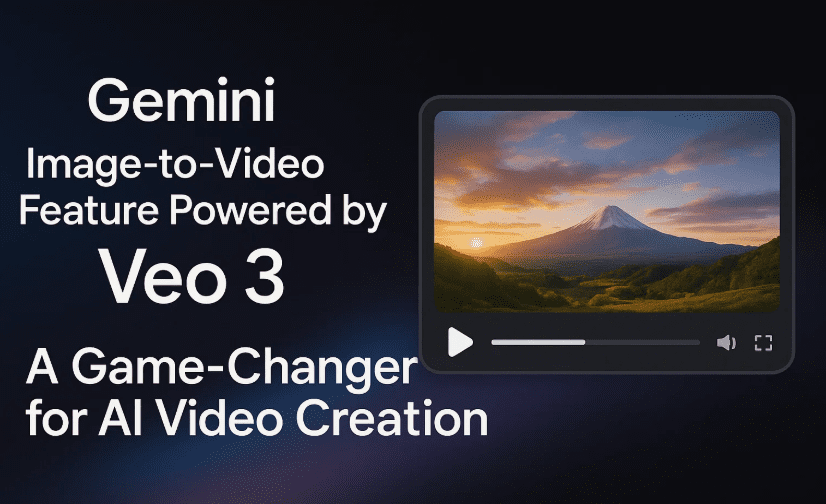
Google’s Gemini AI just got a creative superpower — the ability to turn a still image into an 8-second AI-generated video, complete with motion, dialogue, sound effects, and visual flair. Backed by the powerful Veo 3 engine, this new image-to-video tool is only available to AI Pro and Ultra users for now — but it’s already showing serious potential to redefine how we interact with photos and generate visual content.
In this detailed article, I’ll walk you through everything you need to know: requirements, how the tool works, real-life examples I tested, limitations, and even a few tips for better outputs.
🔧 Requirements for Using Gemini’s Image-to-Video Feature
Before we jump into how it works, let’s cover the essentials.
To use this feature, here’s what you’ll need:
- Veo 3 Access: Only available to AI Pro and AI Ultra subscribers
- Gemini App (or Flow Film tool via web)
- Still Image from your device or web
- A prompt or command describing what you want the video to show or say
Video Output Specifications:
- Duration: 8 seconds (fixed)
- Resolution: 720p
- Watermarks:
- A visible VU watermark (bottom right)
- An invisible SynthID digital watermark (for content provenance)
⚠️ Note: You are limited to a few generations per day depending on your plan. AI Ultra has higher generation caps, but it’s expensive (over $200/year).
🎬 Let’s Move to the First Example – Talking Human Photo
I started by testing it with a human portrait.
Step-by-step:
- Opened the Gemini app
- Selected the Video mode (activates Veo 3 tools)
- Uploaded a photo from my gallery
- Typed the command:
“Make a video of this person saying ‘Hello everyone and welcome to the channel.’” - Waited ~2 minutes for rendering
Results:
- A 7-second video was generated
- Watermarked as expected (VU bottom right)
- Output was in landscape 720p
🎧 Audio Verdict:
- Voice sounded robotic and synthetic
- However, the facial movements were very realistic — eyes, eyebrows, and subtle expressions synced decently with the words
✂️ Downside:
- The last 4 seconds were silent (face still moving, but no voice)
- Easily fixable — just trim the video using Google Photos or another editor
🦋 Example 2 – Making a Painting Come Alive
Let’s move to the next step and test how Gemini handles abstract subjects like artwork.
Test:
- Uploaded a photo of a butterfly painting on a wall
- Command: “Make the butterfly fly off the wall.”
Output:
- Dramatic zoom-in on the butterfly
- The butterfly lifted off and flew, mimicking a cinematic pan
- Sound effects like wing flaps were automatically added
🟡 Issue Noted:
- The animated butterfly’s colors didn’t perfectly match the painted version
- Still, for an AI animation, the result was incredibly dynamic and visually pleasing
🐶 Example 3 – Animating a Pet Photo
Okay, so far we’ve done well. Now let’s try animals — always a crowd favorite.




Test:
- Uploaded photo of a dog sitting on a couch
- Prompt: “Make the dog jump and play.”
Result:
- The video showed the dog leaping, wagging its tail, and running in circles
- Movements were fluid and joyful
- Some ambient dog-play sounds were automatically inserted
✅ This was easily the most lifelike animation so far.
🚗 Example 4 – Making a Car Drift (But Hit a Limitation)
Here’s where I hit a small roadblock.
Attempt:
- Uploaded photo of a car
- Prompt: “Make the car drift.”
However, Gemini threw an error:
“Too many requests in a short time period. Try again later.”
🧠 Insight: Each prompt consumes a generation credit. Depending on your plan, you may be limited to just 3–4 creations per day.
🧱 Limitations You Should Know
Here are some key constraints:
| Limitation | Description |
|---|---|
| Max Duration | Fixed at 8 seconds |
| Resolution | 720p only |
| Watermarks | Cannot be removed unless future updates allow it |
| Voice Realism | Still noticeably robotic |
| Generation Limits | Very few videos allowed for AI Pro plans |
🤔 Frequently Asked Questions (FAQs)
Q: Can I remove the watermark from the generated videos?
A: No. The visible VU watermark and invisible SynthID are currently unremovable.
Q: Can I extend the video duration beyond 8 seconds?
A: Not for now. Veo 3 is locked to 8s outputs per image prompt.
Q: Does Gemini support full photo-to-video storytelling?
A: At the moment, it’s one image = one scene. You cannot yet stitch together multiple scenes in one video.
Q: Will this feature come to Google Photos?
A: That’s not confirmed yet, but many users (including myself) hope Google brings this feature to Photos for convenience.
📊 Final Verdict: Is It Worth Trying?
Absolutely. While still in its early stages, Gemini’s image-to-video feature offers creators, marketers, and casual users a glimpse of what AI-generated video will look like in the near future.
✅ Great for:
- Quick mockups
- Social media content
- Explainer visuals
- Fun animations
⚠️ Not yet ready for:
- Production-grade storytelling
- Realistic voice cloning
- Long-form editing
But the technology is evolving fast, and Gemini with Veo 3 is already a step ahead of many other consumer-level AI tools in this space.
Tags: Gemini image-to-video, Veo 3 video generation, AI Pro video features, Google Gemini tutorial, mobile photo animation, AI-powered content creation, Wondershare MobileTrans, Android 16 wallpapers
Hashtags:
#GeminiAI #Veo3 #ImageToVideo #AIContent #Android16 #AIPro #VideoEditing #WondershareMobileTrans #dtptips








