If your Windows PC has ever frozen randomly, slowed down without warning, overheated during simple tasks, or complained about low disk space for reasons you couldn’t understand, you’re not alone. Most PC problems don’t start loudly — they creep in quietly, showing small signs long before a major failure happens.
The good news is that you don’t always need expensive repair software or a technician to understand what’s going wrong. There are free diagnostic tools that can clearly tell you where the problem is, why it’s happening, and what you should fix first.
In this guide, we’ll walk through some trusted, free PC diagnostic and troubleshooting software for Windows. These tools focus on hardware health, storage issues, memory errors, GPU stability, and overall system insight — the exact areas that cause most real-world PC issues.
Let’s take this one step at a time, without shortcuts or hype.
Windows Repair Toolbox – One Dashboard for PC Troubleshooting
Before installing ten different utilities, it helps to have a single place that brings everything together. Windows Repair Toolbox does exactly that.
This tool has been around for years and is trusted by many PC repair technicians. While it offers a paid edition, the free version alone is packed with value, especially for home users.
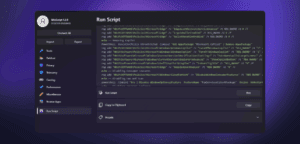
Instead of being a repair tool itself, Windows Repair Toolbox acts as a central launcher and downloader for well-known diagnostic utilities. This means you don’t have to search random websites or worry about fake downloads.
Once you launch it, you get access to different categories:
In the hardware tools section, you can download utilities like CPU-Z, GPU-Z, HWiNFO, hardware monitors, disk scanners, and stress-testing tools. This is perfect if you don’t even know what components are inside your PC and want a clear picture.
If malware is suspected, the malware removal section lets you run secondary scans using reputable tools such as ESET Online Scanner, Dr.Web, Norton PE, and more. These secondary scans are important because they often detect threats that regular antivirus software misses.
What makes this toolbox especially useful is its flexibility. You can:









- Add your own custom tools
- Keep notes about repairs or issues
- Launch portable utilities without cluttering your system
To give a practical example, when you download CPU-Z through the toolbox, it installs and launches directly. Within seconds, you can see detailed information about your CPU, motherboard, RAM, and even run basic benchmarks or stress tests.
For anyone who wants a single utility to manage diagnostics, Windows Repair Toolbox is a solid foundation.
Official website:
https://windows-repair-toolbox.com/
JScreenFix – A Simple Attempt at Fixing Stuck Pixels
Sometimes the issue isn’t deep inside your PC — it’s right in front of your eyes. A stuck pixel on a monitor can be incredibly annoying, especially on otherwise healthy displays.
JScreenFix is a lightweight tool designed specifically for this problem.
The idea behind it is simple. Certain pixels get stuck displaying a single color. JScreenFix rapidly cycles colors in a small area, which may help release that stuck pixel.
Using it is straightforward:
- Launch the application
- A small flashing box appears
- Drag that box over the stuck pixel
- Leave it running for around 10 minutes
Results vary. Some users report success, others don’t. It won’t fix dead pixels, and it’s not guaranteed — but it’s harmless to try and costs nothing.
If you’ve never attempted pixel repair before, this tool is worth knowing about.
Official website:
https://www.jscreenfix.com/
MemTest86 – Diagnose Hidden RAM Problems
When PCs freeze, crash, restart randomly, or throw blue screens without a clear pattern, faulty RAM is often overlooked. Memory problems can cause some of the most confusing issues on Windows systems.
While Windows includes a built-in memory diagnostic tool, MemTest86 goes much deeper.
MemTest86 runs outside of Windows and performs a sequence of intensive tests on your RAM modules. It looks for errors that indicate memory cells are failing or becoming unstable.
The process usually looks like this:
- Create a bootable USB using MemTest86
- Restart your PC and boot from the USB
- Let the test run (this can take a long time)
If MemTest86 reports errors, that RAM stick is unreliable. Continuing to use faulty memory will lead to ongoing crashes, corrupted files, and unpredictable behavior.
This tool is especially important if:
- Your PC locks up under load
- Programs crash randomly
- You recently upgraded RAM
- You experience unexplained blue screens
Official website:
https://www.memtest.org/
HWiNFO – Deep Hardware Information and Live Sensors
If there’s one diagnostic tool that almost every PC user should have, it’s HWiNFO.
This software provides extremely detailed information about your system hardware, far beyond what Windows shows. You can use it as an installed program or as a portable app.
For home users, HWiNFO is free. Commercial use requires a license.
Once opened, it gives you:
- CPU, GPU, motherboard, and memory details
- Boot mode information (UEFI, Secure Boot status)
- Storage controller and drive data
Where HWiNFO truly shines is its sensor panel.
Here, you can monitor:
- CPU temperatures and power draw
- GPU temperatures and usage
- NVMe and SSD temperatures
- Fan speeds
- Network activity
You can even right-click any sensor and display it as a live graph, making it easy to spot spikes, throttling, or overheating issues.
For example, if your CPU temperature climbs into the 90°C range during gaming, HWiNFO can show you the TJ Max value (maximum safe temperature). This helps you decide whether you need better cooling, fresh thermal paste, or configuration changes.
Official website:
https://www.hwinfo.com/
Clear Disk Info – Understand SSD and NVMe Health
Storage failure is one of the most painful PC problems — especially when it happens without warning. Clear Disk Info focuses on preventing that scenario.
This tool reads SMART data from your SSDs, HDDs, and NVMe drives and translates it into something understandable. It shows:
- Drive health status
- Temperature
- Error counts
- Self-test results
If something is wrong, indicators turn red. If everything is healthy, you’ll see green across the board.
Clear Disk Info also allows you to:
- Run self-tests
- Enable or disable SMART monitoring
- Switch between light and dark modes
It’s particularly useful if your PC feels slow, freezes during file transfers, or takes unusually long to boot — all of which can point to storage issues.
While tools like CrystalDiskInfo are also excellent, Clear Disk Info stands out for its clean interface and straightforward presentation.
Official website:
https://www.carifred.com/cleardiskinfo/
TreeSize – Find Out Why Your Drive Is Full
One of the most common Windows questions is simple: “Why is my drive full?”
TreeSize answers that question instantly.
Instead of guessing, TreeSize scans your drive and visually shows where storage is being used. Large folders stand out immediately.
You’ll often discover:
- Huge Downloads folders
- Gigabytes sitting in Recycle Bin
- Old backups you forgot about
For example, it’s not unusual to find 50–70 GB sitting in Downloads alone. TreeSize makes this obvious in seconds, allowing you to clean up safely.
The free version works very well for local drives. The paid version adds features like cloud storage analysis, but most home users won’t need it.
Official website:
https://www.jam-software.com/treesize
FurMark – Stress Test Your GPU Safely (With Caution)
When diagnosing GPU issues, benchmarks alone aren’t enough. FurMark is designed to push your graphics card to its limits and expose stability or cooling problems.
This tool is especially useful when:
- Buying second-hand GPUs
- Troubleshooting crashes during gaming
- Checking overheating issues
You can configure:
- Resolution
- Anti-aliasing
- GPU selection (NVIDIA or AMD)
Once the test starts, temperatures rise quickly. This is expected — but it’s critical to monitor them closely.
Important safety note:
If your GPU temperature exceeds the manufacturer’s recommended limits, stop the test immediately. Prolonged overheating can permanently damage hardware.
FurMark is powerful, but it should always be used carefully and with constant supervision.
Official website:
https://geeks3d.com/furmark/
CrystalDiskInfo – An Alternative Disk Health Monitor
CrystalDiskInfo is another widely respected tool for monitoring drive health. It offers SMART data, temperature tracking, and warning alerts.
While the software itself is excellent, its website contains many advertisements, which can make downloading confusing for some users. Still, the tool remains reliable and effective.
If you prefer it over Clear Disk Info, it’s absolutely a valid choice.
Official website:
https://crystalmark.info/
Disclaimer
Some diagnostic and stress-testing tools can push your hardware to its limits. Always monitor temperatures and system behavior closely, especially when testing CPUs, GPUs, or memory. Use these tools responsibly and back up important data before troubleshooting hardware issues.
#PCDiagnostics #WindowsTools #PCTroubleshooting #HardwareMonitoring #FreeSoftware