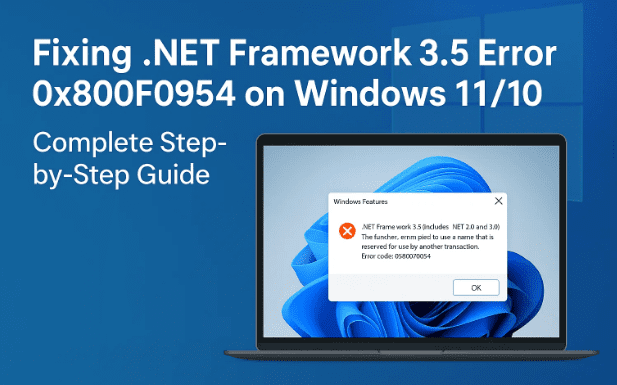
If you’ve ever tried enabling or installing the .NET Framework 3.5 on Windows 11 or 10 and ended up with the dreaded error code 0x800F0954, you’re not alone. This error is one of the most common roadblocks faced by users while working with Windows features or installing software that requires older versions of .NET.
In this article, we’ll explore what this error means, why it happens, and multiple proven methods to fix it. We’ll go step by step—covering both quick fixes and advanced troubleshooting. By the end, you’ll have a clear roadmap to resolving error 0x800F0954 and getting .NET Framework 3.5 working properly.
1) Understanding Error 0x800F0954
Error 0x800F0954 typically occurs when you try to:
- Enable .NET Framework 3.5 via Windows Features (Turn Windows features on or off).
- Install older applications that require .NET Framework 2.0/3.0/3.5.
- Use the DISM command to install .NET Framework from Windows Update.
Instead of a smooth installation, Windows throws back the error message.
2) Common Causes Behind the Error
Let’s quickly understand why this happens:
- Pending Windows Updates – If updates are not fully installed, .NET installation fails.
- Group Policy (WSUS issue) – In corporate environments, systems may be set to fetch updates only from a WSUS server, blocking .NET installation from Microsoft servers.
- Corrupted Windows Files – Damaged system files prevent proper .NET installation.
- Cache/Service Issues – Background update services stuck in limbo.
- Wrong Installation Source – Sometimes Windows tries to fetch files it cannot access.
Now that we know the reasons, let’s fix them one by one.
3) Method 1: Check Windows Update for Pending Installs
Before diving into advanced fixes, ensure your system is fully up to date.
- Press Win + I to open Settings.
- Go to Windows Update.
- Check if there are any pending updates (KB updates).
- If yes, click Download & Install.
- Restart your system after updates finish.
➡️ Why this helps: Installing .NET 3.5 requires some supporting files. If updates are pending, Windows may block the installation.
4) Method 2: Enable .NET Framework via Windows Features
This is the most straightforward way—but it often triggers the error if Group Policy or WSUS is in play. Still, try it first.
- Press Win + R, type:
appwiz.cpland press Enter. - On the left, click Turn Windows features on or off.
- Check the box for .NET Framework 3.5 (includes .NET 2.0 and 3.0).
- Click OK → Windows will attempt to download and install the feature.
- Restart after installation.
If you still see error 0x800F0954, continue with the next solution.
5) Method 3: Use Microsoft’s .NET Framework Repair Tool
Microsoft provides a dedicated tool to detect and repair issues related to .NET Framework.








- Download the official tool from Microsoft: Microsoft .NET Framework Repair Tool
- Run the executable.
- Accept the terms → Click Next.
- The tool will detect issues and suggest fixes.
- Apply the recommended changes.
- Restart your system and try enabling .NET Framework again.
➡️ Why this helps: The repair tool resets registry keys, re-registers services, and clears issues that may be blocking installation.
6) Method 4: Install Latest .NET Framework Offline Installer
If Windows Features fails, you can manually install the required framework.
- Visit Microsoft’s official site: Download .NET Framework
- Scroll down to find .NET Framework 3.5 (or latest supported).
- Download the offline installer.
- Run the installer → Accept license → Install.
- Restart your computer after completion.
➡️ Offline installation ensures files don’t rely on Windows Update servers, which often cause 0x800F0954.
7) Method 5: Group Policy Editor Tweak (Fixing WSUS Redirect)
For many, this is the true fix. In some systems, Windows Update is redirected to WSUS (Windows Server Update Services), which doesn’t host optional features like .NET Framework.
Here’s how to fix it:
- Press Win + R, type:
gpedit.mscand press Enter. - Navigate to:
Computer Configuration → Administrative Templates → System - Find Specify settings for optional component installation and component repair.
- Double-click it → Set it to Enabled.
- Check the box for Download repair content and optional features directly from Windows Update instead of WSUS.
- Click Apply → OK.
- Close Group Policy Editor.
- Restart your system.
- Try enabling .NET Framework 3.5 again.
➡️ Why this helps: This bypasses WSUS and allows Windows to pull files directly from Microsoft’s servers.
8) Method 6: Repair System Files Using SFC & DISM
If system corruption is the root cause, repairing core files is essential.
- Open Command Prompt (Admin).
- Press Start, type
cmd, right-click → Run as administrator.
- Press Start, type
- Run the System File Checker (SFC):
sfc /scannowWait for it to reach 100%. Restart if repairs are made. - Next, run DISM commands (one by one):
DISM /Online /Cleanup-Image /CheckHealth DISM /Online /Cleanup-Image /ScanHealth DISM /Online /Cleanup-Image /RestoreHealth - Restart your computer once done.
➡️ Why this helps: SFC restores missing/corrupted system files, while DISM repairs the Windows image used by SFC. This two-step combo resolves stubborn installation failures.
9) Frequently Asked Questions
Q1: Do I really need .NET Framework 3.5?
Yes, many older apps and games still rely on .NET 3.5. Without it, those programs may not run.
Q2: I installed .NET 4.x already. Isn’t that enough?
No. .NET versions are not fully backward compatible. You need 3.5 separately if software explicitly requires it.
Q3: Why does my office PC keep showing 0x800F0954 even after fixes?
Corporate PCs often enforce WSUS policies. If you don’t have admin rights, contact IT support to temporarily allow updates from Microsoft.
Q4: Is it safe to modify Group Policy?
Yes, if done carefully. The change we made only redirects feature installation to Microsoft’s servers.
Q5: Can I use DISM to install .NET Framework directly from ISO?
Yes. Insert a Windows installation ISO, then run:
DISM /Online /Enable-Feature /FeatureName:NetFx3 /All /Source:D:\sources\sxs /LimitAccess
(Replace D: with your ISO drive letter.)
10) Final Checklist
Here’s a quick summary of everything we covered:
- ✅ Install pending Windows Updates.
- ✅ Enable .NET via Windows Features.
- ✅ Run the official Microsoft .NET Repair Tool.
- ✅ Use the offline installer.
- ✅ Apply Group Policy fix to bypass WSUS.
- ✅ Run SFC & DISM scans to repair corruption.
- ✅ Optionally, install via DISM using ISO if nothing else works.
Follow these methods in sequence, and you should have .NET Framework 3.5 installed without error 0x800F0954.
11) Disclaimer
This guide is for educational purposes only. Always back up important data before making changes to your system. If you are on a work or school computer, consult your IT department before modifying Group Policy or running system-level commands.
Tags & Hashtags
Tags: fix .net framework 3.5 error, windows 11 .net error, error 0x800f0954 solution, windows update troubleshooting, group policy wsus fix, sfc dism repair windows
Hashtags:
#Windows11 #Windows10 #DotNetFramework #Error0x800F0954 #TechFix #Troubleshooting #DISM #SFC








