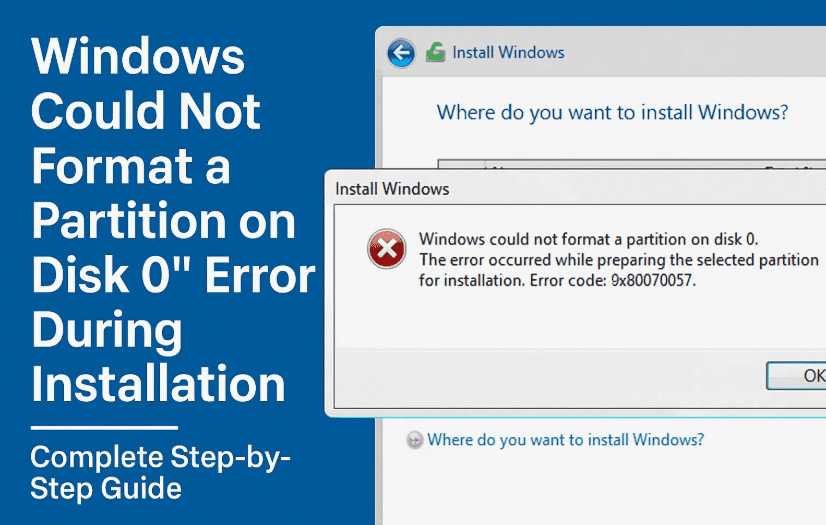
Running into an error like “Windows could not format a partition on disk 0. The error occurred while preparing the computer system volume” can feel like hitting a wall during a clean install of Windows 10 or 11. But don’t worry — this guide will walk you through the exact steps to fix it and get your installation back on track.
Whether it’s a corrupted partition, conflicting formats, or leftover system files from previous installations, this problem is completely fixable — even for beginners. Let’s go step-by-step and fix this frustrating issue.
🧠 Why This Error Happens
Before we jump into the fix, here are some common reasons why you might see this error during installation:
- Corrupted or conflicting partitions from previous OS installs
- Incorrect partition format (e.g., MBR vs GPT)
- The system volume isn’t being created properly
- Hidden recovery partitions blocking setup
🔧 Step 1: Delete All Partitions During Setup
Let’s start with the easiest method.
⚠️ Important: This step will erase all data on your drive. Make sure to back up any important files before proceeding.
Follow these steps:
- Start the Windows installation from USB or DVD.
- When you reach the screen showing all available drives and partitions:
- Select each partition one by one
- Click Delete to remove them all
- After all partitions are deleted, click New to create a new partition.
- Allocate the desired space for your C: drive.
- Click Apply and Windows will automatically create additional necessary partitions (like Recovery and System).
- Select the Primary partition and click Next to begin installation.
If Windows still shows the error — no worries. Let’s move to the next method.
🖥️ Step 2: Use Command Prompt (DiskPart Method)
So far we’ve done basic cleaning. Now, let’s dive a little deeper using DiskPart to fully clean and reformat the drive.
Let’s move to the next step:
- When you’re on the installation screen, press:
- Shift + F10 to open the Command Prompt
- In the prompt, type the following commands step-by-step:
diskpart
→ Launches DiskPart utility
list disk
→ Displays all connected drives
select disk 0
→ Selects the main drive (replace 0 with the correct disk number if needed)
clean
→ Wipes the entire drive completely


convert gpt
→ Converts disk to GPT format (recommended for UEFI systems)
create partition primary
→ Creates a new primary partition
active
→ Marks the new partition as active
format fs=ntfs quick
→ Formats the partition with NTFS
exit
→ Exit DiskPart
- Close the Command Prompt window.
💻 Step 3: Continue Installation Normally
Now that the disk has been cleaned and properly prepared, go back and resume installation:
- Click Install Now.
- Choose I don’t have a product key (you can activate later).
- Select the version of Windows you wish to install.
- Accept the license terms.
- Choose Custom: Install Windows only (advanced).
- Select the new partition created earlier.
- Click Next.
That’s it! Windows should now install without any formatting error.
🤔 Frequently Asked Questions
Q: Can I use this method for both Windows 10 and Windows 11?
A: Yes, this works perfectly for both Windows 10 and Windows 11 installation errors.
Q: What if my PC uses MBR instead of GPT?
A: Most modern PCs use GPT with UEFI boot. If your system uses BIOS/MBR, you can skip the convert gpt step or use convert mbr.
Q: What if I still get the same error after trying both methods?
A: Try:
- Checking your installation USB for corruption
- Using a different USB port
- Re-downloading the Windows ISO and recreating the bootable USB using Rufus
🎯 Final Thoughts
So far we’ve done a solid job clearing partitions, converting to the right format, and preparing your drive for a smooth installation. Whether you’re a beginner or tech-savvy user, these steps help ensure your hard drive is clean and ready for Windows.
If you follow everything carefully, the “Windows could not format a partition on disk 0” error should now be a thing of the past.
🧩 Tags & Hashtags
Tags: windows installation error, disk 0 format error, windows setup fix, windows could not format partition, diskpart tutorial, gpt conversion, windows installer fix, windows 10 clean install
Hashtags:
#WindowsErrorFix #DiskPart #WindowsInstallation #GPTPartition #CleanInstall #Windows10 #Windows11 #TechTips #FormatError








