Printing errors can be incredibly frustrating—especially when everything seems connected, but Windows just refuses to print. One common issue users face is the “Windows cannot print due to a problem with the current printer setup” error.
This message often pops up when you try to print a Word file, PDF, or even a simple text document, and no matter how many times you restart the printer, it doesn’t go away.
In this article, we’ll go through a complete step-by-step guide to fix this issue using Registry Editor and Print Spooler Services. Don’t worry if you’re not tech-savvy — every step is explained clearly with additional context, safety notes, and what to do if something looks different on your PC.
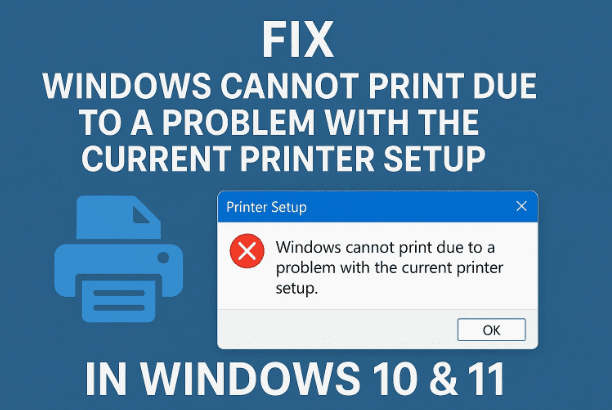
Let’s get started and bring your printer back to life.
1️⃣ Understanding the Error
Before jumping into the fix, let’s understand what’s really happening.
When you see the error message —
“Windows cannot print due to a problem with the current printer setup”
it usually means Windows can’t communicate properly with the installed printer driver or some permission settings are blocking access to the printer configuration stored in the system registry.
Common causes include:
- Corrupted or missing printer drivers.
- Misconfigured registry permissions for printer-related entries.
- The Print Spooler service being stopped or disabled.
- Improper access rights to the
Windows NTregistry folder.
Fortunately, all these issues can be fixed manually without reinstalling Windows or resetting your PC.
Let’s move step-by-step.








2️⃣ Step 1 – Open the Windows Registry Editor
The Registry Editor allows you to modify the low-level configuration of Windows components. We’ll be adjusting a permission that controls how your printer communicates with Windows.
⚠️ Important: Be cautious while editing the registry. Incorrect changes can affect system stability. Follow the steps exactly.
Steps to open Registry Editor:
- Click the Start button or press the Windows key.
- Type regedit in the search bar.
- When Registry Editor appears, click Open.
- If a User Account Control (UAC) prompt appears, click Yes.
This will open the Registry Editor window — a tree-like structure of folders and subfolders containing Windows configurations.
Now, let’s navigate to the location where printer setup data is stored.
3️⃣ Step 2 – Navigate to the Correct Registry Path
Inside the Registry Editor, follow this exact path:
HKEY_CURRENT_USER\Software\Microsoft\Windows NT\CurrentVersion\Windows
Here’s what each folder means:
- HKEY_CURRENT_USER: Holds settings for the currently logged-in user.
- Software → Microsoft → Windows NT → CurrentVersion: These folders store system settings for Windows.
- Windows: This particular folder contains printer-related configuration keys.
If any of these folders don’t appear immediately, click the > (expand) icons to reveal subfolders.
4️⃣ Step 3 – Fix the Registry Permissions
Sometimes this error occurs because Windows doesn’t have enough permission to read or modify your printer settings under the Windows key.
Let’s correct those permissions.
Follow these steps carefully:
- In the Registry Editor, right-click on the Windows folder under:
HKEY_CURRENT_USER\Software\Microsoft\Windows NT\CurrentVersion - Select Permissions…
- In the Permissions window, click “All Application Packages.”
- Ensure both Allow boxes for Read and Full Control are checked.
- If they are not, check them manually.
- Click Apply, then OK.
✅ Great — you’ve given Windows the right access to printer settings.
But we’re not done yet. Sometimes, the “Everyone” group isn’t listed by default, which can still cause permission conflicts. Let’s add that too.
5️⃣ Step 4 – Add the “Everyone” Group in Registry Permissions
Follow this small but crucial step to ensure full access for all system users:
- Again, right-click the Windows folder in Registry Editor.
- Choose Permissions → click Add…
- In the box that says “Enter the object names to select”, type:
Everyone(No spaces before or after the word.) - Click OK.
- Now, select Everyone in the list.
- Under Permissions for Everyone, check both:
- Allow Full Control
- Allow Read
- Click Apply, then OK.
You’ve now correctly fixed the registry permissions that often block the printer configuration process.
Let’s close the Registry Editor window.
Next, we’ll ensure that the background service responsible for handling print jobs — the Print Spooler — is running properly.
6️⃣ Step 5 – Restart and Reconfigure the Print Spooler Service
The Print Spooler is a core Windows service that manages all print commands sent from your applications. If this service stops or becomes disabled, no printing will work — even with correct drivers installed.
Steps to restart it:
- Press Windows + R to open the Run dialog box.
- Type:
services.mscand press Enter. - The Services window will open.
- Scroll down and find Print Spooler in the list.
- Right-click Print Spooler → Select Properties.
- In the Startup type dropdown, make sure it’s set to Automatic.
- If the Service status shows Stopped, click Start.
- Once it’s running, click Apply → OK.
Now, close the Services window.
🟢 Pro tip: If the “Start” button was greyed out or refused to start, your spooler queue may be corrupted. Open the folder below and delete all files inside (don’t delete the folder itself):
C:\Windows\System32\spool\PRINTERS
After clearing this folder, try starting the Print Spooler again. It should work fine now.
7️⃣ Step 6 – Restart Your PC and Test Printing
At this point, we’ve:
- Fixed Registry permissions
- Restarted the Print Spooler
- Ensured automatic startup
Now, restart your computer once to apply all changes.
After restarting:
- Open any app like Microsoft Word, Notepad, or Adobe Reader.
- Press Ctrl + P or go to File → Print.
- Select your printer from the list and click Print.
If everything was done correctly, your printer should start printing normally — and that frustrating error should be gone for good.
8️⃣ Why Does This Fix Work?
This method works because it resets and reauthorizes the connection between Windows and your printer.
Here’s what happens behind the scenes:
- Registry permissions ensure Windows and all apps can access the current printer configuration files.
- The Print Spooler service acts as the communication bridge between software and hardware. When it’s misconfigured or stopped, printing commands get lost or stuck in the queue.
- By fixing both, you restore a complete communication pathway for Windows to send print jobs without interruption.
9️⃣ Alternative Fix (If Error Persists)
If the problem still appears even after doing everything above, try this final method — it’s a fallback that manually resets the default printer configuration in the Registry.
Optional reset method:
- Open Registry Editor again.
- Navigate to:
HKEY_CURRENT_USER\Software\Microsoft\Windows NT\CurrentVersion\Windows - On the right side, look for a DWORD value named:
LegacyDefaultPrinterMode - Double-click it and set its Value data to 1.
- Click OK, close the Registry Editor, and restart your PC.
This step helps Windows recognize your default printer properly, especially after updates or driver reinstallations.
🔍 Frequently Asked Questions (FAQ)
Q1. What causes this “Windows cannot print due to a problem with the current printer setup” error?
It’s typically caused by missing registry permissions, a stopped Print Spooler service, or outdated printer drivers. Windows loses access to the printer configuration and fails to initiate the print command.
Q2. Do I need to reinstall my printer driver after fixing this?
Usually, no. Restarting the Spooler and adjusting permissions is enough. However, if the problem persists, reinstalling the printer driver from the manufacturer’s official website can help.
Q3. Will this method delete my print settings or documents?
No, it only changes access permissions and restarts services. Your saved files and documents remain untouched.
Q4. Does this method work for network printers too?
Yes. The fix works for both local and network printers because the root cause (permissions and spooler) is system-level, not printer-specific.
Q5. How do I open the “Services” window quickly if Run command doesn’t work?
You can also right-click the Start menu → select Computer Management → expand Services and Applications → click Services from the list.
⚙️ Bonus Tip: How to Prevent Printer Errors in the Future
After fixing the issue, you can take a few preventive steps to ensure it doesn’t happen again:
- Keep Windows updated — outdated builds may cause service conflicts.
- Avoid abrupt shutdowns while printing.
- Check Print Spooler occasionally (make sure it’s still running).
- Use official drivers from your printer brand’s website (e.g., HP, Canon, Epson, etc.).
- Create a System Restore Point once your printer is working properly, so you can easily revert if the issue returns.
Disclaimer
This guide is for educational purposes and aims to help users troubleshoot printer configuration issues safely. Modifying the Windows Registry can affect system behavior if done incorrectly. Follow steps carefully, and create a system restore point if you’re unsure.
All product and company names (Windows, HP, Canon, etc.) are trademarks of their respective owners. Always download software and drivers from official websites.
#PrinterError #Windows10 #Windows11 #PrintSpooler #RegistryEditor #PrinterFix #Troubleshooting #WindowsTips #TechGuide








