Are you facing issues with your Windows 11 search bar not typing, not responding, or failing to show app results?
You’re not alone—this is a common issue that affects many users. Fortunately, there are several proven steps that can resolve this problem without requiring advanced technical knowledge.
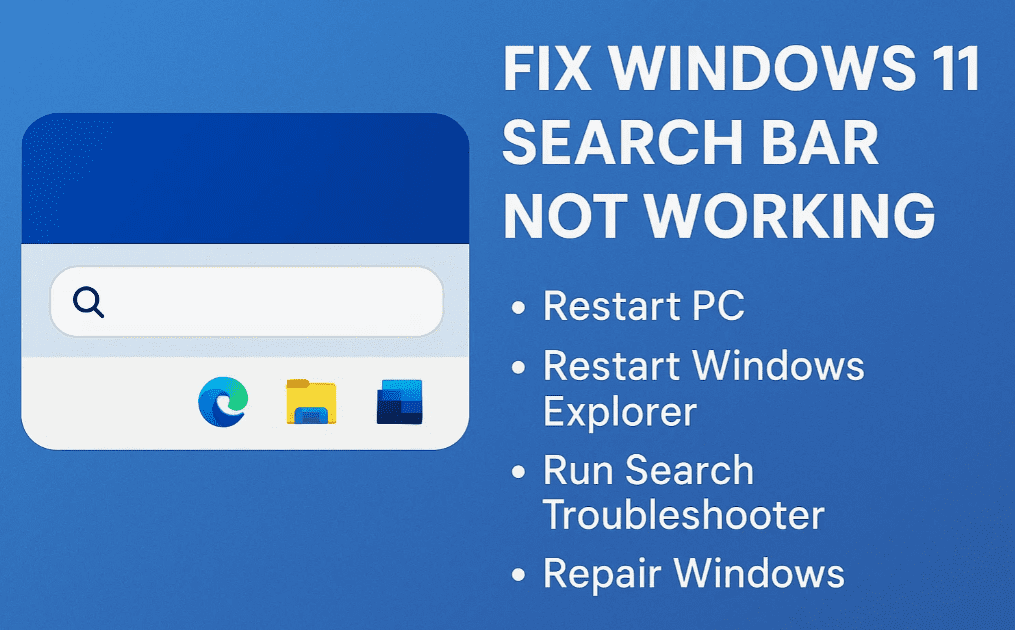
This article walks you through four effective methods to fix the Windows search bar when it’s not working.
🔄 Solution 1: Simple Restart
Sometimes, a simple restart is all it takes to fix the search issue. Here’s what to do:
Steps:
- Click the Start Menu (Windows icon).
- Click the Power button and select Restart.
- Wait for your PC to reboot and check if the search bar starts working again.
✅ If this resolves the issue, no further steps are needed.
🗂️ Solution 2: Run CTFMON.EXE from System32
If restarting doesn’t help, this method activates a hidden Windows process related to input services.
Steps:
- Open File Explorer (
This PC). - Navigate to
C:\Windows\System32. - Press the
Skey or scroll to find the System32 folder. - Inside System32, locate the file: CTFMON.EXE.
- Double-click to run CTFMON.EXE. It will start briefly and close automatically.
- Right-click anywhere on the screen and select Refresh.
- Close the window and try using the search bar again.
📝 CTFMON.EXE is responsible for alternative user input services like the language bar and text input. Manually running it can often fix the search typing issue.
🧰 Solution 3: Restart Windows Explorer via Task Manager
If your search bar is still unresponsive, restarting Windows Explorer can refresh the system UI.
Steps:
- Press Ctrl + Shift + Esc to open Task Manager.
- Scroll down and locate Windows Explorer under the “Processes” tab.
- Right-click on Windows Explorer and click Restart.
- The taskbar and desktop may flash or disappear briefly—this is normal.
- Once restored, test the search bar again.
💡 This method is useful when the search UI or taskbar is frozen.
🕰️ Solution 4: Use System Restore to Roll Back
If none of the above methods work, this is a more advanced option to revert your system to an earlier state when the search bar was functioning.
Steps:
- Open the Start Menu and search for Control Panel.
- In Control Panel, click on Recovery.
- Click on Open System Restore.
- In the new window, click Next.
- Select a restore point (preferably a date before the issue started).
- Click Next, then click Finish to confirm.
- Your system will restart and begin the restoration process.
⚠️ Restoring can take anywhere from 30 minutes to 2–3 hours depending on system speed. Do not shut down your PC during this process.







Once completed, check your search bar again—it should now function correctly.
❓ Frequently Asked Questions (FAQs)
Q1: Is running CTFMON.EXE safe?
Yes, CTFMON.EXE is a legitimate Windows system file. It’s responsible for alternative user input services like speech and handwriting.
Q2: Will System Restore delete my files?
No. System Restore does not delete personal files, but it may remove recently installed software or drivers that caused issues.
Q3: What if my restore points are missing?
System Restore needs to be enabled in your settings. If you don’t see any restore points, the feature may have been disabled.
✅ Final Thoughts
Dealing with an unresponsive search bar in Windows 11 can be frustrating, but it’s usually fixable with one of these four methods:
- Restarting the PC
- Running CTFMON.EXE
- Restarting Windows Explorer
- Using System Restore
Try them in order. In most cases, the issue is resolved without needing advanced tech support.
🏷️ Tags:
windows 11 search bar fix, search not typing, windows search not working, ctfmon exe fix, task manager restart explorer, system restore windows 11, windows 11 troubleshoot, search bar issue solution
📢 Hashtags:
#Windows11 #SearchBarFix #WindowsTroubleshooting #CTFMON #SystemRestore #TaskManager #ExplorerRestart #WindowsTips #FixWindowsSearch
⚠️ Disclaimer: The solutions mentioned in this article are intended for educational and troubleshooting purposes. System Restore may undo recent software installations. Proceed only if you understand how restoration affects your system.
Need help with another Windows 11 issue? Drop your query in the comments section below!








