If you’ve recently clicked on the search box in your Windows 10 taskbar and found it completely unresponsive—don’t worry, you’re not alone. This issue is surprisingly common among Windows 10 users, and it can be frustrating when the built-in search simply refuses to function.
Whether you’re typing and seeing no results or clicking the box only for it to do absolutely nothing, this blog post will walk you through a couple of effective methods that have helped many users restore their search functionality.
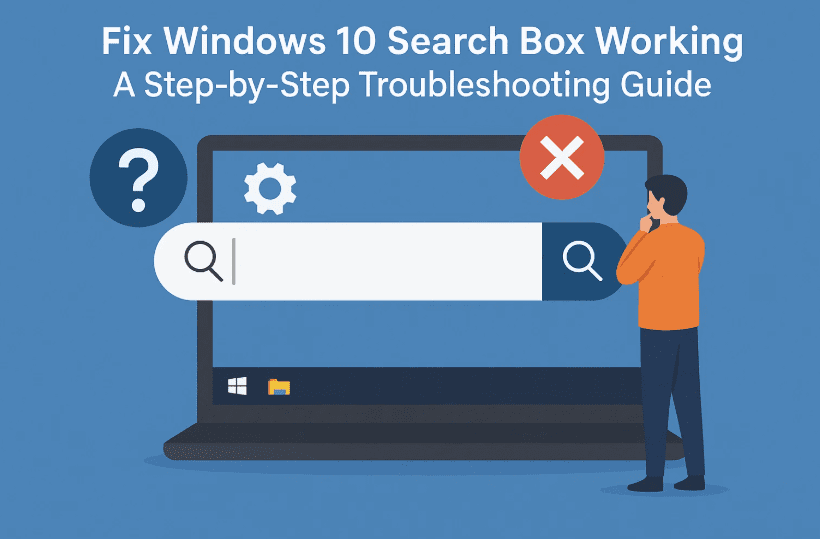
Let’s start with the first basic fix and then move toward more advanced methods. Take a deep breath—we’re going to fix this together!
✅ Step 1: Run the Windows Search and Indexing Troubleshooter
Before diving into advanced fixes, let’s try Microsoft’s own Search Troubleshooter. It’s built right into Windows 10 and may resolve minor indexing or UI glitches.
Here’s how to do it:
- Click on the Start Menu and then click the Settings (gear icon).
- Navigate to Update & Security.
- From the left sidebar, select Troubleshoot.
- Now, click on Additional Troubleshooters.
- Scroll down and find Search and Indexing.
- Click on it and then select Run the Troubleshooter.
Once the troubleshooter opens:
- You’ll be presented with multiple options. Select one that best matches your problem, such as:
- “Can’t start a search or see results”
- Click Next and allow the process to run.
- If prompted for Administrator privileges, make sure to allow it.
💡 The troubleshooter will attempt to identify and automatically resolve any search-related issues.
📝 Note: This fix doesn’t always solve the issue for everyone, but it’s quick and worth trying before moving to advanced methods.
🛠️ Step 2: Use PowerShell to Reinstall and Repair Windows Search
If the troubleshooter didn’t work, don’t worry—we’ve got a more advanced trick. This method uses Windows PowerShell to repair all built-in Windows 10 apps, including the search functionality.
But since your search box isn’t working, you’ll have to open PowerShell in an alternate way.
Here’s how:
- Press
Windows + Rto open the Run dialog box. - Type
powershelland press Ctrl + Shift + Enter to open it as Administrator.- This keyboard shortcut ensures you’re opening PowerShell with elevated privileges, which is essential for the next steps.
Now let’s run two important PowerShell commands that will attempt to re-register and repair all built-in Windows apps:
👉 First Command:
Get-AppXPackage -AllUsers | Foreach {Add-AppxPackage -DisableDevelopmentMode -Register "$($_.InstallLocation)\AppXManifest.xml"}
👉 Second Command:
Get-AppxPackage Microsoft.Windows.Search | Foreach {Add-AppxPackage -DisableDevelopmentMode -Register "$($_.InstallLocation)\AppXManifest.xml"}
What to Do:
- Copy and paste the first command and hit Enter. Wait until the process completes.
- Then paste the second command and hit Enter again.
- Wait patiently—it might take a few minutes depending on your system.
- Once done, restart your computer for the changes to take effect.
⚠️ Warning: Do not close PowerShell or shut down your PC while the commands are running.





🤔 FAQ Section
Q1: Will running these commands delete any of my files or apps?
A: No, these PowerShell commands only re-register system apps and do not delete your personal files or third-party programs.
Q2: What if PowerShell gives me errors during the command execution?
A: Some harmless red error lines might appear; they can be safely ignored unless the entire command fails. Make sure PowerShell is running as Administrator.
Q3: My search bar still doesn’t work. What next?
A: You may want to consider creating a new Windows user profile or performing a system file check using:
sfc /scannow
👍 Final Words
So far, we’ve covered two solid methods to restore your Windows 10 search bar:
- The built-in Search Troubleshooter for a quick fix.
- A more advanced PowerShell repair command to reset all Windows apps.
Hopefully, one of these solutions helped you out and your search functionality is back in action. If not, don’t hesitate to explore additional support forums or consider a system restore if the issue persists after a recent update.
Let me know in the comments if these steps worked for you—or if you ran into something else entirely. We’re all here to help each other out.
Until next time, take care and stay tuned for more Windows tips and tricks from Tech Based In!
🔗 Software & Resources
📌 Tags & Hashtags
Tags: windows 10, search bar fix, troubleshooting, powershell, windows search not working, fix windows search, microsoft support, tech guide
Hashtags:
#Windows10 #SearchBoxFix #TechTips #PowerShell #MicrosoftSupport #Troubleshooting #SearchNotWorking #FixWindows #TechBasedIn
⚠️ Disclaimer:
These steps are safe for most users. However, always ensure you create a system restore point before making advanced changes using PowerShell. The commands shared here are meant for general troubleshooting and should not affect your files, but it’s better to be safe than sorry.








