If you’re excited to play Vampire: The Masquerade – Bloodlines 2 but the game keeps crashing with a “LowLevelFatalError” or “An Unreal process has crashed: UE-Bloodlines2” message — don’t worry. You’re not alone. This issue is quite common among PC players, and the good news is, it can be fixed with a few detailed steps.
In this article, we’ll cover every possible solution — from skipping the Paradox launcher to reinstalling drivers and adjusting your system settings — with clear explanations for why each step works.
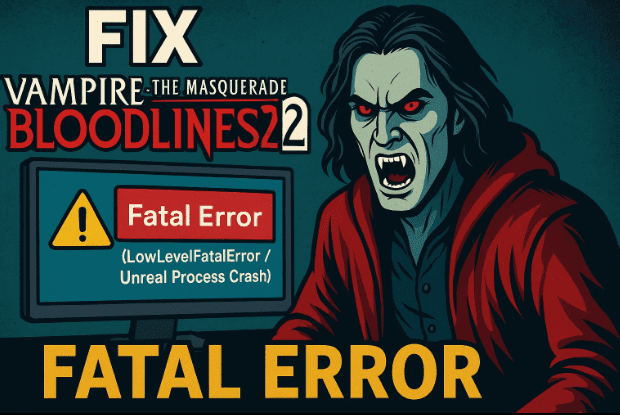
Understanding the “LowLevelFatalError” in Unreal Engine Games
Before we dive into the fixes, let’s understand what’s happening.
A LowLevelFatalError is an Unreal Engine crash triggered when the engine fails to access graphics, memory, or configuration data correctly. It’s not specific to Bloodlines 2 — similar crashes have occurred in other Unreal-based games like ARK: Survival Evolved, Fortnite, and Squad.
Common causes include:
- Corrupted or missing game files
- Conflicting display or GPU drivers
- Paradox launcher startup issues
- Incompatible display mode (fullscreen/windowed)
- Missing Microsoft Visual C++ runtime files
- Antivirus blocking the game executable
Now that we understand the roots, let’s go step by step through every possible solution.
1. Run the Game from Installation Folder
The first fix is simple — bypass Steam’s launcher and directly run the executable file.
Steps:
- Open Steam.
- Right-click Vampire: The Masquerade – Bloodlines 2 → Manage → Browse local files.
- Double-click the
.exefile in the Binaries → Win64 folder to launch the game directly.
If it doesn’t open:
- Right-click the
.exefile → Properties → Compatibility. - Check Run this program as an administrator.
- Also try enabling Disable fullscreen optimizations and test.
- If it still fails, try compatibility mode with Windows 8 or Windows 7.
If you can launch it directly, the problem likely lies in Steam or Paradox’s launcher.
2. Skip the Paradox Launcher
Many players found that skipping the Paradox Launcher helps the game start instantly without crashes.
How to Skip:
- Go to your installation folder again and copy the path:
C:\Program Files (x86)\Steam\steamapps\common\Bloodlines2\Binaries\Win64 - Copy the exact name of the game executable (e.g.,
Bloodlines2-Win64-Shipping.exe). - Combine the two with a backward slash and add quotes around it, like this:
"C:\Program Files (x86)\Steam\steamapps\common\Bloodlines2\Binaries\Win64\Bloodlines2-Win64-Shipping.exe" %command% - In Steam → Properties → Launch Options, paste this line.
This forces Steam to launch the game directly, skipping the Paradox Launcher entirely.
3. Install or Repair Microsoft Visual C++ Redistributables
Unreal Engine games require these runtime components to work properly. Missing or broken files can cause fatal errors.









Steps:
- Go to the official Microsoft Visual C++ Redistributables page.
- Download both versions:
- x86 (vc_redist.x86.exe)
- x64 (vc_redist.x64.exe)
- Run both installers.
- If you see Repair, click it.
- If you see Install, proceed.
- Restart your PC after installation (this step is essential).
After the restart, launch the game again and test.
4. Try Launch Options: DX11 or DX12
Unreal Engine supports multiple DirectX versions. Some users report better stability with DX11, others with DX12.
- Open Steam → right-click Bloodlines 2 → Properties → Launch Options.
- Type one of the following:
-dx11or-dx12 - Launch the game and see if the crash stops.
If one doesn’t work, try the other. You can remove the command afterward if both fail.
5. Rename the Config Folder
Sometimes the game’s saved settings get corrupted, causing startup failures. You can regenerate a clean config.
- Press Windows + E to open File Explorer.
- Go to:
C:\Users\<YourUsername>\AppData\Local\Bloodlines2\Saved\Config(If AppData is hidden, enable “Hidden items” from the View tab.) - Rename the folder from
ConfigtoConfig.old. - Restart the game — it will recreate fresh configuration files automatically.
6. Allow the Game in Windows Security and Firewall
Your antivirus or Windows Defender might be blocking the executable.
For Windows Security:
- Open Settings → Privacy & Security → Windows Security → Virus & Threat Protection.
- Scroll down → Manage Ransomware Protection → Allow an app through Controlled Folder Access.
- Add both
.exefiles (main and Win64 versions) from the game’s directory.
For Firewall:
- Go to Control Panel → System and Security → Windows Defender Firewall → Allow an app through Firewall.
- Click Change settings → Allow another app → Browse, and add both
.exefiles.
If you use third-party antivirus (Avast, Bitdefender, Norton, McAfee, etc.), whitelist the same executables there as well.
7. Perform a Clean Installation of Graphics Drivers
Outdated or corrupted drivers are the most common reason for Unreal Engine crashes.
For NVIDIA users:
- Visit NVIDIA Drivers.
- Select your GPU and operating system.
- Download and run the installer.
- Choose Custom Installation and check Perform a Clean Installation.
- Restart your PC after installation.
For AMD users:
- Visit AMD Drivers and Support.
- Select your GPU, download, and run the driver setup.
- Choose Factory Reset (Clean Install) option.
After reboot, check if the game runs.
8. Run on Dedicated GPU (Disable Integrated GPU)
If you’re on a laptop or dual-GPU system, ensure the game uses your dedicated GPU.
- Type Graphics Settings in Windows search and open it.
- Click Browse and add your game’s
.exefiles. - Select each → Options → High Performance → Save.
To disable the integrated GPU:
- Right-click Start → Device Manager → Display Adapters.
- Right-click your Intel GPU → Disable device.
- Restart your system and test the game.
Re-enable it later for normal use.
9. Verify Integrity of Game Files
Steam can automatically fix missing or damaged files.
- Open Steam → right-click the game → Properties → Installed Files.
- Click Verify Integrity of Game Files.
- Wait until it finishes and restart your PC.
10. Manage Overlay and Overclocking Apps
Overlays can conflict with Unreal Engine.
Disable or close these:
- Steam Overlay (in game’s Properties)
- Discord Overlay (Settings → Game Overlay → Off)
- NVIDIA GeForce Experience Overlay
- MSI Afterburner, RivaTuner, or any GPU overclocking software
Make sure only Steam and the game are running before testing again.
11. Update Intel Drivers
If you have an Intel processor, use Intel’s official tool to keep system drivers updated.
- Visit Intel Driver & Support Assistant.
- Download and install the utility.
- Run it → it will automatically detect and update required drivers.
- Restart your PC afterward.
12. Try Power Saver Mode
Although counterintuitive, switching to Power Saver can reset GPU voltage and clock balance, fixing random crashes.
- Type Control Panel → Hardware and Sound → Power Options.
- Choose Power Saver, then try launching the game.
- If that doesn’t work, try Balanced or High Performance modes.
13. Toggle Hardware-Accelerated GPU Scheduling
This Windows feature can cause both stability improvements and issues depending on your hardware.
- Search for Graphics Settings.
- Toggle Hardware-Accelerated GPU Scheduling:
- If it’s Off, turn it On.
- If it’s On, turn it Off.
- Restart your PC and test the game again.
14. Lower Monitor Refresh Rate
Some Unreal Engine games struggle with very high refresh rates (like 240Hz).
- Right-click on the desktop → Display Settings → Advanced Display.
- Change refresh rate to 60Hz or 120Hz.
- Launch the game and test.
15. Increase Virtual Memory
If you’re running low on physical RAM, increasing your paging file can prevent Unreal from crashing.
Steps:
- Type View Advanced System Settings and open it.
- Under Performance, click Settings → Advanced → Virtual Memory → Change.
- Uncheck “Automatically manage paging file size.”
- Choose the drive where the game is installed.
- Select Custom size and enter:
- Initial size: 1.5 × RAM (in MB)
- Maximum size: 3 × RAM (in MB)
Example for 16GB RAM: - Initial: 24576
- Maximum: 49152
- Click Set → OK → Apply → OK and restart.
If it causes instability, revert to System managed size later.
16. Update Windows
Always make sure your system is up to date.
- Go to Settings → Windows Update → Check for updates.
- Install all pending updates and restart.
17. Adjust In-Game Settings (If Game Launches)
If the game launches but still crashes mid-play, lower your in-game settings.
- Change Display Mode to Windowed or Borderless Windowed.
- Set resolution to 1920×1080 instead of 4K.
- Cap Frame Rate Limit to 60 or 120 FPS.
- Disable:
- Frame Generation
- NVIDIA Reflex Low Latency
- FSR or DLSS
- Change Quality Preset from Ultra to High or Medium.
Apply and restart the game.
18. Update BIOS
⚠️ Warning: BIOS updates should be done carefully. Ensure your laptop is plugged in, and never interrupt the process.
- Visit your PC or motherboard manufacturer’s official website.
- Enter your model number.
- Download the latest BIOS update tool.
- Follow their step-by-step guide to update.
- Restart afterward.
19. Unplug External Devices
Unnecessary peripherals can conflict with USB drivers or game input systems.
- Disconnect controllers, racing wheels, HOTAS, pedals, or Razer/Keychron keyboards.
- Unplug external mice and adapters temporarily.
- Remove any undervolt or custom CPU settings before testing again.
20. Reinstall the Game on Another Drive
If none of the above work, a full reinstall often resolves stubborn issues.
- Uninstall Bloodlines 2 via Steam.
- Delete any leftover files in the installation folder.
- Restart your PC.
- Reinstall the game to a different drive — preferably *C:* or an SSD.
Frequently Asked Questions
Q1. What causes the “LowLevelFatalError” in Bloodlines 2?
It’s generally a driver or DirectX-related crash, caused by outdated GPU software, corrupted files, or Unreal Engine miscommunication with Windows.
Q2. Is skipping the Paradox Launcher safe?
Yes. It only bypasses the launcher UI and launches the executable directly — your saves and updates remain intact.
Q3. Does reinstalling Visual C++ affect other games?
No. It actually improves stability across all Unreal Engine and DirectX-based games.
Q4. What if the game still doesn’t run after all steps?
Try reinstalling to a different drive, or wait for a stability patch — Bloodlines 2 is still receiving updates.
Final Thoughts
If you’ve carefully followed all the steps above, Vampire: The Masquerade – Bloodlines 2 should now launch and run smoothly without the LowLevelFatalError or Unreal process crash.
Most players find success after a clean GPU driver reinstall, Visual C++ repair, or skipping the Paradox launcher.
Remember, patience helps here — test one fix at a time, reboot after each major change, and you’ll likely solve the issue before reaching the final step.
Disclaimer:
Some fixes like BIOS updates or GPU scheduling changes may affect your system if done incorrectly. Always back up important data and follow manufacturer documentation before performing advanced steps.
#VampireBloodlines2 #GameCrashFix #LowLevelFatalError #UnrealEngine #ParadoxLauncher #PCGaming #NVIDIA #AMD #DirectX








