Are you stuck with an annoying error that says “Unable to reset your PC” on Windows 11? Don’t worry, you’re not alone. This is a common issue that many users face when trying to perform a system reset.
In this article, we’ll walk you through all the possible fixes for this problem. From simple command-line tools to advanced recovery options — everything is covered in detail. Whether it’s Windows corruption or recovery environment issues, you’ll be able to get your PC reset-ready again.
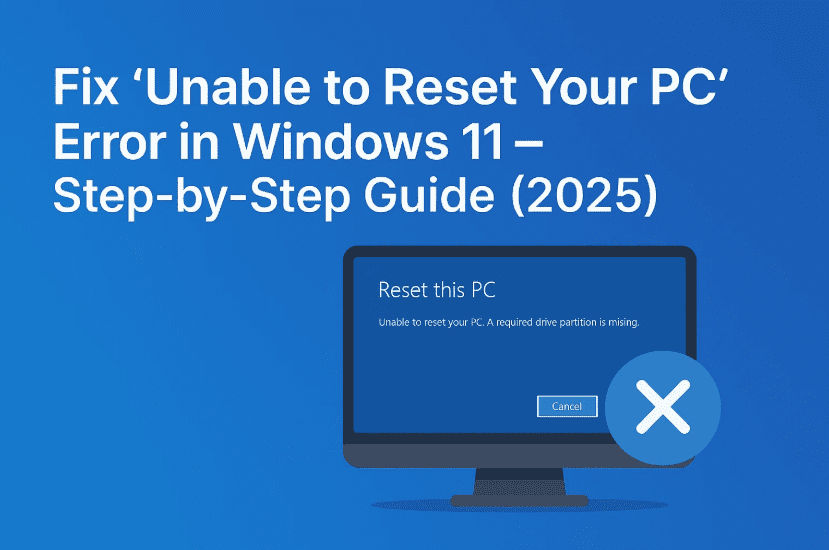
🧠 Why Can’t You Reset Your PC?
Before jumping to the solutions, let’s understand the common causes behind this issue:
- ❌ Corrupted system files
- ⚙️ Disabled Windows Recovery Environment (WinRE)
- 🔧 System settings or registry problems
- ⛔ Pending Windows updates or broken reset files
✅ Let’s Begin the Fix – Step-by-Step Solutions
We’ll start with enabling the Windows Recovery Environment, then fix system corruption, and finally use built-in recovery options if needed. Stick with this process and don’t skip steps — your PC should be back to normal soon.
🔁 Step 1: Re-enable Windows Recovery Environment (WinRE)
Windows Recovery Environment is essential for reset operations. If it’s disabled or broken, reset won’t work. Let’s fix it.
🧾 Instructions:
- Open Command Prompt as Administrator
- Press
Windows + S, type cmd, then right-click and choose Run as Administrator.
- Press
- Disable WinRE (Temporarily)
Run this command:reagentc /disable - Re-enable WinRE
Now type:reagentc /enable
✅ After this, try resetting your PC again. If it still doesn’t work, move to the next step.
🧰 Step 2: Run System File Checker (SFC)
System corruption can block the reset functionality. The System File Checker tool helps repair broken or missing files.
🧾 Command:
sfc /scannow
- This will take several minutes.
- Once complete, it will show a message like:
“Windows Resource Protection found corrupt files and successfully repaired them.”
🧹 Step 3: Use DISM Tool to Restore System Health
If SFC alone doesn’t fix the corruption, use DISM (Deployment Imaging and Servicing Management) to restore system health.
🧾 Run the following in the same Command Prompt:
DISM /Online /Cleanup-Image /RestoreHealth
- This process can take time — don’t worry if it seems stuck around 40-60%.
- Once it reaches 100%, restart your computer.
🔁 Now try resetting your PC again. If still not working, let’s try a more visual method.
⚙️ Step 4: Reset PC via Advanced Startup Mode
Let’s move to Windows 11’s built-in recovery environment.
💡 Here’s how:
- Click Start Menu → Settings
- Go to System → Recovery
- Under Recovery options, click Restart now next to Advanced startup
- Your PC will reboot into Windows Recovery Environment (WinRE)
In WinRE:
- Click Troubleshoot
- Choose Advanced options
- Click Startup Repair
⚠️ If Startup Repair fails or doesn’t fix it, go back and try resetting from here.




🔄 Step 5: Use Built-in Reset Option in WinRE
You can also reset your PC directly from the advanced startup menu.
Steps:
- In WinRE, go to Troubleshoot
- Click on Reset this PC
- Choose:
- Keep my files – Keeps your personal data
- Remove everything – Full factory reset
💡 Choose based on your need. Make sure your important data is backed up if selecting full reset.
💡 Bonus Tip: Fresh Install Using Bootable USB (Last Resort)
If none of the above methods work, your final option is a clean install of Windows 11.
To do that:
- Download the Media Creation Tool from Microsoft’s website:
👉 https://www.microsoft.com/software-download/windows11 - Create a bootable USB drive (minimum 8GB) using the tool.
- Boot from the USB drive → choose Install Now → follow the on-screen steps.
⚠️ Be sure to back up all important files before doing a clean install.
❓ Frequently Asked Questions (FAQs)
Q1: Why does my PC say “There was a problem resetting your PC”?
This usually happens due to corrupted recovery files or when WinRE is disabled.
Q2: Will resetting my PC delete everything?
Only if you choose Remove everything. If you choose Keep my files, personal data is preserved.
Q3: What is WinRE and why does it matter?
WinRE is the Windows Recovery Environment. Without it, options like “Reset this PC” won’t work.
Q4: Can I fix this without a USB or fresh install?
Yes, the guide above walks through multiple methods to fix the issue without needing a USB unless it’s a last resort.
✅ Final Thoughts
If your Windows 11 reset functionality isn’t working, it can be frustrating — but not unfixable. By carefully applying these steps:
- Enabling WinRE
- Repairing system files with SFC & DISM
- Using advanced startup options
- Performing a manual reset via Recovery Mode
You can almost always resolve the issue.
If everything fails, a clean install is your backup plan. And thankfully, Microsoft makes it easy with their Media Creation Tool.
So far, we’ve done a good job walking through each method. Just take your time with each step and don’t rush through.
🔖 Tags:
reset windows 11, windows reset not working, winre disabled fix, unable to reset pc, sfc scannow, dism restorehealth, troubleshoot windows 11, clean install windows 11, windows recovery mode, advanced startup
📢 Hashtags:
#Windows11 #PCResetFix #WinRE #DISM #SFCTool #WindowsTroubleshooting #ResetThisPC #TechHelp #CleanInstall #AdvancedStartup
Disclaimer: Always back up your important data before attempting system resets, recovery options, or clean installations. This guide is intended for troubleshooting purposes only. Follow the instructions carefully to avoid data loss or unintended system changes.








