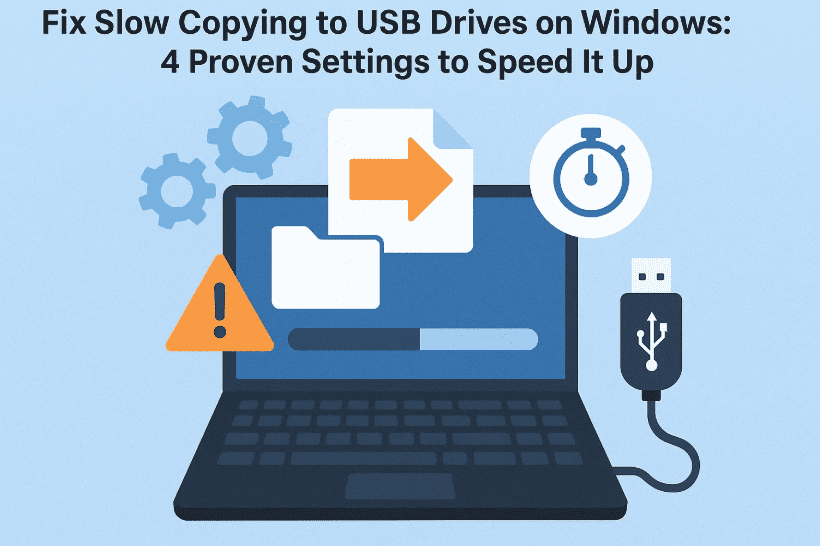
We’ve all been there—waiting forever for a simple file to transfer to a USB drive. It’s frustrating, especially when you’re in a hurry. But don’t worry! In this article, we’ll walk you through 4 key settings that can drastically speed up file copying on your Windows laptop or PC. Whether you’re transferring movies, project files, or even ISO images, these tweaks can make your USB drive perform faster than ever.
So, let’s dive into these steps—each one explained in detail with a little human touch so it doesn’t feel like you’re just talking to a machine.
🔧 What Causes Slow File Copying on Windows?
Before we start fixing things, here’s a quick understanding:
- Windows has certain background features enabled that prioritize compatibility and security over speed.
- These features can slow down USB data transfers, especially on older systems or when using USB 2.0 ports.
Now let’s roll up our sleeves and get to the solution part. These settings don’t require any third-party software—just built-in Windows tools.
✅ Step 1: Disable Windows Auto-Tuning
Let’s begin with a network optimization setting that can interfere with data transfer—Windows Auto-Tuning. It’s mainly for improving network performance, but sometimes it negatively impacts USB or file copy speed.
How to Do It:
- Click Start, search for cmd.
- Right-click on Command Prompt → select Run as Administrator.
- In the Command Prompt window, type this command:
netsh int tcp set global autotuninglevel=disabled - Hit Enter and wait for the confirmation message: “Ok.”
- Close the Command Prompt.
This disables unnecessary network tuning that might slow down background copy processes.
✅ Step 2: Turn Off Remote Differential Compression
So far, so good. Now let’s tweak another setting that’s usually meant for slow networks—Remote Differential Compression. You won’t need it unless you’re syncing large files over a network frequently.
How to Do It:
- Press Windows + R to open the Run dialog.
- Type:
optionalfeaturesand hit Enter. - This opens the Windows Features dialog.
- Scroll down until you find Remote Differential Compression API Support.
- Uncheck it.
- Click OK and wait for Windows to apply changes.
This step alone can significantly reduce overhead during local data transfer.
✅ Step 3: Enable Write Caching for USB Drives
Now we’re getting to the exciting part! Write caching allows Windows to write files to a buffer before writing to disk—making transfers appear faster.
Here’s how to turn it on:
- Right-click the Start button → select Device Manager.
- Expand Disk Drives.
- Right-click your connected USB drive → choose Properties.
- Go to the Policies tab.
- Select Better performance.
- Click OK to save.
⚠️ Important Note: Once write caching is enabled, always safely eject your USB drive to avoid data loss.
✅ Step 4: Enable & Start Optimize Drives Service
Now that we’ve improved copy behavior, let’s make sure the system is running the Optimize Drives service. This service helps keep disks in top shape and ensures smooth file transfers.






Follow these steps:
- Press Start, type services, and open Windows Services.
- Scroll down and find Optimize Drives.
- Double-click to open its properties.
- Set Startup type to Automatic.
- Click Apply, then click Start (if the service isn’t already running).
- Hit OK to save settings.
This ensures that your drives are periodically optimized and are in the best condition for file operations.
🔁 Final Step: Restart Your PC
Once you’ve made all the above changes, restart your computer. This ensures all services and settings are applied properly.
Now try copying some files again to your USB drive and you’ll notice a significant speed boost!
🤔 Frequently Asked Questions (FAQs)
Q1: Is write caching safe to enable?
Yes, but you must eject your USB safely every time to avoid corruption since data is written in batches.
Q2: What if I still have slow transfers after these steps?
Check if:
- You are using an older USB 2.0 port (try a USB 3.0 port instead).
- The USB drive itself is slow (low-quality flash drives often underperform).
- Background antivirus or indexing software might be interfering.
Q3: Do I need to repeat these steps often?
Nope. Once configured, these settings stay in place. Just make sure to occasionally optimize your drives.
🚀 Final Thoughts
So far, we’ve done a good job optimizing your Windows PC for better file transfer speed. These four changes—though simple—can really unlock better performance for copying files to and from USB drives.
Whether you’re backing up your data or transferring videos, your system should now handle it more smoothly.
Give these settings a try and see the difference for yourself!
🛑 Disclaimer
These tweaks involve changes to system-level services and caching policies. Always ensure you safely remove USB drives when caching is enabled. This guide is intended for educational purposes, and dtptips is not responsible for any data loss resulting from improper use.
🔗 Useful Links
Tags: file transfer speed, slow usb copying fix, usb drive settings windows, write caching usb, optimize drive windows, copy paste lag windows 10, windows speed fix
Hashtags:
#WindowsTips #USBDriveFix #FileTransferSpeed #TechGuide #WriteCaching #WindowsOptimization #SlowUSBFix #SpeedUpCopying #PCPerformance #dtptips
Let us know in the comments if this helped you speed up your USB transfers. Happy copying!







