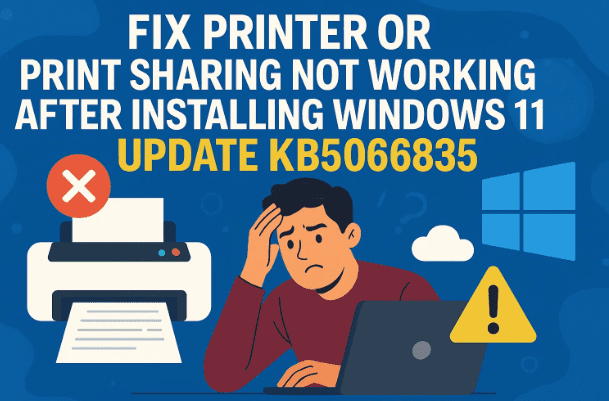
If your printer or network print sharing stopped working after installing the KB5066835 update on Windows 11, you’re not alone. Many users have reported that this update has disrupted their ability to connect to shared printers or use printing functions normally. Fortunately, the issue can be resolved safely by uninstalling the problematic update and temporarily pausing Windows Update to prevent automatic reinstallation.
In this article, we’ll go step by step through the process — and explain why this happens and how to safely fix it without affecting other Windows features.
1. Understanding the Issue with KB5066835
After Microsoft rolled out cumulative update KB5066835 for Windows 11, some users began experiencing problems with printer connectivity. These include:
- Shared printers not appearing on other PCs.
- Print jobs stuck in queue or failing to start.
- Local printers showing as “offline.”
- Network printer connections failing with “Access denied” or “Cannot connect” messages.
This issue appears to be linked to the way Windows handles updated print drivers and sharing permissions under new security changes introduced in this update.
Until Microsoft releases an official fix, the best approach is to uninstall this update and pause further updates temporarily.
2. Uninstall Update KB5066835
Let’s begin by removing the update that caused the issue.
⚠️ Note: Uninstalling updates is not generally recommended, but in this specific case it’s safe if your printer is mission-critical and the update broke functionality.
Step-by-step guide:
- Press Windows + I to open Settings.
- Navigate to Windows Update → Update History.
- Scroll down and click on Uninstall updates.
- In the list, find KB5066835.
- Click Uninstall next to it.
- Windows will display a warning that uninstalling updates might put your PC at risk. Confirm by clicking Uninstall again.
Wait for the process to finish — it can take several minutes.
Once completed, you’ll see a Restart now button. Click it to reboot your system.
3. Restart and Verify Your Printer
After your PC restarts, your printer should begin functioning normally again.
To confirm:



- Go to Settings → Bluetooth & Devices → Printers & scanners.
- Try printing a test page or sharing a printer over the network again.
If the printer or shared connection works correctly, the KB5066835 update was indeed the cause.
4. Pause Automatic Windows Updates Temporarily
Windows will usually try to reinstall updates automatically. To prevent this from happening until Microsoft releases a fixed version, pause updates temporarily.
Steps:
- Open Settings → Windows Update.
- Locate the section labeled Pause updates.
- Click the dropdown and choose Pause for 1 week, 2 weeks, or longer if needed.
This ensures that Windows does not reinstall the same faulty update.
If you want even more control:
- Turn off the toggle Get the latest updates as soon as they’re available under the same menu.
Once Microsoft issues a fixed patch, you can always return and click Resume updates to continue normal updates.
5. Alternative Workarounds (Optional)
If you prefer not to uninstall the update, you can try a few temporary workarounds that may restore printer sharing.
Option 1: Restart Print Spooler Service
- Press Windows + R, type
services.msc, and hit Enter. - Find Print Spooler in the list.
- Right-click → Restart.
Option 2: Re-enable Network Discovery and File Sharing
- Open Control Panel → Network and Internet → Network and Sharing Center → Advanced sharing settings.
- Make sure the following options are turned ON:
- Turn on network discovery
- Turn on file and printer sharing
- Click Save changes.
Option 3: Update or Reinstall Printer Drivers
Visit your printer manufacturer’s website (e.g., HP, Canon, Epson, Brother) and install the latest Windows 11-compatible drivers.
6. Why KB5066835 Causes Printer Issues
This update modifies core components of Windows that handle network sharing protocols and printer drivers. Specifically, it changes how devices authenticate when accessing shared printers. While the change improves security, it has unintentionally broken compatibility for some local networks, especially where users are sharing printers without dedicated Windows Server environments.
Until Microsoft provides a hotfix (often released in the following cumulative update), uninstalling KB5066835 remains the simplest fix.
7. When to Reinstall the Update
Once Microsoft addresses the bug in a new cumulative patch, you can safely reinstall updates.
To do that:
- Open Settings → Windows Update.
- Click Resume updates if you had paused them earlier.
- Click Check for updates.
The newer update will include security fixes and the corrected print sharing code.
8. Frequently Asked Questions (FAQ)
Q1. Is it safe to uninstall KB5066835?
Yes, it’s safe as long as you reinstall future updates once Microsoft resolves the issue. The update mainly contains performance and security fixes unrelated to printer operation.
Q2. Will uninstalling it remove all future updates?
No. It removes only this particular patch. You can still install newer updates later.
Q3. Can I continue using Windows Update safely after uninstalling?
Yes. Simply pause automatic updates for a week or two to prevent KB5066835 from reinstalling, then resume when a replacement patch becomes available.
Q4. Why does Windows keep breaking printer sharing after updates?
Printer and network sharing rely on older SMB protocols and authentication methods. Whenever Microsoft tightens security (as in this update), older network devices or printers can stop working temporarily.
Q5. How can I tell if KB5066835 is installed?
Go to Settings → Windows Update → Update history. Under “Quality updates,” you’ll see KB5066835 listed if it’s currently installed.
9. Final Thoughts
Printer sharing problems after Windows updates are not new — similar issues have appeared with multiple past patches. However, the good news is that they’re usually temporary. Uninstalling the update and pausing automatic installs offers a safe and quick fix without compromising system integrity.
Once Microsoft confirms a permanent fix, you can re-enable updates confidently. In the meantime, your printer should function normally again after following the above steps.
Disclaimer:
Uninstalling updates should be done cautiously, as it might temporarily remove certain security improvements. However, this method is safe when necessary to restore printer or sharing functionality. Always reinstall the latest updates once Microsoft releases a corrected patch.
#Windows11 #KB5066835 #PrinterFix #PrintSharing #WindowsUpdate #NetworkPrinter #MicrosoftUpdate #PCTroubleshooting







