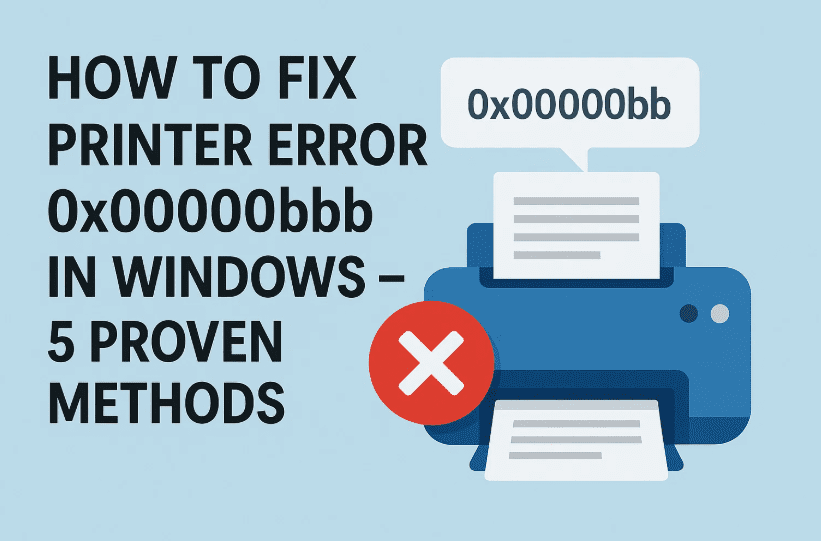
Getting the dreaded Printer error 0x00000bbb – Operation could not be completed. Unable to create print job? You’re not alone. This frustrating message usually appears when Windows can “see” your printer but can’t successfully pass a print job to it. The good news: in most cases the problem is fixable at home without calling support.
In this human-friendly, step-by-step guide I’ll show you 5 reliable ways to fix error 0x00000bbb, explain why it happens, and help you choose the fastest path to a working printer. We’ll also cover common causes, advanced clean-up steps (like fixing spooler permissions and WSD→TCP/IP port issues), and answer FAQs at the end.
Grab a cup of chai ☕—we’ll take this one step at a time. So far we’ve done the hard part (staying calm!). Let’s move to the first fix.
🧭 Quick Overview: What Causes Printer Error 0x00000bbb?
This error typically shows up when Windows fails to create the print job at the spooler stage. Common triggers include:
- Outdated or corrupt printer drivers (post Windows Updates or version upgrades).
- Wrong printer port type (Windows trying to use WSD when the printer responds reliably via Standard TCP/IP).
- Corrupt print spooler queue or permissions problems in the
C:\Windows\System32\spool\PRINTERSfolder. - Damaged Windows components / updates interfering with print subsystems.
- Misconfigured printer device settings—especially after OS upgrades or network changes.
The 5 Main Fixes (Work Through These In Order)
We’ll start with the fastest, least risky fixes and work toward deeper system actions. After each fix, try printing a test page.
✅ Method 1: Run the Built-In Printer Troubleshooter
Windows includes a targeted Printer troubleshooter that scans for common issues: driver faults, connectivity problems, queue jams, and service glitches. It often resolves 0x00000bbb without further work—so it’s worth running first.
Steps (Windows 11):
- Press Win + I to open Settings.
- Go to System > Troubleshoot > Other troubleshooters.
- Find Printer and click Run.
- Let the scan complete. If fixes are offered, click Apply this fix.
- Print a test page.
Windows 10 path: Settings > Update & Security > Troubleshoot > Additional troubleshooters > Printer > Run. (Still works in current builds and upgraded systems.)
🗣 Human Note
I know troubleshooters get a bad reputation (“It just says ‘couldn’t identify the problem’!”), but in real-world support I’ve seen them reset stale ports, re-apply drivers, and clear spooler items enough times to justify running them before we dig deeper. Let’s give Windows a chance to help itself—then we bring out the heavy tools.
🔃 Method 2: Update (or Reinstall) Your Printer Driver
A huge percentage of 0x00000bbb cases trace back to broken, outdated, or mismatched drivers—especially right after a Windows Feature Update or when moving a printer from another PC. Updating the driver directly from the manufacturer is the most reliable path.
Step-by-Step: Update via Settings / Device Manager
- Press Win + X and choose Device Manager.
- Expand Print queues (and Printers if shown).
- Right-click your printer > Update driver > Search automatically (quick) or Browse my computer (if you downloaded the latest package).
- If Windows says you already have the best driver, manually install the latest one from the printer maker’s support site (HP, Canon, Epson, Brother, etc.).
- Reboot and test.
Clean Reinstall (Recommended if Update Fails)
- Remove the printer: Settings > Bluetooth & devices > Printers & scanners > Select printer > Remove.
- (Optional but smart) Open Print server properties > Drivers tab > remove old drivers—this clears conflicts.
- Install the newest driver package downloaded from the official manufacturer website (run as admin).
- Add the printer again (Settings > Bluetooth & devices > Printers & scanners > Add device or manual IP).
💬 Why Updating Helps
Windows Updates sometimes replace or “shim” class drivers. If your printer depends on vendor features (color correction, duplex unit, secure print), mismatches cause spooler failures that surface as 0x00000bbb. Installing the vendor’s fresh driver resets that chain.







♻️ Method 3: Restart & Reset the Print Spooler Service (and Clear the Queue)
The Print Spooler service stages jobs before they go to the printer. Corrupted spooler jobs, hung service instances, or locked spool files can trigger the 0x00000bbb error. Restarting—and when needed, clearing the spool folder—often fixes stubborn cases.
Quick Restart (GUI)
- Press Win and type Services, open it.
- Scroll to Print Spooler.
- Right-click > Restart.
Full Reset (Clear Stuck Jobs)
- In Services, right-click Print Spooler > Stop.
- Open File Explorer and paste:
%windir%\System32\spool\PRINTERS - Delete all files in that folder (these are stuck print jobs).
- Go back to Services and Start the Print Spooler.
- Try printing again.
Batch Script (Optional Power User Trick)
net stop spooler
del /Q /F /S "%windir%\System32\spool\PRINTERS\*.*"
net start spooler
Save as .bat, run as administrator when print queues jam repeatedly.
✅ Set Spooler Startup Type to Automatic
While in Services, double-click Print Spooler and confirm Startup type = Automatic so it comes up at boot. This prevents intermittent “printer not found” moments after restart.
🌐 Method 4: Stop Using the WSD Port – Add a Standard TCP/IP Port (HIGH SUCCESS RATE)
This one solves so many 0x00000bbb cases it deserves bold text. Windows sometimes auto-adds printers using a WSD (Web Services for Devices) port. WSD can be flaky in small/home networks. Replacing it with a Standard TCP/IP Port tied directly to the printer’s IP address often restores reliable printing.
Why WSD Causes Trouble
WSD relies on service discovery and can break after IP changes, driver updates, or OS upgrades. When Windows tries to spool to an unresponsive WSD endpoint, you get an error—hello 0x00000bbb. Switching to a raw TCP/IP port routes jobs directly.
Step-by-Step: Create a Standard TCP/IP Port
- Find your printer’s IP (printer control panel, router DHCP table, or config printout).
- Open Settings > Bluetooth & devices > Printers & scanners.
- Select the problem printer > Printer properties (or Manage > Printer properties).
- Go to the Ports tab > click Add Port…
- Select Standard TCP/IP Port > New Port…
- Enter the printer’s IP address > Finish.
- (Optional) Disable the old WSD port by unchecking it.
- Print a test page.
This change resolved the error immediately in multiple user reports and admin case studies.
🛠️ Method 5: Fix Spool Folder Permissions (Advanced)
In rarer situations—particularly after upgrades, failed clean-ups, or aggressive security tools—the permissions on the spool folder (...spool\PRINTERS) get corrupted. If Windows can’t write the spool file, it throws 0x00000bbb.
Repair Permissions via Command Prompt (Admin)
- Open Command Prompt as Administrator.
- Run:
cd \Windows\System32\spool cacls.exe PRINTERS /E /G administrator:CThis grants the local Administrator account Change (write) permissions to the PRINTERS folder without overwriting existing ACL entries. - Restart the Print Spooler service and test print.
Note: On newer Windows builds, icacls replaces cacls, but the legacy command shown above remains in many working fixes. To modernize, use:
icacls "%windir%\System32\spool\PRINTERS" /grant Administrators:(OI)(CI)M
(Modify rights as required in managed environments.)
Deep Clean Recovery: Remove & Re-Add the Printer (Full Reset)
If you’ve tried the above and still see 0x00000bbb, perform a complete remove + clean reinstall of the printer software and drivers.
Full Removal Sequence
- Disconnect the printer (unplug USB / disable Wi-Fi temporarily).
- Go to Settings > Bluetooth & devices > Printers & scanners.
- Select the printer > Remove.
- Open Print server properties > Drivers tab > remove old driver packages.
- (Optional) Use Apps & Features to uninstall OEM printer software suites.
- Restart your PC.
Re-Add the Printer
- Power the printer and reconnect it (USB or network).
- Go to Settings > Bluetooth & devices > Printers & scanners > Add device.
- If auto-detected, select it; otherwise choose Add manually and specify IP/hostname.
- Install the latest manufacturer driver package (download first).
- Print a test page.
Users struggling with 0x00000bbb across multiple printers have reported success after completely clearing drivers and re-adding them fresh.
Bonus Diagnostic Steps (If Problem Persists)
We’ve done a solid round of core fixes. If you’re still stuck, here are targeted follow-ups before escalating to vendor support.
1. Power Cycle Printer & Check Connections
Unplug power 30 seconds, re-seat cables, confirm Wi-Fi connection, then retry. Network dropout issues can masquerade as spooler errors.
2. Clear Stuck Queue Items from Control Panel
Old failed jobs can re-trigger errors. Cancel everything in the queue before re-testing.
3. Remove “Ghost” Printer Instances & Old Ports
In complex setups, duplicate devices or orphaned ports linger and interfere. Use Print Management or Device Manager to remove extra entries, then re-add cleanly.
4. Vendor Diagnostic Utilities
Many printer makers (HP Print and Scan Doctor, Epson Software Updater, etc.) provide repair tools that refresh drivers, detect firmware issues, and reset ports. Recommended when OS-level fixes fail.
Troubleshooting Flowchart (When You’re in a Hurry)
Can you print a test page?
• Yes → Issue solved.
• No → Run Printer Troubleshooter → Update/Reinstall Driver → Restart Spooler → Switch to TCP/IP Port → Repair Permissions → Full Remove/Re-Add.
(Bookmark this sequence for future printer rescues!)
Frequently Asked Questions (FAQs)
Q1. What exactly does error 0x00000bbb mean?
Windows failed to create and hand off the print job to the spooler/printer. That breakdown is usually caused by a bad driver, wrong port, spooler corruption, or permissions issue.
Q2. I switched from USB to Wi-Fi and now see 0x00000bbb. Why?
Windows may still be pointing at an old (now invalid) port type—often WSD or a stale USB virtual port. Reassign the printer to a Standard TCP/IP Port using its network IP.
Q3. Does clearing the spool folder delete my print history?
It deletes pending queued jobs, not your documents. It’s safe and often necessary when jobs are stuck.
Q4. Can permissions on the spool folder really block printing?
Yes. If Windows (or the active user/service account) lacks write access, print jobs fail immediately with errors like 0x00000bbb. Granting proper rights to ...Spool\PRINTERS resolves it in certain cases.
Q5. I’ve tried everything—should I reinstall Windows?
Rarely necessary. A clean removal of all printer drivers, resetting ports, and re-installing with manufacturer drivers fixes the vast majority of reported 0x00000bbb incidents. Reinstall Windows only if broader system corruption exists.
Safety & Data Protection Disclaimer
The steps in this article involve changing system services, deleting spool files, and (optionally) adjusting folder permissions. Proceed carefully—especially on business networks where print servers are managed centrally. Always back up important data and create a restore point before making system changes. Editing permissions or removing drivers in error could disrupt other printers or applications. dtptips.com provides guidance “as is”; follow at your own risk.
Helpful Official Resources & Tools
Below are trusted resources you can refer to while troubleshooting. (Open them for detailed visuals, current UI labels, and updated OS guidance.)
- Microsoft Support: Fix printer connection & printing problems. Great for remove/re-add steps and connection checks. (Microsoft Support)
- Micro Center: Restart the Print Spooler Service (Windows 11). Fast reset & queue clear walkthrough. (Micro Center)
- Reconfigure Printer from WSD to TCP/IP (Step PDF). Direct walk-through for changing ports.
- Microsoft Q&A (0x00000bbb – WSD Port Fix + Driver Update Guidance). User-confirmed resolution sequence. (Answers Microsoft)
- SuperUser: Spool Folder Permission Repair via CACLS. For stubborn spool write failures. (Super User)
🔖 Tags
printer error 0x00000bbb, windows printer fix, print spooler, wsd port to tcp ip, update printer driver, reinstall printer, printer troubleshooting, windows 11 printing, printer permissions fix, standard tcp ip port
#Hashtags
#PrinterError #0x00000bbb #Windows11 #PrintSpooler #PrinterFix #TechSupport #dtptips #WindowsTroubleshooting
We’re Done (Nice Work!)
If you reached this point, you now have a full toolkit for tackling 0x00000bbb like a pro. Drop a comment if a specific brand/model gave you trouble and I’ll help tailor the next steps.
Happy printing! ✍️🖨️








