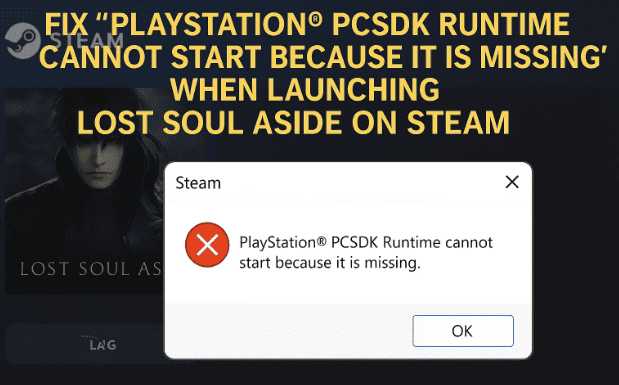
If you try to open Lost Soul Aside on Steam and see the message “The PlayStation® PCSDK runtime cannot start because it is missing”, don’t panic. This is a common, fixable setup issue—usually resolved by installing the bundled PlayStation PC SDK runtime that ships with the game. In this article, I’ll walk you through the exact steps, plus several useful alternatives if your folder names differ or you’re on a system with stricter permissions. Along the way, we’ll cover why this error appears, how to avoid it next time, and answers to the most frequent questions I’ve seen from players.
Before we begin, take a breath. You’ve already done the hard part—installing the game. Now we’ll fix the environment so Windows can locate the runtime the game expects.
Let’s go one step at a time.
🧩 1) What This Error Actually Means
Let’s start with the “why,” because understanding the cause makes the fix feel much simpler.
Lost Soul Aside depends on a PlayStation® PC SDK runtime—a small collection of libraries and services that the game expects to find on your Windows machine. If that runtime isn’t installed (or is partially installed, or its service can’t start), Windows throws the error: “The PlayStation® PCSDK runtime cannot start because it is missing.”
In practice, the game usually bundles the necessary MSI installers inside its own installation folder. The fix is to run those installers (with administrator privileges), so Windows registers the runtime correctly.
So far so good! Now that we agree on the root cause, let’s take a quick readiness pass and then get the fix done.
✅ 2) Quick Checklist (Before We Dive In)
Before jumping into the steps, it’s helpful to confirm a few basics. Think of this like laying out your tools neatly before you start.
- Steam is installed and updated: Open Steam and allow any client updates to complete.
- Lost Soul Aside is fully installed: Not paused or partially downloaded.
- You can run installers as Administrator: You’ll get a UAC prompt; click Yes.
- Security tools won’t interfere: If you use strict antivirus, be ready to temporarily allow or whitelist the game’s installers.
- Windows is healthy: A quick Windows Update check never hurts.
If these look fine, we’re ready. Let’s move to the main solution.
🛠️ 3) Core Fix: Install the Bundled PlayStation® PCSDK Runtime
We’ll install the runtime that ships with the game. Folder names sometimes vary slightly, but the idea is the same: find the PlayStation/PCSDK folder and run the .msi files.
Take your time—there’s no rush. We’ll go step by step.









Step 1: Open the game’s local files from Steam
A small detour through Steam keeps paths precise and avoids hunting around manually.
- Open Steam → Library.
- Right-click Lost Soul Aside → Properties…
- In the left sidebar, click Installed Files.
- Click Browse… to open the game’s installation folder in File Explorer.
Why this way? Steam’s “Browse” button ensures you land in the exact directory where the game lives—even if you installed it on a secondary drive.
Step 2: Locate the PlayStation PC SDK runtime folder
Inside the game’s root, look for a folder named something like:
PSPC,PSPCSDK,PlayStationSDK,PlayStationPCSDK, or- a nested path such as
PSPC/SDK/RuntimeorPSPC/SDK.
The original instructions you might have seen reference paths like:
PSPC/SDK/runtime/installer.msiPSPC/SDK/runtime/manager.msi
Folder names are sometimes cased differently (e.g.,Runtimevsruntime)—that’s okay.
If you can’t see anything that resembles this, skip ahead to Section 4 for tips on finding it.
Step 3: Run the runtime installer as Administrator
You’re likely to see two MSI files related to the runtime. The common names are along the lines of:
installer.msi(the core runtime)manager.msi(supporting service/manager component)
Do this:
- Right-click
installer.msi→ Run as administrator. - Allow the setup to complete. If asked to press any key to continue, go ahead.
- Next, double-click or right-click → Run as administrator on
manager.msi. - Let this finish as well.
Why both? Some titles register a runtime and a manager/service component. Installing both ensures the runtime can initialize without service errors at launch.
Step 4: Launch the game from Steam
Return to Steam and press Play on Lost Soul Aside. If the runtime was the missing piece, the error should be gone and the game should start normally.
So far, we’ve done a good job covering the most direct path. If your folders looked different or the MSI files weren’t obvious, let’s address that next.
🔎 4) If Your Folders Look Different (How to Find the Right MSI)
Not every build uses identical folder naming. If you didn’t see PSPC, SDK, or Runtime, try these:
- Use Windows Search inside the game folder
In the File Explorer search box (top-right), search for:*.msior*sdk* OR *pspc* OR *playstation* - Check common third-party subfolders
Sometimes runtimes live underThirdParty,Redist,Support, orDependencies. - Sort by Type and scan for “Windows Installer Package”
In File Explorer, click View → Details, then sort by Type or Name to spot.msifiles quickly.
Once you find the MSI(s), install them as Administrator and try launching the game again.
🧰 5) Verify Game Files in Steam (Caches Missing Runtime Files)
If you can’t find the runtime installers, or they appear broken, Steam can rebuild them.
- In Steam → Library, right-click Lost Soul Aside → Properties…
- Click Installed Files.
- Click Verify integrity of game files…
- Let Steam scan and re-download anything missing or corrupted.
When it’s done, repeat Section 3 to run the runtime installers again.
🖥️ 6) Install the Runtime via Command Line (Reliable on Locked-Down PCs)
On some systems, double-clicking an MSI gets blocked by policy. The command line method is more explicit and works well on managed PCs.
- In the folder containing the MSI, click the address bar in File Explorer, type
cmd, and press Enter (this opens a Command Prompt already in that directory). - Run:
msiexec /i installer.msi /qn /norestart/i= install/qn= quiet (no UI; omit this if you want the wizard)/norestart= do not auto-reboot
- Then install the manager (if present):
msiexec /i manager.msi /qn /norestart - If you prefer seeing progress, omit
/qn:msiexec /i installer.msi msiexec /i manager.msi
After that, try launching the game from Steam.
🧼 7) Clean Reinstall of the Runtime (When a Partial Install Broke Things)
If the runtime was previously installed but is corrupted, a clean reinstall helps.
- Press Windows + I → Apps → Installed apps.
- Look for entries related to PlayStation PC SDK/PSPC/PlayStation Runtime.
- Uninstall them (one by one if there are multiple).
- Re-run the MSI installers from the game folder (Section 3), as Administrator.
- Restart Windows (optional but recommended).
Now launch the game again.
🧱 8) Other Essentials: VC++ Redistributables, .NET, DirectX
While the PlayStation PC SDK runtime is the star of the show, games often rely on Microsoft runtimes too. If you still see errors or crashes after installing the PCSDK runtime, install or repair these:
- Microsoft Visual C++ Redistributables (x86 & x64)
Get the latest supported packages here: Microsoft VC++ Redistributables.
Install both x64 and x86 versions—they’re small and harmless if already present. - .NET Desktop Runtime (only if required by your game/launcher)
Official site: Microsoft .NET.
If a game component or tool asks for .NET, install the matching major version. - DirectX
Modern Windows includes DirectX 12, but some titles still need legacy components. If prompted, use the official web installer: DirectX End-User Runtime.
After installing/repairing these, reboot and try launching the game again.
🛡️ 9) Drivers, Windows Updates, and Anti-Virus Gotchas
You’re nearly there. If the runtime is installed but the game still refuses to start, check the broader system context.
- GPU Drivers
- NVIDIA: Download Drivers
- AMD: AMD Support
- Intel: Intel Download Center
Fresh drivers can resolve startup crashes or silent exits.
- Windows Update
Open Settings → Windows Update and apply pending updates. A reboot can magically resolve odd runtime registration issues. - Anti-Virus / Security Suites
Temporarily disable real-time protection or set exclusions for the game folder and the specific MSI files. After installation, turn protection back on.
Some suites silently block MSI custom actions, leaving the runtime half-installed. - Run Steam as Administrator (temporarily)
Right-click the Steam shortcut → Run as administrator just for the installation steps. You can revert to normal afterward.
🧭 10) Troubleshooting Matrix (Symptoms → Likely Cause → Fix)
Sometimes it helps to see everything at a glance. If your situation matches one of these, jump straight to the suggested fix.
| Symptom | Likely Cause | Quick Fix |
|---|---|---|
| “PCSDK runtime cannot start because it is missing” | Runtime not installed or not started | Install installer.msi and manager.msi from the game folder (Section 3) |
| MSI fails with permission error | No admin rights or AV blocking | Right-click → Run as administrator; temporarily disable AV; try Section 6 command line |
| You can’t find any PSPC/SDK/runtime folder | Cache incomplete | Verify game files in Steam (Section 5), then re-check folders |
| Game window opens then closes | Partial runtime install or missing VC++ | Section 7 clean reinstall, plus Section 8 VC++ x86/x64 |
| Error persists after installs | Corrupted service registration | Uninstall PSPC entries, reinstall MSIs, reboot; ensure AV isn’t blocking |
| PCSDK service installed but won’t start | Conflicting security or missing dependency | Event Viewer → Windows Logs → Application; then install VC++/.NET as needed (Section 8) |
| Different folder names confuse you | Build-specific layout | Use File Explorer search for *.msi (Section 4) |
❓ 11) Frequently Asked Questions
Let’s answer the common doubts that pop up during this fix. If you’re wondering about any of these, you’re not alone.
Q1. Is it safe to run MSI files from the game folder?
A. Yes—if the game was installed via a trusted source like Steam and you opened the folder using Steam’s “Browse Local Files” button. Avoid downloading “PCSDK runtimes” from random websites.
Q2. I only see one MSI (no “manager.msi”). Is that okay?
A. It’s fine. Some builds package everything in a single MSI. Install whatever the game provides and try launching.
Q3. Do I need to reinstall the runtime every time the game updates?
A. Usually no. Once registered, the runtime stays available. If an update replaces it, Steam will typically handle re-registration automatically.
Q4. Can I just copy the runtime from a friend’s PC?
A. Don’t do that. Runtimes should be installed through their installer, which registers services, files, and registry keys properly.
Q5. I installed the MSI, but Steam still shows the error. What now?
A. Try the command-line install in Section 6 (without /qn so you see any error messages). Then verify VC++ redistributables in Section 8 and check Event Viewer for clues.
Q6. Will verifying game files remove my saves?
A. No. Steam’s integrity check re-downloads missing or corrupted program files but keeps your saves (which are usually stored separately or in Steam Cloud).
Q7. I get a different error after fixing the runtime—graphics or DX errors.
A. That usually points to drivers or DirectX/VC++ components. Update GPU drivers and install the latest VC++ packages (Section 8).
Q8. Can I install the runtime without admin rights?
A. Not reliably. The runtime needs to register components system-wide. If you’re on a work/school device, contact your administrator.
Q9. Does this guide apply only to Lost Soul Aside?
A. The steps here are written for Lost Soul Aside, but similar PlayStation-runtime errors in other titles follow the same logic: install the bundled runtime MSIs and verify dependencies.
Q10. What if the runtime seems to install but Windows says it’s not running?
A. Open Services (press Windows + R, type services.msc) and look for entries related to the PlayStation/PCSDK runtime. If present but stopped, try Start. If it fails, reinstall the runtime and check Event Viewer for missing dependencies.
🎯 12) Final Notes & Good Practices
You’ve reached the finish line—nice work. Let’s wrap up with a few habits that save time on future installs and updates.
- Use Steam’s “Browse Local Files” whenever you need to run bundled installers. It guarantees you’re in the right place.
- Keep VC++ redists current (both x64 and x86). Many modern games rely on them.
- Treat security prompts thoughtfully. Temporarily relax your antivirus if it blocks legitimate game installers, then re-enable protection.
- Update GPU drivers periodically. It’s the #1 fix for mysterious crashes after you’ve handled runtimes.
- Favor official sources for any runtime or support tool. If unsure, check the publisher’s launcher or Steam’s integrity verification to re-provision files safely.
If the error is still showing after everything above, you’re likely dealing with a local policy or a broken Windows installer service. At that point, capture the exact wording of any MSI/Windows Installer error, check Event Viewer → Windows Logs → Application, and you’ll usually see a clear reason (missing dependency, service permission, or antivirus block). Address that cause, then retry the runtime install.
Disclaimer
This article is intended for educational purposes to help you resolve a common Windows/Steam runtime issue. Only run installers that come from trusted sources such as Steam or the official game installation directory. I’m not affiliated with the game’s developers or with Sony/PlayStation. Proceed at your own risk and make sure you have appropriate permissions on your PC.
Summary of the Core Fix (One Last Time)
- Steam → Library → Lost Soul Aside → Properties → Installed Files → Browse
- In the game folder, find the PlayStation PC SDK installers (commonly under
PSPC/SDK/Runtime). - Run
installer.msias Administrator, then runmanager.msias Administrator (if present). - Launch the game from Steam.
- If missing/corrupted, Verify integrity in Steam and repeat the install.
- If blocked, install via
msiexecas shown above. - If still stuck, repair VC++, check antivirus, update GPU drivers, and review Event Viewer.
That’s it—you should be back in the game. Enjoy your time in Lost Soul Aside!
Tags: Lost Soul Aside, Steam error fix, PlayStation PCSDK runtime, game won’t start, Windows gaming, MSI installer, runtime missing, verify game files, VC++ redistributable, DirectX, .NET, GPU drivers, antivirus block, troubleshooting guide
Hashtags: #LostSoulAside #Steam #Windows #PCGaming #Troubleshooting #ErrorFix #PlayStationSDK #VCRedistributable #DirectX #DotNet







