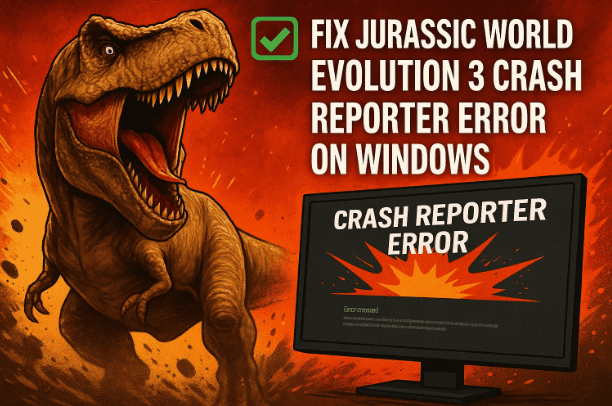
If you’re a fan of Jurassic World Evolution 3 and suddenly get hit with the “Crash Reporter” message right after launching or during gameplay, you’re not alone. Many players have reported that the game crashes unexpectedly on Windows PCs—sometimes on startup, sometimes during loading, or even in the middle of a mission.
In this guide, we’ll go step by step through every possible fix that can resolve the crash reporter error on Windows. Each method is clearly explained with context, so even if you’re not very technical, you can follow along easily and safely.
Why Jurassic World Evolution 3 Might Crash
Before we dive into the fixes, it helps to understand what’s actually going wrong. Most of the time, this error is related to:
- Incorrect graphics configuration (e.g., fullscreen conflicts)
- Outdated or corrupted graphics drivers
- Conflicts with onboard vs. dedicated GPU
- Missing DirectX or Visual C++ components
- Overlays or antivirus blocking the game’s access
- Hardware acceleration or refresh rate mismatch
With that in mind, let’s go one by one through the proven solutions.
1. Start the Game in Windowed or Borderless Mode
The most common cause of this crash is a bad fullscreen configuration. To fix that:
- Open File Explorer and go to:
C:\Users\<YourUsername>\AppData\Local\Frontier Developments\<GameName>\(If you don’t see AppData, click View → Show → Hidden items.) - Open the Config or GraphicsConfig.xml file with Notepad.
- Find the line that says:
Fullscreen="true"Replace it with:Fullscreen="false" Mode="Windowed" - Save the file and start the game again.
If windowed mode doesn’t work, try:
Mode="Borderless"
Then save and launch once more. Borderless mode often bypasses fullscreen crashes.
2. Reinstall Graphics Drivers (Clean Installation)
Corrupt or outdated GPU drivers are another leading cause of crash loops. A clean installation ensures that all old files are wiped before reinstalling.
For NVIDIA users:
- Go to NVIDIA Drivers.
- Choose your GPU model and Windows version.
- Click Search → Download → Run.
- Select Custom Installation and check Perform a Clean Installation.
- Finish the process and restart your computer.
For AMD users:
- Visit AMD Drivers and Support.
- Select your GPU and OS.
- Download, run the installer, and choose the clean installation option.
After the restart, launch the game again to see if it’s stable.
3. Update Intel Drivers Using Intel Support Assistant
If you’re using an Intel integrated GPU or hybrid laptop:
- Go to Intel Driver & Support Assistant.
- Download and install the tool.
- Let it scan your PC — click Download All → Install All.
- Restart your system after the updates finish.
Once done, try launching Jurassic World Evolution 3 again.









4. Run the Game on Dedicated GPU
If your system has both integrated and dedicated graphics cards, make sure the game uses the dedicated GPU.
- Open Windows Search and type
Graphics Settings. - Click Browse, locate your game’s
.exefile (usually inside the installation folder). - Once added, click Options → High Performance.
- Save the settings and launch the game again.
Desktop users: Ensure your HDMI or DisplayPort cable is connected to the GPU slot, not the motherboard port.
5. Test Launch Options (DX11, DX12, D3D11)
Sometimes the crash is caused by DirectX version conflicts. You can force the game to use a specific version.
- Right-click on the game in Steam or Epic Games Launcher.
- Select Properties → Launch Options.
- Try these one by one (launching each time):
-dx11 -dx12 -d3d11
If one version causes crashes, another might work better depending on your system and GPU.
6. Lower Refresh Rate or Disconnect Extra Monitors
High refresh rates like 240Hz can sometimes cause instability in older games.
Try the following:
- Right-click your desktop → Display Settings → Advanced Display.
- Change the refresh rate to 60Hz or 120Hz.
- If you have multiple monitors, temporarily disconnect them and use only one.
Then restart the game.
7. Delete the Config Folder
If the configuration files themselves are corrupted:
- Navigate to:
C:\Users\<YourUsername>\AppData\Local\Frontier Developments\<GameName>\ - Rename the folder
Config.LocaltoConfig.Local.old. - Launch the game — it will generate a fresh configuration automatically.
8. Disable the Onboard GPU
Dual graphics setups (like Intel + NVIDIA) can sometimes conflict.
- Right-click Start → Device Manager.
- Expand Display adapters.
- Right-click the integrated GPU (e.g., Intel UHD) → Disable device.
- Launch the game and test.
⚠️ Note: Don’t forget to re-enable it later for normal battery-efficient use on laptops.
9. Roll Back to an Older GPU Driver
Sometimes the latest driver causes compatibility problems.
- For NVIDIA: Go to your driver download page → “View More Versions” → choose an older version such as 581.29 or 581.15.
- Perform another clean installation and reboot.
Test the game after the rollback.
10. Run the Game as Administrator & Change Compatibility Mode
- Go to the game’s installation directory.
- Right-click the
.exefile → Properties → Compatibility. - Check Run this program as administrator.
- You can also try running it in Windows 8 or Windows 7 mode.
- Apply, click OK, and launch.
If it still fails, try checking Disable fullscreen optimizations before launching again.
11. Allow the Game in Windows Security & Firewall
Your antivirus might be blocking the game’s executable file.
In Windows Security:
- Go to Settings → Privacy & Security → Windows Security → Virus & threat protection.
- Scroll down → Manage ransomware protection → Allow an app through Controlled Folder Access.
- Click Add an allowed app → Browse all apps → select your game’s
.exefile.
In Firewall:
- Type Control Panel → System and Security → Windows Defender Firewall.
- Click Allow an app or feature through Firewall → Change settings.
- Add another app and browse for your game
.exeagain. - Save the changes.
If you use a third-party antivirus (like Avast, Bitdefender, or McAfee), add the same exception there.
12. Verify Game Files Integrity
If some files are missing or corrupted:
- In Steam:
Right-click the game → Properties → Installed Files → Verify Integrity of Game Files. - In Epic Games Launcher:
Click the three dots next to the game → Manage → Verify.
Wait for 100% verification, then relaunch.
13. Update Windows to the Latest Version
Outdated Windows builds often cause unexpected issues with DirectX or drivers.
- Go to Settings → Windows Update → Check for updates.
- Install all pending updates.
- Restart your PC and then test the game.
14. Change Power Plan Settings
Switching your power plan can improve GPU stability.
- Type Control Panel → Hardware and Sound → Power Options.
- Select Power Saver or High Performance.
- Apply and restart.
Sometimes, simply toggling between these options refreshes hardware profiles.
15. Toggle Hardware-Accelerated GPU Scheduling
- Search Graphics Settings in Windows.
- Scroll down → toggle Hardware-Accelerated GPU Scheduling.
- If it’s off, turn it on (and vice versa).
- Restart your system.
This changes how the GPU handles certain rendering tasks.
16. Install Microsoft Visual C++ Redistributables
Missing runtime libraries are a frequent crash cause.
- Go to the official Microsoft Visual C++ Redistributables page.
- Download both:
- x86 (vc_redist.x86.exe)
- x64 (vc_redist.x64.exe)
- Run both files. If it shows “Repair,” click it. If “Install,” go ahead and install.
- Restart your PC afterward.
17. Reinstall DirectX
Another critical fix is reinstalling DirectX runtime components.
- Download it from the official DirectX End-User Runtime Web Installer.
- Run the
.exefile → accept terms → uncheck “Install Bing Bar” → proceed. - After installation, restart your computer.
18. Update Your BIOS (Advanced)
⚠️ Disclaimer: BIOS updates are safe when done carefully but can cause serious issues if interrupted. Ensure your laptop battery is above 10% and connected to power.
- Visit your motherboard or laptop manufacturer’s website (e.g., ASUS, Dell, HP, MSI, Lenovo).
- Enter your model number.
- Download the latest BIOS update and follow their on-screen guide.
- Restart and test the game again.
19. Increase Virtual Memory (Page File)
If your system is low on memory, increasing virtual memory can help.
- Type View Advanced System Settings → open it.
- Under Performance, click Settings → Advanced → Virtual Memory → Change.
- Uncheck “Automatically manage…”
- Select the drive where your game is installed.
- Choose Custom Size:
- Initial size = 1.5 × RAM (in MB)
- Maximum size = 3 × RAM (in MB)
Example for 16 GB RAM: - Initial: 24576
- Maximum: 49152
- Click Set → OK → Apply → OK.
Restart your PC and launch the game.
If things don’t improve, go back and select System Managed Size.
20. Disable Overlays and Overclocking
Overlays like Discord, GeForce Experience, or Steam can cause game instability.
Turn them off:
- Steam → uncheck “Enable Steam Overlay.”
- Discord → Settings → Game Overlay → Turn off.
- NVIDIA App → disable overlay in settings.
- Close MSI Afterburner or other overclock tools.
Then try relaunching.
21. Try Debug Mode (NVIDIA Only)
- Right-click your desktop → NVIDIA Control Panel.
- Go to Help → Debug Mode.
- Enable it and restart the game.
This disables GPU overclocking automatically, restoring stable clock speeds.
22. Unplug Unnecessary Devices
Sometimes connected peripherals conflict with input libraries:
- Unplug wheels, pedals, or game controllers temporarily.
- Disconnect RGB keyboards/mice (like Razer or Keychron).
- Reconnect after testing the game.
23. Reinstall the Game to a Different Drive
If none of the above works, reinstalling on another drive often fixes corruption issues.
- Uninstall the game via Steam or Epic Launcher.
- Reinstall it to another drive (preferably SSD).
- Restart and test.
Frequently Asked Questions (FAQ)
Q1. Why does Jurassic World Evolution 3 keep showing the crash reporter on startup?
It usually indicates a graphics or configuration file issue—commonly fixed by switching to windowed/borderless mode or reinstalling GPU drivers.
Q2. Can antivirus really cause this error?
Yes. Controlled folder access and real-time protection sometimes block the .exe from saving cache data.
Q3. Should I disable BIOS or GPU acceleration permanently?
No. Only toggle them temporarily to test. Revert to default once the game runs fine.
Q4. Does reinstalling Visual C++ and DirectX affect other games?
Not at all. These are shared Microsoft components used by many games and apps.
Final Thoughts
So far, we’ve covered nearly every method that helps fix the Jurassic World Evolution 3 Crash Reporter Error on Windows. In most cases, simply updating the GPU driver or changing the display mode resolves it. However, if your issue persists even after all these steps, reinstalling the game or waiting for an official patch from Frontier Developments might be necessary.
Take it one step at a time and restart your PC after every major change. You’ll usually spot the difference right after a clean driver install or when switching from fullscreen to borderless mode.
Disclaimer:
Editing system files, updating BIOS, or modifying driver settings can affect your computer’s performance if not done correctly. Proceed carefully, follow official instructions, and back up your data before making advanced changes.
#JurassicWorldEvolution3 #GameCrashFix #WindowsGaming #DirectX #NVIDIA #AMD #PCGaming #FrontierDevelopments







