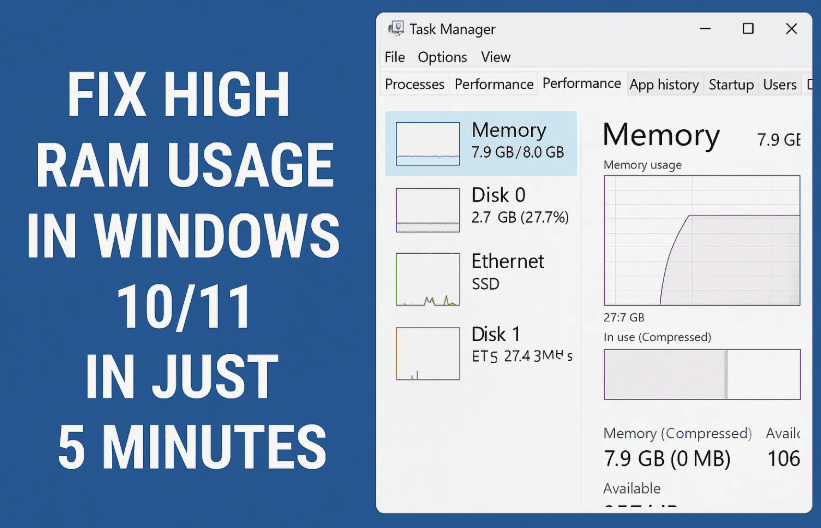
If your Windows 10 or 11 system feels laggy, sluggish, or unresponsive due to high RAM usage, you’re not alone. The good news is that you can fix these problems in just a few minutes with some smart tweaks and lightweight tools. Whether you’re on a low-end PC or a high-performance rig, these steps will help you free up memory, improve multitasking, and boost FPS in games.
⚠️ Disclaimer: Some tweaks involve modifying system settings and registry values. Please follow instructions carefully and back up your system before making changes.
🔎 Step 1: Turn Off Clipboard History
Clipboard history stores everything you copy. Disabling it frees up RAM and keeps your system cleaner.
- Press
Start, type Settings, and open it. - Go to System → Clipboard.
- Click Clear (if available) and toggle Clipboard history to Off.
📢 Step 2: Disable Annoying Notifications
Windows notifications can consume resources and slow you down.
- In Settings, go to System → Notifications & Actions.
- Turn off unnecessary app notifications.
- Uncheck tips, suggestions, and promotional messages.
🧰 Step 3: Disable Memory Compression
Memory compression tries to save RAM but often causes higher CPU load and slower performance.
- Search for PowerShell, right-click and choose Run as Administrator.
- Type:
Get-MMagentand press Enter. - If MemoryCompression = True, disable it using:
Disable-MMAgent -MemoryCompression
- Verify with:
Get-MMagentagain.
This step alone can free up tons of memory and improve gaming performance by 5–20 FPS.
🤖 Step 4: Use Wise Memory Optimizer
Wise Memory Optimizer is a free and lightweight tool that clears unused memory.
- Download it from WiseCleaner.
- Open the app and click the green Optimize button.
- Watch your RAM usage drop instantly.
📂 Step 5: Registry Tweaks to Optimize RAM Handling
Let’s move into some safe registry tweaks. Don’t worry—we’ll walk through them carefully.
- Press
Startand type Registry Editor. - Paste this path into the address bar:
HKEY_LOCAL_MACHINE\SYSTEM\CurrentControlSet\Control\Session Manager\Memory Management
- Edit these values:
- ClearPageFileAtShutdown: Set to
1 - DisablePagingExecutive: Set to
1 - LargeSystemCache: Set to
1
- ClearPageFileAtShutdown: Set to
- Now paste this path:
HKEY_LOCAL_MACHINE\SYSTEM\ControlSet001\Services\Ndu
- Double-click Start and set value to
4
This disables the NDU service, which can cause high RAM/disk usage.
🔌 Step 6: Tweak Google Chrome to Use Less RAM
Chrome can be a RAM hog, so let’s clean it up:
- Open Chrome → Click three dots → Settings → System
- Disable:
- “Continue running background apps when Chrome is closed”
- “Show system notifications”
- Disable:
- Go to Performance tab:
- Enable Memory Saver
- Choose Maximum (for low RAM PCs) or Balanced
- In the address bar, type:
chrome://flags- Search Zero Copy Rasterizer → Set to Enabled
- Search GPU Rasterization → Set to Enabled
- Click Relaunch to apply changes
📊 Step 7: Adjust Virtual Memory
Custom virtual memory settings can stabilize your system when physical RAM runs out.






- Search Advanced System Settings
- Click Settings under Performance
- Switch to Advanced tab → Click Change under Virtual Memory
- Uncheck Automatically manage paging file
- Select drive C: → Choose Custom size
- Initial size: your RAM in MB (e.g., 16 GB = 16384)
- Max size: double your RAM (e.g., 32 GB = 32768)
- Click Set → OK → Restart PC
🛠️ Step 8: Disable Unnecessary Background Apps
- Type Background Apps in search
- Turn off any unused apps like Xbox, Maps, Skype, etc.
🔄 Step 9: Clean Startup Programs
- Open Task Manager (
Ctrl + Shift + Esc) - Go to Startup tab
- Disable apps like Discord, OneDrive, Spotify, etc.
⚖️ Step 10: Disable Heavy Services
- Press
Start, type Services, and press Enter - Find and disable:
- SysMain
- Connected User Experiences
- Windows Search
- Diagnostics Tracking Service
Double-click each one, click Stop, and set Startup type to Disabled.
❓ Frequently Asked Questions (FAQ)
Q1: Will disabling memory compression harm my system?
A: Not at all. For most users, it improves RAM usage and performance.
Q2: Is Wise Memory Optimizer safe?
A: Yes, it’s lightweight and doesn’t run in the background unless you let it.
Q3: Why modify virtual memory manually?
A: Windows doesn’t always allocate the best values. Custom settings improve stability and performance.
✅ Final Words
If your RAM usage has been bothering you and you were tired of constant lags, this guide should make a visible difference. These tweaks are easy, free, and totally worth your 5 minutes.
Let your RAM finally breathe, and enjoy a smoother Windows experience.
Tags: RAM optimization, fix high RAM usage, Windows 11 RAM fix, Chrome memory usage, virtual memory, disable memory compression, background apps
Hashtags:
#Windows11 #HighRAMUsage #RAMFix #MemoryOptimizer #SpeedUpWindows #ChromeTweaks #VirtualMemory #Windows10 #LowEndPC








