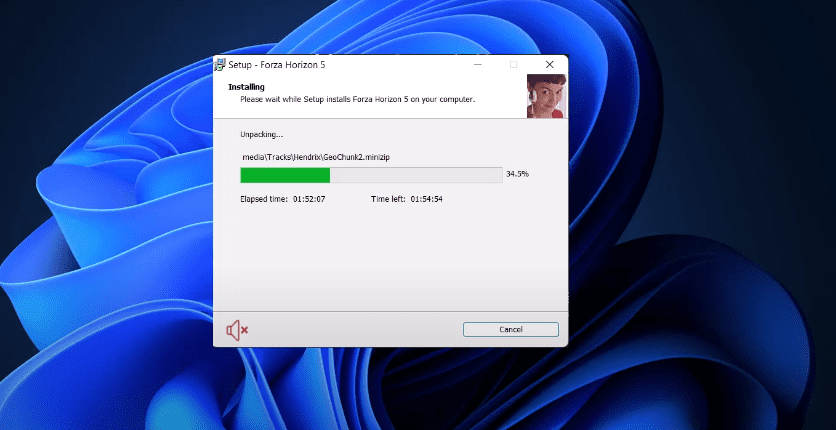
If you’re trying to install Forza Horizon 5 on your PC and facing issues like launch failures, crashes, or antivirus-related problems, this step-by-step guide will help you complete a successful and clean installation. This method works well for repacked versions (like DODI or FitGirl), especially in cases where antivirus software mistakenly interferes with the game files.
⚠️ Disclaimer: This article is for educational purposes only. It does not support or promote piracy. Please consider buying the official version of Forza Horizon 5 from trusted sources like the Microsoft Store or Steam to support the developers.
🔧 Step-by-Step Installation Guide for Forza Horizon 5 (PC)
✅ Step 1: Disable Windows Antivirus Temporarily
Before you run the game setup, it’s essential to turn off the antivirus to avoid accidental deletion of necessary files:
- Open the Start Menu and search for Windows Security.
- Click Open.
- On the left panel, click Virus & threat protection.
- On the right side, click Manage settings.
- Turn off the following:
- Real-time protection
- Cloud-delivered protection
- Automatic sample submission
- Tamper protection
💡 Why Disable It? Repack versions often include modified executables that antivirus programs wrongly detect as threats.
🖥️ Step 2: Launch the Installer
- Navigate to the downloaded game setup file.
- Double-click the installer.
- If prompted by the User Account Control (UAC), click Yes.
- Once on the setup screen, press the Up Arrow key to highlight
Install, then press Enter. - Select Proceed to continue.
📁 Step 3: Choose Your Installation Location
- You’ll be asked to select where to install the game.
- Choose a drive and folder (e.g.,
C:\ForzaHorizon5) and click OK. - Click Next.
🌐 Step 4: Choose Language
- You’ll be shown a list of language options.
- Uncheck all languages except English.
- Click Install to begin the installation.
✔️ Step 5: Complete the Installation
Once installation is complete:
- Click Finish to exit the installer.
🔒 Step 6: Add the Game Folder to Antivirus Exclusions
Now it’s time to prevent the antivirus from deleting the game files in the future.
- Reopen Windows Security.
- Go to Virus & Threat Protection > Manage Settings.
- Scroll down and click Add or remove exclusions.
- Click Add an exclusion > Folder.
- Navigate to your game folder (e.g.,
C:\ForzaHorizon5) and select it. - This will whitelist the folder and prevent interference.
🔄 Step 7: Turn Antivirus Back On
Don’t forget to restore your protection after everything’s done:
- Go back to Windows Security > Manage Settings.
- Re-enable all the settings you previously disabled.
🚀 Step 8: Launch the Game
- Navigate to your game folder.
- Launch the game using the game’s executable file.
- It should now run without any issues like crashes or blocked files.
✅ Summary
By following the steps above, you’ll ensure Forza Horizon 5 installs and runs smoothly without any antivirus interruptions or file corruption. This method is particularly useful when dealing with unofficial game repacks that are commonly flagged by security software.
🔖 Tags
forza horizon 5 installation, forza horizon 5 crash fix, forza horizon 5 antivirus exclusion, dodi repack fix, fitgirl repack install guide, game not launching fix, windows defender settings, forza horizon 5 repack tutorial, pc game installation
📢 Hashtags
#ForzaHorizon5 #GameFix2025 #RepackInstallGuide #PCGaming #WindowsSecurityFix #AntivirusExclusion #ForzaInstallation #NoCrashGaming #FitGirlFix #DODIRepack
Enjoy racing through the open world of Forza Horizon 5 without any interruptions or technical hiccups!